Job Postings
The Job Postings page lists all job listings in the organization. Job postings follow a lifecycle from Draft through Open, Paused, Closed, and Filled. Each posting can be linked to a position template, assigned a custom application form schema, and published to the public careers page when enabled. Applicant counts and view metrics are tracked per posting.
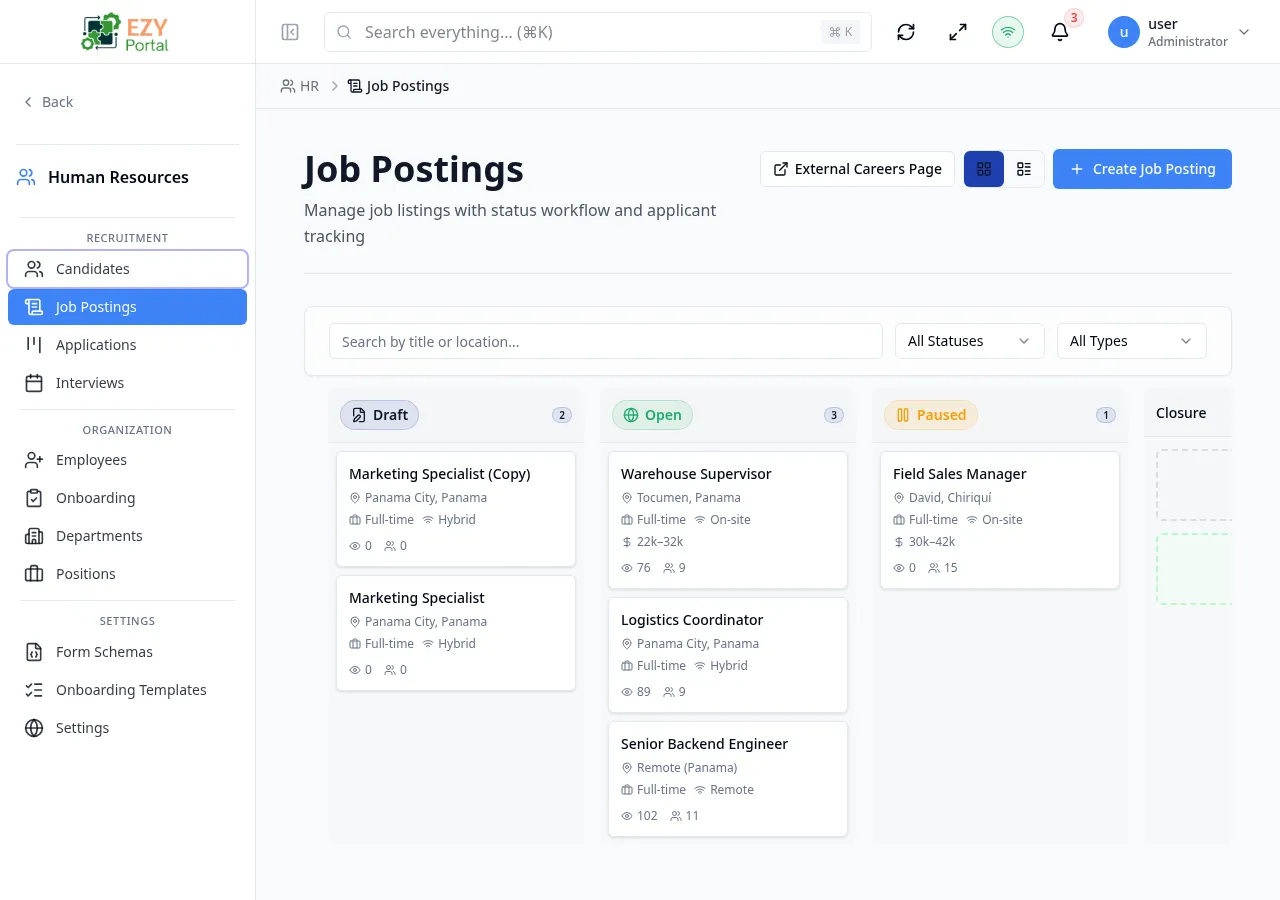
Accessing the Page
Section titled “Accessing the Page”- Route:
/hr/job-postings - Menu Path: HR → Recruitment → Job Postings
List Columns
Section titled “List Columns”| Column | Default Visible | Sortable | Description |
|---|---|---|---|
| Title | Yes | Yes | Job title |
| Status | Yes | Yes | Current lifecycle status badge |
| Type | Yes | Yes | Employment type |
| Remote | Yes | No | Work location type (On-site, Remote, Hybrid) |
| Salary | Yes | No | Salary range if configured and set to public |
| Views | Yes | Yes | Number of views on the public careers page |
| Apps | Yes | Yes | Number of applications received |
Status Values
Section titled “Status Values”graph LR
DRAFT -->|Publish| OPEN
OPEN -->|Pause| PAUSED
PAUSED -->|Resume| OPEN
OPEN -->|Close| CLOSED
OPEN -->|Mark as Filled| FILLED
PAUSED -->|Close| CLOSED
| Status | Description |
|---|---|
| Draft | Created but not yet published; not visible on the careers page |
| Open | Published and accepting applications |
| Paused | Temporarily halted; not visible on the careers page |
| Closed | No longer accepting applications |
| Filled | Position has been filled; posting is closed |
Employment Type Values
Section titled “Employment Type Values”| Type | Description |
|---|---|
| Full-time | Standard full-time role |
| Part-time | Reduced-hours role |
| Contract | Fixed-term contract |
| Internship | Internship position |
| Temporary | Temporary role |
Work Location Values
Section titled “Work Location Values”| Value | Description |
|---|---|
| On-site | Physical office presence required |
| Remote | Fully remote |
| Hybrid | Mix of remote and on-site |
Filtering
Section titled “Filtering”| Filter | Type | Description |
|---|---|---|
| Search | Free text | Searches by job title or location |
| Status | Select | Filter by posting status |
| Type | Select | Filter by employment type |
Sorting
Section titled “Sorting”Click any sortable column header to sort ascending; click again for descending; third click removes the sort.
Pagination
Section titled “Pagination”Server-side pagination with configurable page size.
Actions
Section titled “Actions”Page Actions
Section titled “Page Actions”| Action | Description |
|---|---|
| Create Job Posting | Opens the full-page Create Job Posting form at /hr/job-postings/new |
Row Actions
Section titled “Row Actions”| Action | Availability | Description |
|---|---|---|
| Edit | All statuses | Opens the full-page Edit Job Posting form at /hr/job-postings/:id/edit |
| Publish | Draft only | Moves status to Open |
| Pause | Open only | Moves status to Paused |
| Resume | Paused only | Moves status back to Open |
| Close | Open or Paused | Moves status to Closed |
| Mark as Filled | Open only | Moves status to Filled |
| Duplicate | All statuses | Creates a new Draft copy of the posting |
| Delete | All statuses | Opens the Delete confirmation dialog |
Clicking a row opens the Job Posting Detail page.
Creating a Job Posting
Section titled “Creating a Job Posting”Click Create Job Posting to open the Create Job Posting page. New postings are always saved as Draft.
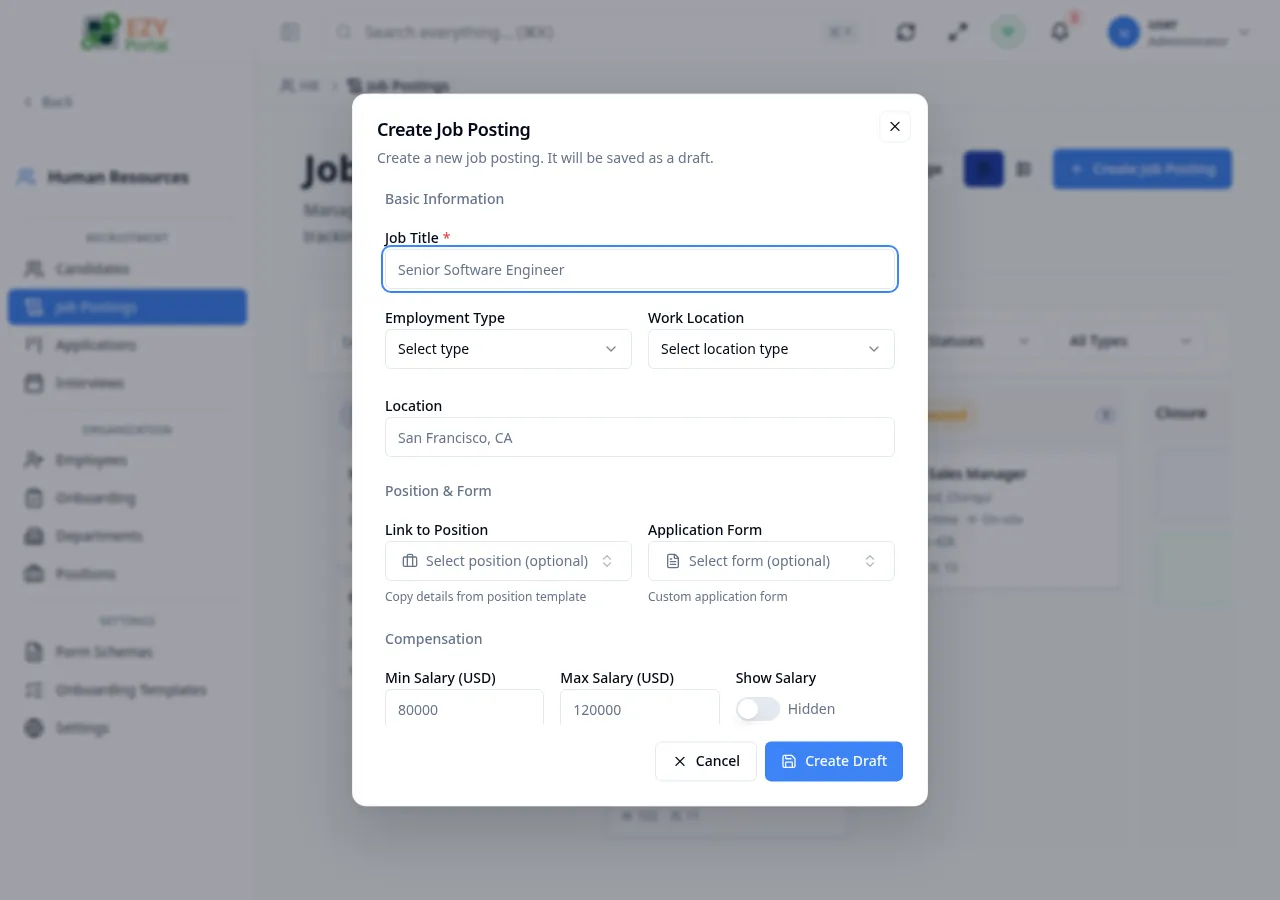
Fields
Section titled “Fields”| Field | Required | Type | Description | Default | Validation |
|---|---|---|---|---|---|
| Job Title | Yes | Text | Display title of the role | — | Max 255 chars |
| Employment Type | No | Select | Full-time, Part-time, Contract, Internship, Temporary | — | — |
| Work Location | No | Select | On-site, Remote, or Hybrid | — | — |
| Location | No | Text | Office location or city (e.g., “San Francisco, CA”) | — | Max 255 chars |
| Link to Position | No | Entity select | Link to an existing Position record to copy details | — | — |
| Application Form | No | Entity select | Custom form schema for applications | — | — |
| Min Salary | No | Number | Minimum salary | — | Must be ≤ Max Salary |
| Max Salary | No | Number | Maximum salary | — | — |
| Currency | No | Text | 3-letter ISO currency code | — | Exactly 3 chars |
| Show Salary | — | Select | Public or Hidden — controls salary visibility on the careers page | Hidden | — |
| Description | No | Textarea | Role overview for candidates | — | — |
| Requirements | No | Textarea | Required qualifications | — | — |
| Responsibilities | No | Textarea | Day-to-day responsibilities | — | — |
| Benefits | No | Textarea | Compensation and benefits details | — | — |
| Headcount | No | Number | Number of positions to fill | 1 | Min 1 |
| Closes At | No | Date | Optional closing date for applications | — | — |
Steps:
- Click Create Job Posting.
- Enter the job title and optionally link to an existing position.
- Set employment type, work location, and location.
- Optionally fill in compensation, description, requirements, responsibilities, and benefits.
- Use Generate with AI in the Job Description section when you want AI-generated description, responsibilities, requirements, and benefits text. The generated sections open in a preview dialog where selected sections can be applied to the form.
- Click Create Draft — the posting is saved as Draft and opens the detail page.
- Use Apply if you want to create the draft and continue editing the new posting.
- To publish, use the Publish row action on the list or detail page.
Editing a Job Posting
Section titled “Editing a Job Posting”Click the Edit row action to open the Edit Job Posting page. All fields from the Create form are available. Additionally, the valid status transitions for the posting are available directly in the edit page. Save returns to the detail page; Apply saves changes and keeps the edit page open.
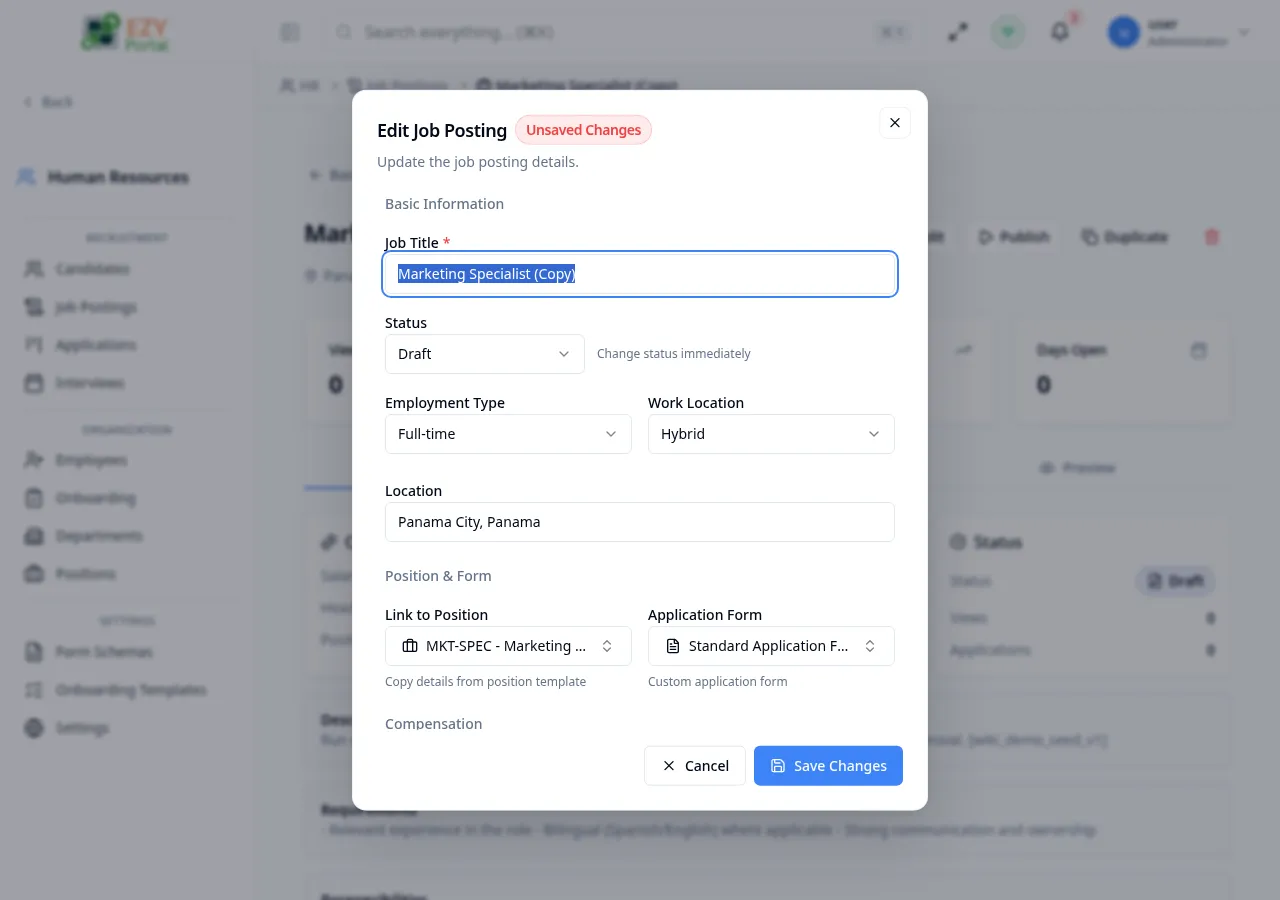
Deleting a Job Posting
Section titled “Deleting a Job Posting”- Open row actions and select Delete.
- A confirmation dialog warns if the posting is open with active applications. Applications are not deleted.
- Click Delete to confirm.
Note: Open postings with active applications can still be deleted. Associated applications remain in the system.
Common tasks
Section titled “Common tasks”- Open HR → Recruitment → Job Postings from the sidebar.
- Click Create Job Posting and fill in the form, then save as Draft.
- Use the Publish row action to make the posting live on the careers page.
- Monitor the Apps and Views columns to track engagement.
Related Pages
Section titled “Related Pages”- Create Job Posting — Full-page create workflow
- Edit Job Posting — Full-page edit workflow with status transitions
- Job Posting Detail — Full detail view with applications list
- Applications — Applications submitted for job postings
- Positions — Position templates linked to job postings
- Form Schemas — Custom application forms
- HR Settings — Enable/disable the public careers page