Business Partner Detail
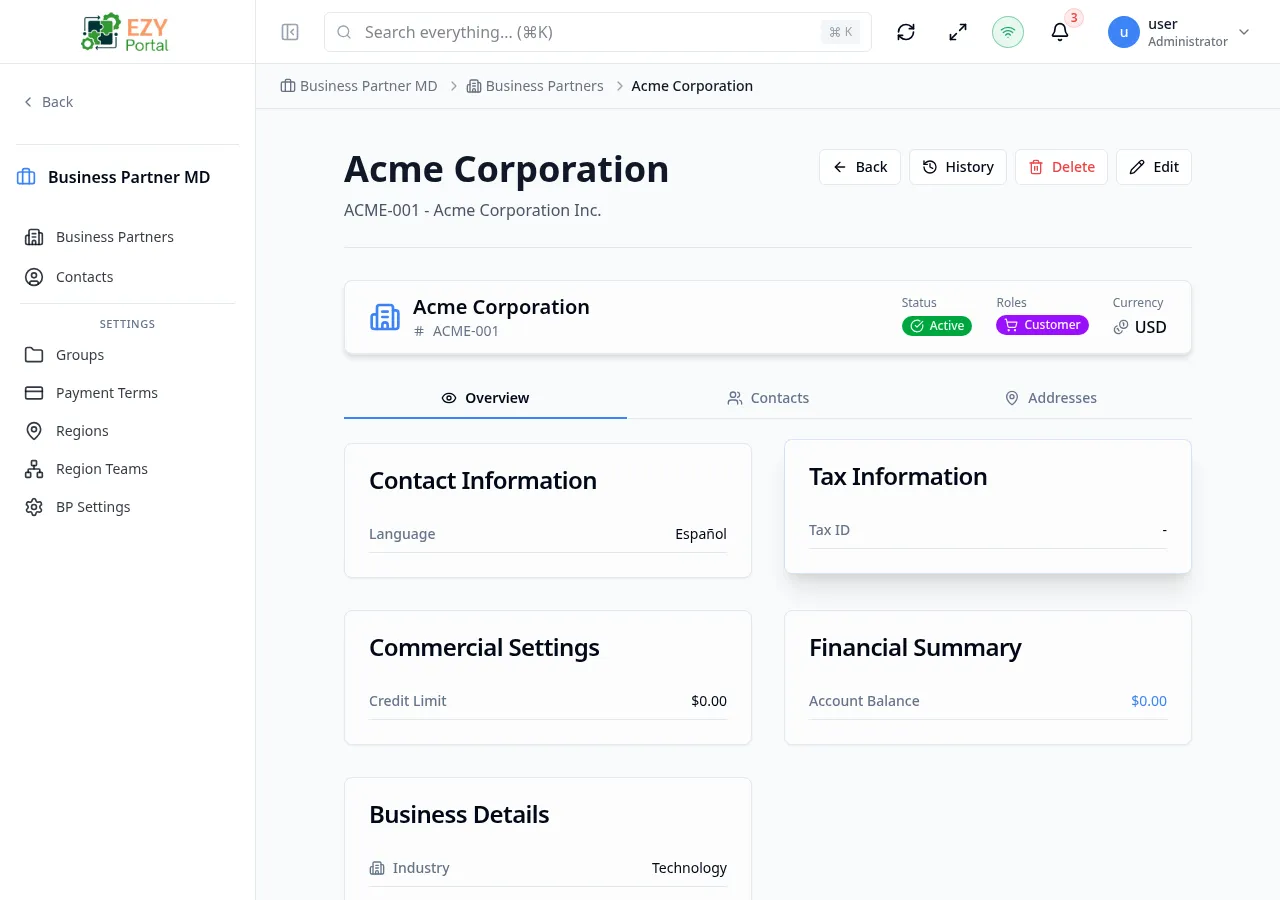
View comprehensive information about a business partner including contact details, addresses, tax and commercial settings, financial summary, and custom fields.
Accessing the Page
Section titled “Accessing the Page”From the Business Partners list, click any row, or navigate directly to /business-partners/:id.
Header / Action Bar
Section titled “Header / Action Bar”The top of the page displays the business partner name with a subtitle showing the code and legal name. Action buttons:
| Button | Description |
|---|---|
| Back | Return to the business partners list |
| Audit Log | View creation/update history, sync state, and version |
| Delete | Delete the business partner (requires confirmation, Admin permission) |
| Edit | Open the Edit Business Partner form |
Summary Card
Section titled “Summary Card”Displayed below the header:
| Field | Description |
|---|---|
| Name + Code | Full business partner name and unique code |
| Status | Status badge — Active, Inactive, Prospect, or Blocked |
| Roles | Role badges — Customer, Vendor, Lead, and/or Partner |
| Currency | Default transaction currency |
| On Hold | Warning badge if the partner is on hold |
The detail page has three tabs. The default tab is Overview. Tabs sync with the URL hash (#overview, #contacts, #addresses).
Overview Tab
Section titled “Overview Tab”The overview tab displays information in a responsive two-column grid:
Contact Information
Section titled “Contact Information”| Field | Description |
|---|---|
| Primary email address (click to copy) | |
| Phone | Primary phone number (click to copy) |
| Mobile | Mobile phone number (click to copy) |
| WhatsApp number (click to open WhatsApp) | |
| Website | Company website (click to open) |
| Preferred Channel | Preferred communication channel |
| Language | Preferred communication language |
Commercial Settings
Section titled “Commercial Settings”| Field | Description |
|---|---|
| Payment Terms | Assigned payment terms |
| Region | Assigned region |
| Price List | Default price list |
| Credit Limit | Maximum credit allowed (formatted currency) |
Business Details
Section titled “Business Details”| Field | Description |
|---|---|
| Search Name | Normalized search name |
| Industry | Industry classification |
| Segment | Market segment |
| Employees | Number of employees |
| Annual Revenue | Annual revenue amount |
Only shown if at least one field has a value.
Tax Information
Section titled “Tax Information”| Field | Description |
|---|---|
| Tax ID | Tax identification number |
| Check Digit | Verification digit (if applicable for the tenant’s country) |
| Tax Scheme | Tax scheme |
| Withholding Code | Withholding tax code |
| Tax Exempt | Badge indicating tax-exempt status |
Country-specific fiscal fields are rendered dynamically based on the tenant’s country configuration.
Financial Summary
Section titled “Financial Summary”| Field | Description |
|---|---|
| Account Balance | Total outstanding balance |
| Customer Balance | Outstanding customer balance (click to open Account Statement) |
| On Account | Payments on account (shown in green) |
| Available Credit | Remaining credit limit (shown in red if negative) |
| Vendor Balance | Outstanding vendor balance |
Fields adapt based on the partner’s roles — customer-only partners show customer fields, vendor-only show vendor fields, and partners with both roles show all.
Additional Information
Section titled “Additional Information”| Field | Description |
|---|---|
| Tags | Assigned tags displayed as badges |
| Notes | Free-text notes |
Custom Fields
Section titled “Custom Fields”Dynamic custom fields from field definitions, displayed if configured for the tenant.
Contacts Tab
Section titled “Contacts Tab”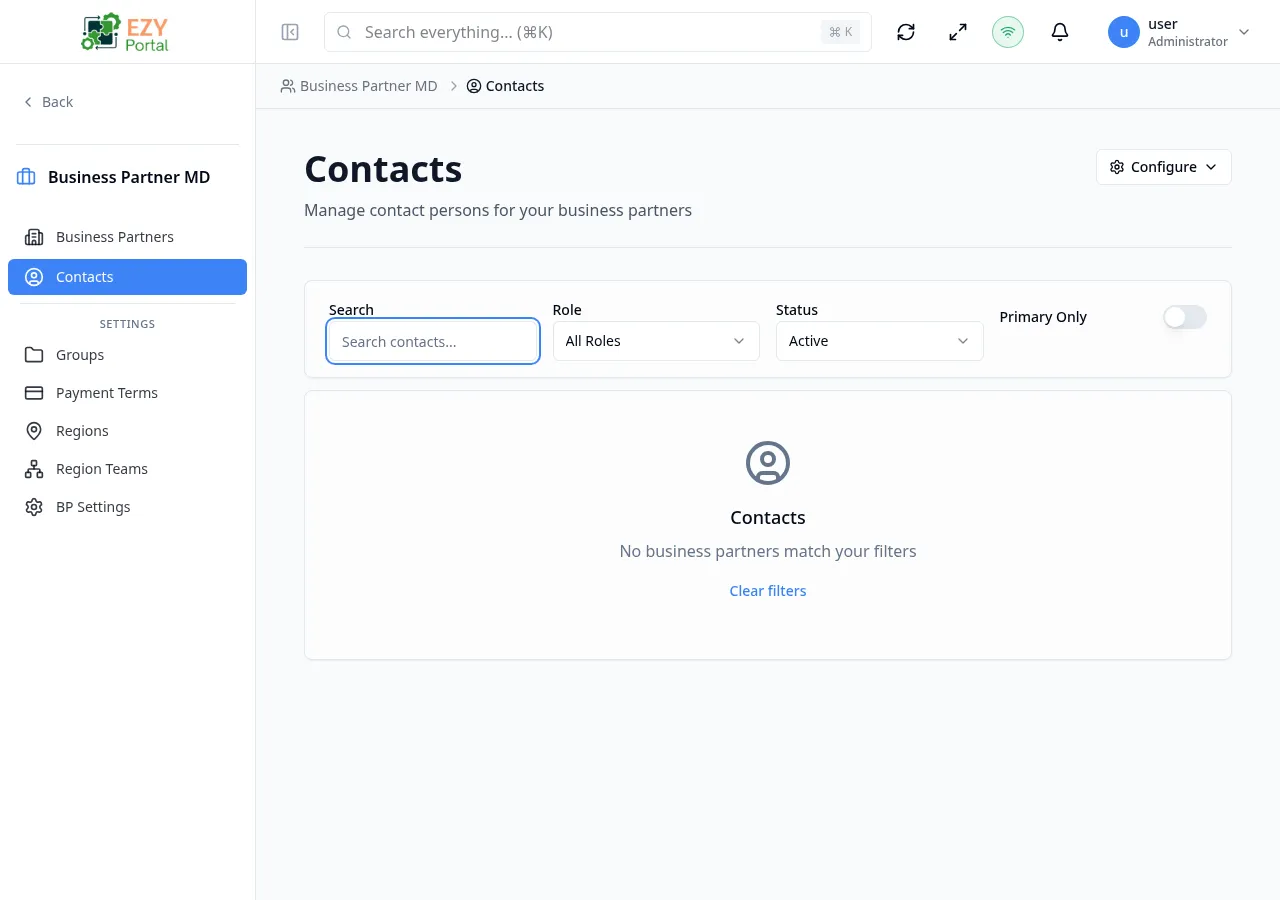
Lists all contacts associated with the business partner with filtering, sorting, and pagination (30 per page).
Filters:
| Filter | Description |
|---|---|
| Search | Search contacts by name, email, or phone |
| Active | Show active/inactive contacts |
| Primary | Filter primary or non-primary contacts |
| Role | Filter by contact role (Primary, Billing, Purchasing, Technical, Decision Maker, Logistics, Other) |
Actions:
| Action | Permission | Description |
|---|---|---|
| Add Contact | Write | Open the create contact dialog |
| Edit | Write | Edit the contact in a dialog |
| Delete | Admin | Remove the contact after confirmation |
| Set Primary | Write | Set this contact as the primary contact |
Click any contact row to navigate to the Contact Detail page.
Only one primary contact is maintained per business partner. Promoting a new primary contact automatically demotes the previous one.
Addresses Tab
Section titled “Addresses Tab”Lists all addresses associated with the business partner with filtering and pagination (30 per page).
Filters:
| Filter | Description |
|---|---|
| Search | Search addresses by label or content |
| Active | Show active/inactive addresses |
| Type | Filter by address type (Billing, Shipping) |
Actions:
| Action | Permission | Description |
|---|---|---|
| Add Address | Write | Open the create address dialog |
| Edit | Write | Edit the address in a dialog |
| Delete | Admin | Remove the address after confirmation |
| Set Default Billing | Write | Set this address as the default billing address |
| Set Default Shipping | Write | Set this address as the default shipping address |
Click an address row to open the address detail dialog.
When a default billing or shipping address is changed, the previous default for that type is cleared automatically.
Audit Log
Section titled “Audit Log”Accessible from the Audit Log button in the action bar. Displays:
| Section | Fields |
|---|---|
| Sync Info | Sync state, last sync timestamp |
| Creation Info | Created date, created by user |
| Update Info | Updated date, updated by user, version |
Deleting a Business Partner
Section titled “Deleting a Business Partner”- Click Delete in the action bar
- A confirmation dialog warns that the deletion is permanent
- Click Delete to confirm — you are redirected to the business partners list
Deletion requires Admin permission and is blocked for partners with linked transactions.
Credit and Exposure Context
Section titled “Credit and Exposure Context”The financial summary reflects current credit and exposure status for the partner, including customer and vendor balances, on-account values, and available credit. These values update as related finance documents are posted.
Related Pages
Section titled “Related Pages”- Business Partners — List and search all business partners
- Create Business Partner — Create a new business partner
- Edit Business Partner — Edit an existing business partner
- Account Statement — View transaction history
- Contacts — Manage business partner contacts
- Groups — Organize business partners into groups