License
The License page shows the current account license status and the cloud synchronization queue state. Super users can refresh license data and trigger a manual sync from this page.
Route: Settings → License
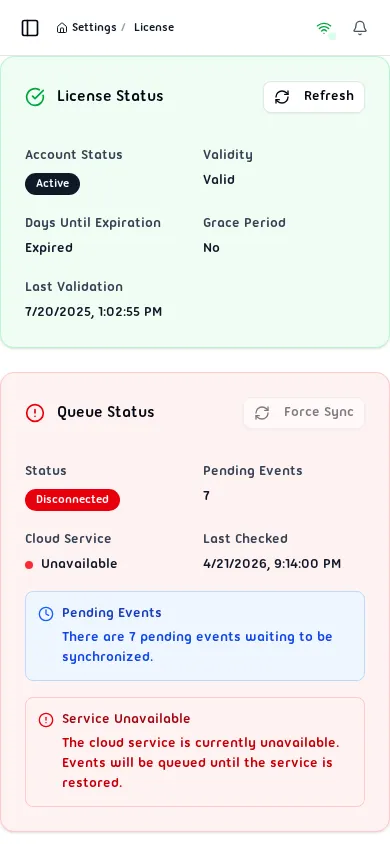
License Status Card
Section titled “License Status Card”The top card summarizes the account’s license health. Its border color reflects the current status:
| Color | Meaning |
|---|---|
| Green border | Active license |
| Yellow border | Payment due |
| Orange border | Payment status unknown |
| Red border | Account disabled |
| Blue border | Demo account |
| Gray border | Demo expired or unknown |
Fields
Section titled “Fields”| Field | Description |
|---|---|
| Account Status | Badge showing the current state: Active, PaymentDue, PaymentDueUnknown, Disabled, Demo, or DemoExpired. |
| Validity | Whether the license is currently considered valid (Valid / Invalid). |
| Days Until Expiration | Remaining days on the license, or Expired if the period has passed. |
| Grace Period | Yes if the account is within a post-expiration grace window; No otherwise. |
| Expiration Date | The date the license expires (shown when available). |
| Demo Expiration Date | Shown only on demo accounts. |
| Last Validation | Timestamp of the most recent successful license check against the cloud. |
Refresh
Section titled “Refresh”Tap Refresh (top-right of the card) to re-fetch the latest license data from the server without leaving the page.
Warnings
Section titled “Warnings”If the account is approaching expiration or has a billing issue, a yellow warning banner appears inside the card:
| Warning | Cause |
|---|---|
| Payment is due | Billing is overdue — contact support. |
| Account expires in N days | License nearing its end date. |
| Payment status unknown | Cloud check returned ambiguous billing state. |
| License issue detected | General license problem — contact support. |
Queue Status Card
Section titled “Queue Status Card”The bottom card shows the state of the local event queue that feeds the EZY cloud service. Its color indicates queue health:
| Color | Meaning |
|---|---|
| Green border | All events synced, cloud reachable |
| Yellow border | Events pending sync |
| Red border | Cloud service unreachable |
Fields
Section titled “Fields”| Field | Description |
|---|---|
| Status | Synced, Pending, or Disconnected. |
| Pending Events | Count of events queued locally and not yet sent to the cloud. |
| Cloud Service | Green dot = available; red dot = unavailable. |
| Last Checked | Timestamp of the most recent connectivity check. |
Force Sync
Section titled “Force Sync”When the cloud service is available, tap Force Sync to immediately push all queued events rather than waiting for the next automatic cycle. The button is disabled while the cloud is unreachable.
Service Unavailable Banner
Section titled “Service Unavailable Banner”If the cloud cannot be reached, a red alert box explains that events are being held locally and the system will retry automatically. No manual action is required — events are not lost.