Tax Categories
Manage tax categories for classifying items by their tax treatment. Each category can have a default rate and multiple jurisdiction-specific rates.
Accessing the Page
Section titled “Accessing the Page”Navigate to Pricing & Tax → Tax Categories in the sidebar, or go to /pricing-tax/tax-categories.
Tax Categories List
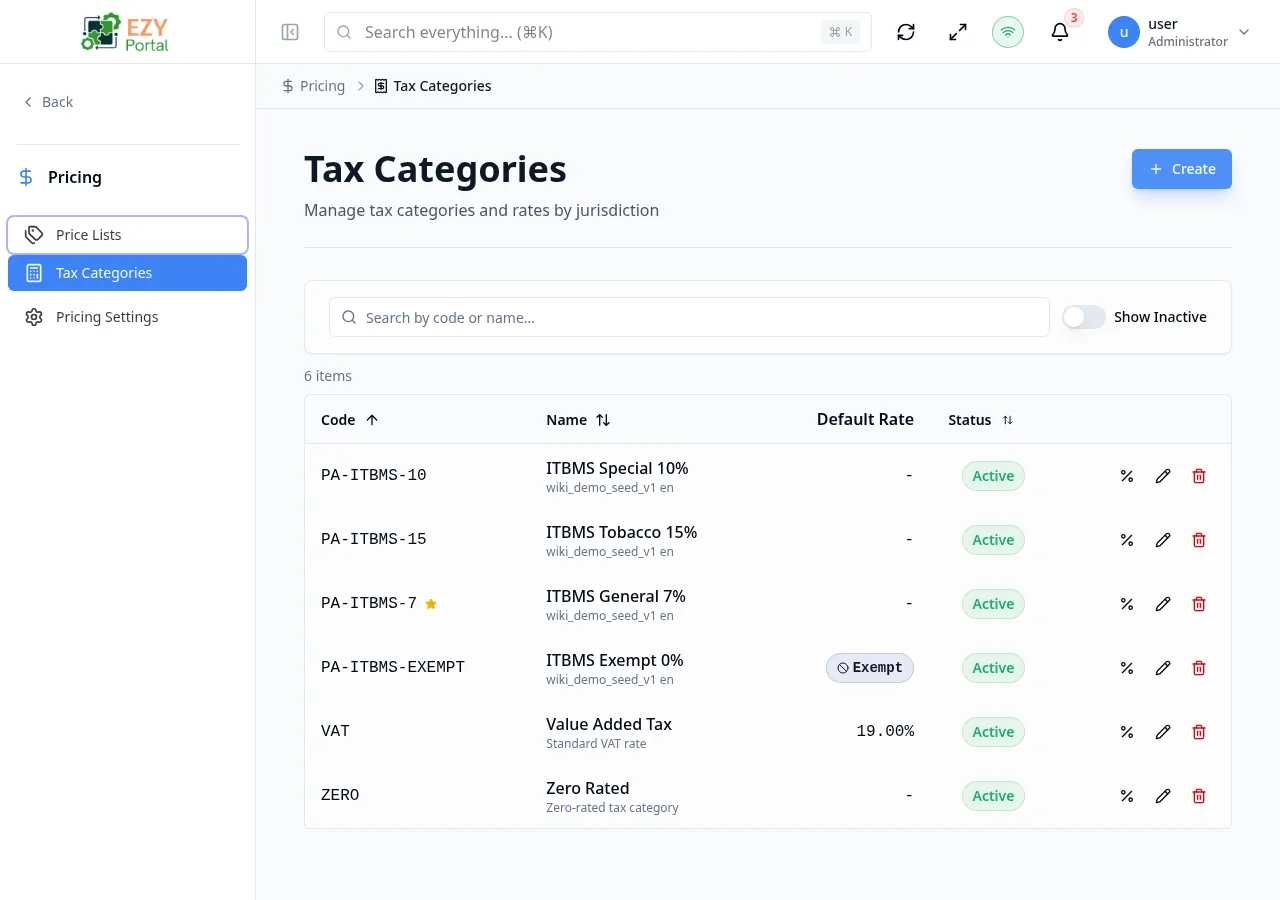
Section titled “Tax Categories List”The list page displays all categories in a sortable table with the following columns:
| Column | Description |
|---|---|
| Code | Unique category code |
| Name | Category display name, with description shown below |
| Default Rate | Current default tax rate percentage |
| Exempt | Exempt badge for zero-rate categories |
| Default | Default badge for the system default category |
| Status | Active / Inactive status badge |
| Actions | Edit, Delete, and View Rates dropdown |
Filtering
Section titled “Filtering”| Filter | Type | Description |
|---|---|---|
| Search | Free text | Searches across code, name, and description |
| Status | Select | Filter by active status: All, Active, Inactive |
Sorting
Section titled “Sorting”Click any column header to sort:
- First click — Ascending
- Second click — Descending
- Third click — Remove sort
Pagination
Section titled “Pagination”The list uses a Load More pattern:
- Page size: 50 records per load
- Load More button at the bottom loads the next batch
- Total count displays above the table
Row Actions
Section titled “Row Actions”Each category row has a dropdown menu with:
- Edit — Open the edit dialog
- Delete — Delete the category (requires Admin permission)
- View Rates — Navigate to the Tax Category Detail page
Click any row to open the Tax Category Detail page.
Rate Resolution Behavior
Section titled “Rate Resolution Behavior”- Categories can have jurisdiction-specific rates and a fallback/default rate.
- Exempt categories always result in 0% tax behavior.
- For jurisdiction-based calculations, the most specific matching jurisdiction rate is preferred.
Creating a Tax Category
Section titled “Creating a Tax Category”- Click the Add button on the categories list page
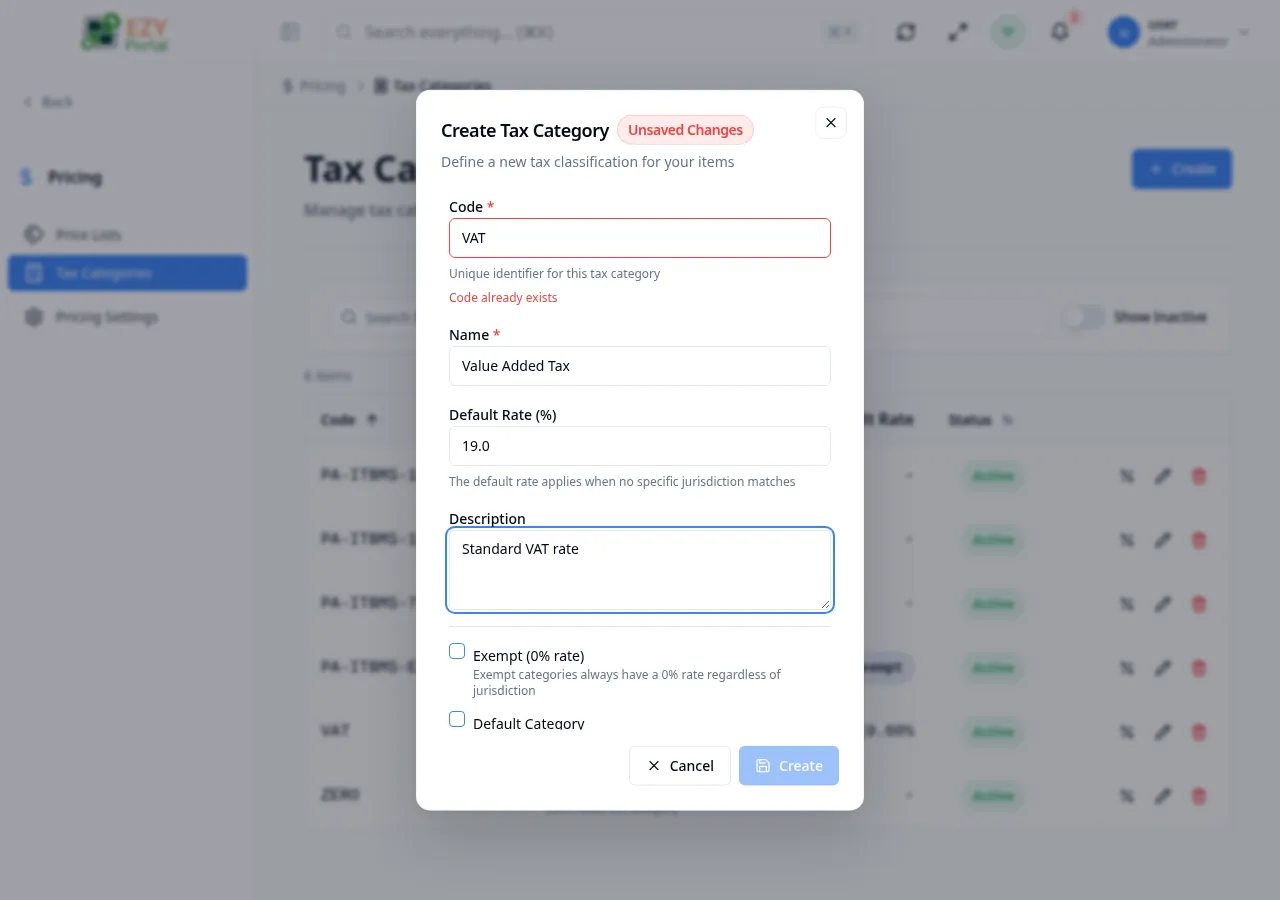
- Fill in the create dialog:
| Field | Required | Type | Max | Description |
|---|---|---|---|---|
| Code | Yes | Text | 20 | Unique code (e.g., VAT). Auto-validated for uniqueness. |
| Name | Yes | Text | 100 | Display name (e.g., “Value Added Tax”) |
| Default Rate (%) | No | Number | 0-100 | Default tax rate percentage. Disabled for exempt categories. |
| Description | No | Textarea | — | Optional category description |
- Configure options:
| Option | Description |
|---|---|
| Exempt (0% rate) | Category always has 0% rate regardless of jurisdiction |
| Default Category | This will be the default tax category for new items |
- Click Create to save
The code field validates in real-time — a green indicator confirms availability, red indicates a duplicate.
Editing a Tax Category
Section titled “Editing a Tax Category”Editing is available from the list page row actions and opens the edit dialog.
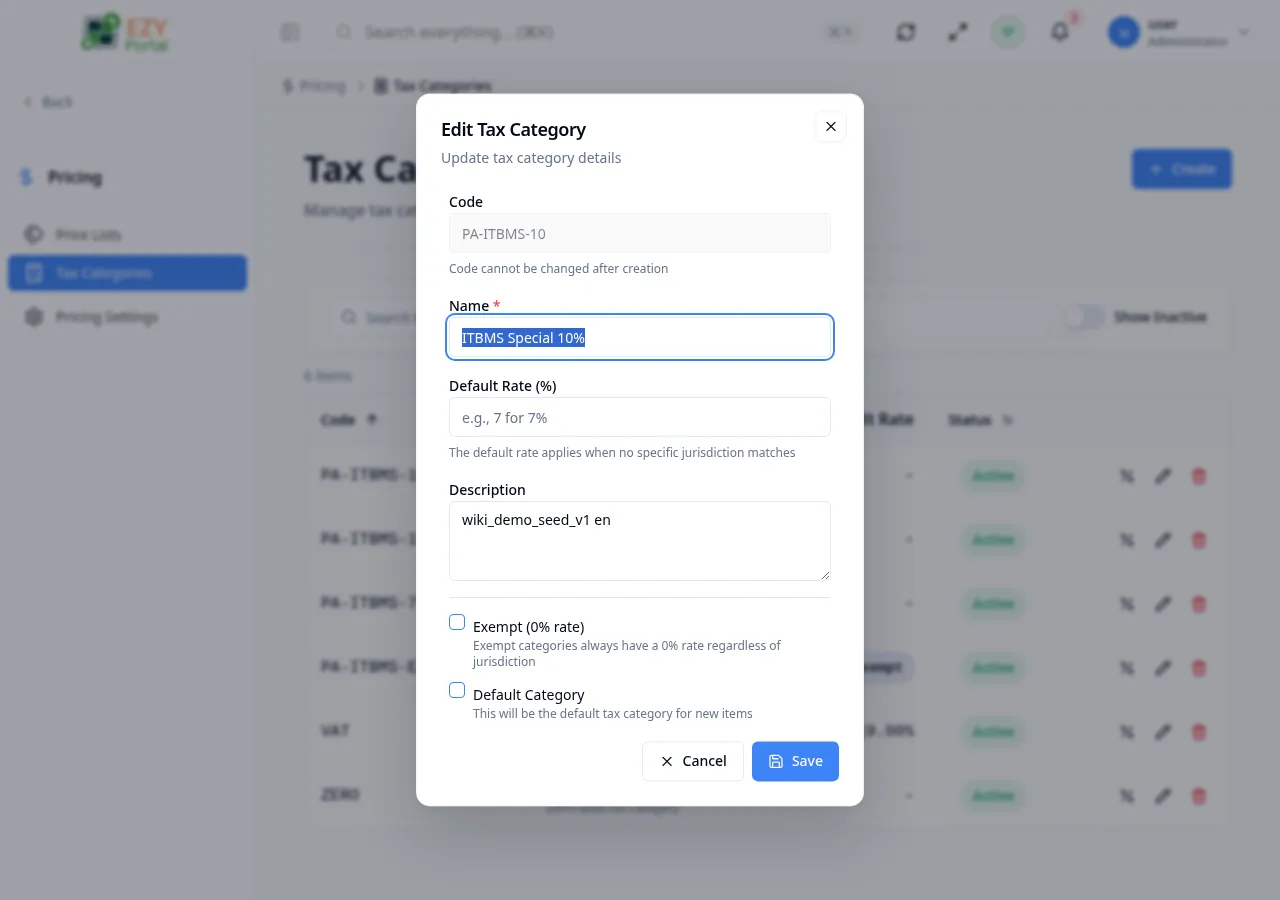
- Code is read-only after creation
- Default Rate is disabled when the category is marked as exempt
- Active toggle controls visibility in lists (inactive categories are hidden from item forms by default)
Deleting a Tax Category
Section titled “Deleting a Tax Category”- Click the dropdown menu on a category row and select Delete
- A confirmation dialog warns that the action is permanent
- Click Delete to confirm — the list reloads without the deleted category
Restrictions: A tax category cannot be deleted if it is in use by items or documents.
Related Pages
Section titled “Related Pages”- Tax Category Detail — View and manage rates for a specific category
- Tax Configuration — Configure default tax category and jurisdiction
- Price Lists — Manage pricing structures