Price Lists
Price lists define the currencies and pricing structures used across sales, purchase, and inventory documents. They can be standalone or derived from a base list with a multiplier factor.
Accessing the Page
Section titled “Accessing the Page”Navigate to Pricing & Tax → Price Lists in the sidebar, or go to /pricing-tax/price-lists.
Initialize Price Lists
Section titled “Initialize Price Lists”When no price lists exist yet, you see an empty state with two options:
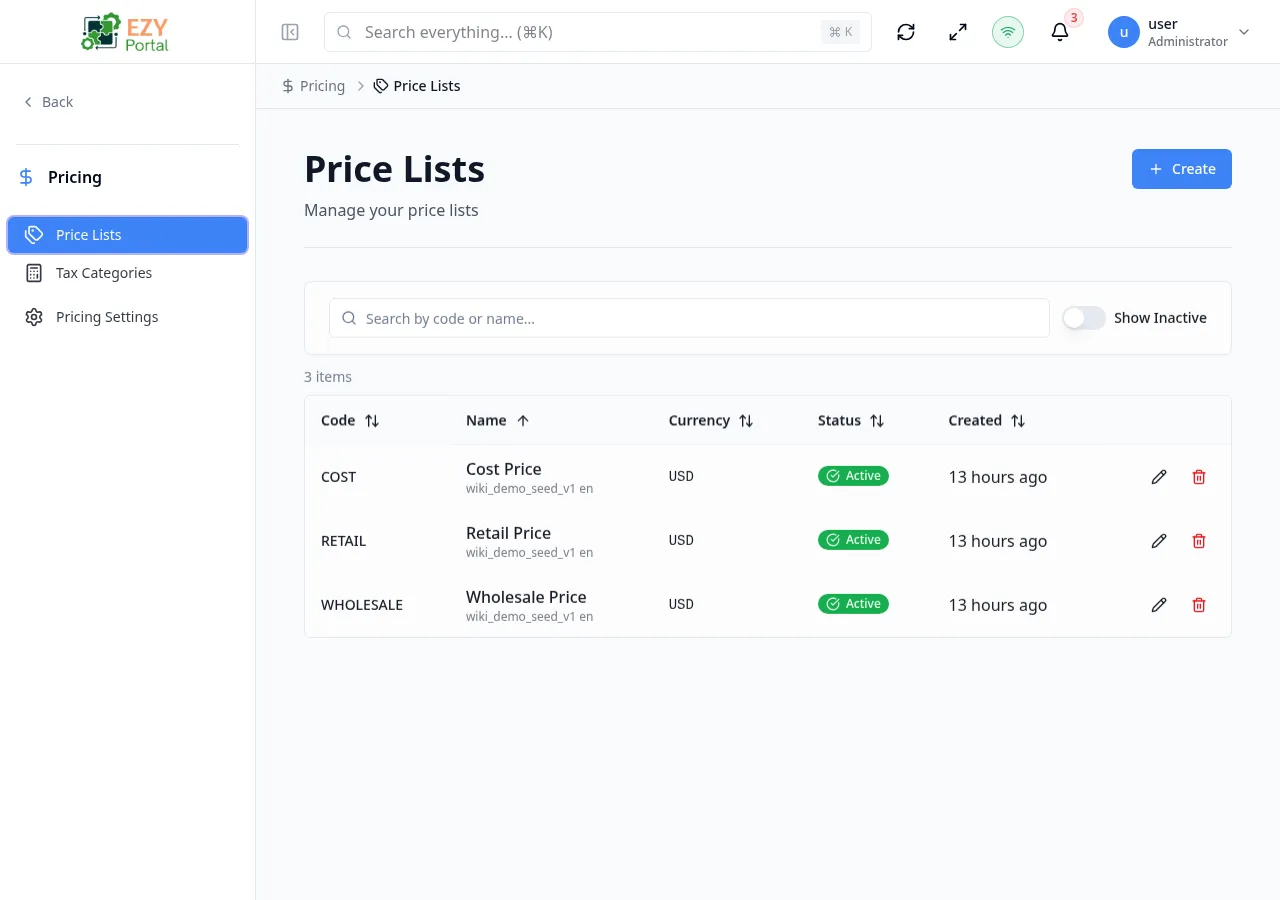
Initialize from Presets
Section titled “Initialize from Presets”Click Initialize Price Lists to open the wizard with 5 suggested lists:
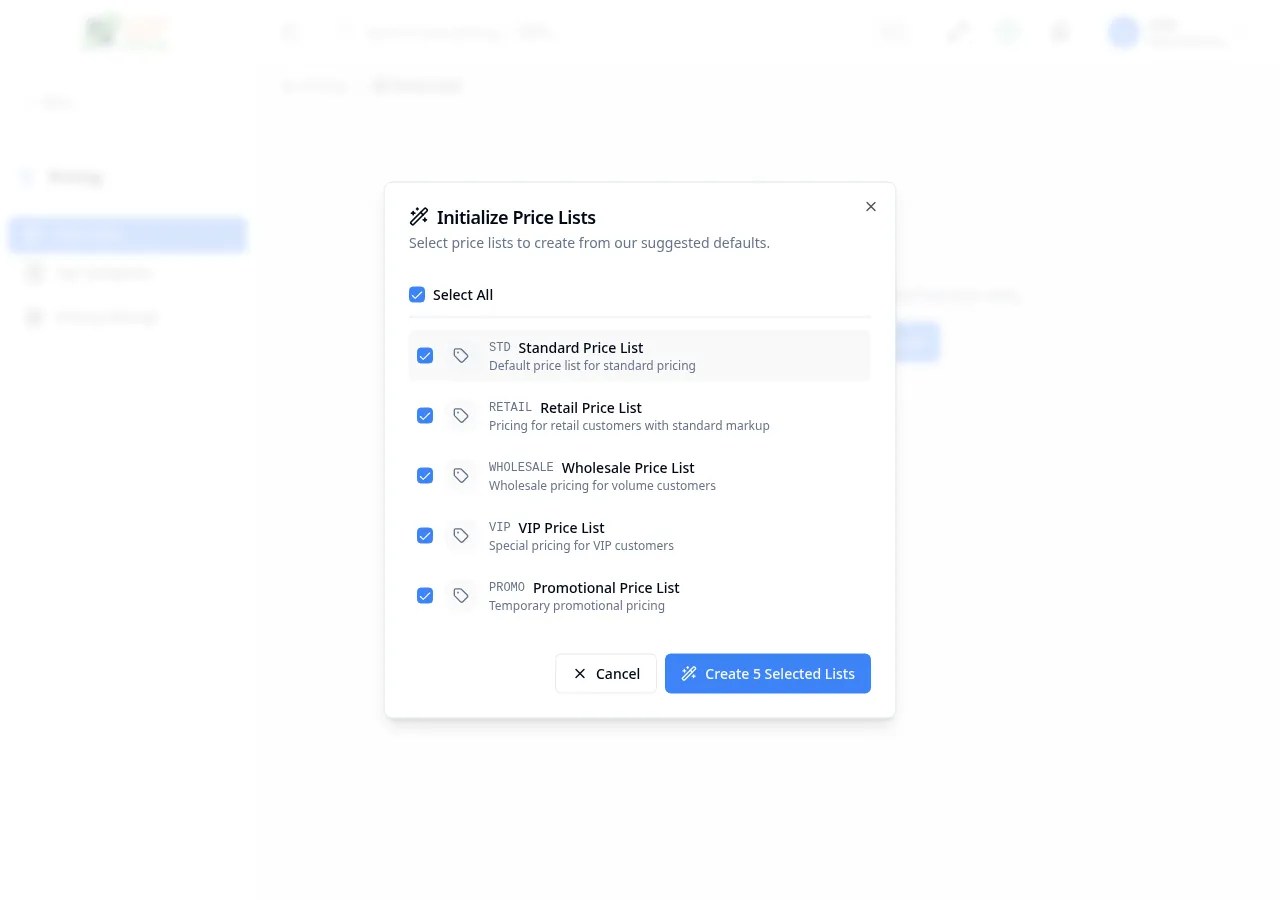
| Code | Name | Description | Default Status |
|---|---|---|---|
STD | Standard Price List | Default price list for standard pricing | Active |
RETAIL | Retail Price List | Pricing for retail customers with standard markup | Active |
WHOLESALE | Wholesale Price List | Wholesale pricing for volume customers | Active |
VIP | VIP Price List | Special pricing for VIP customers | Active |
PROMO | Promotional Price List | Temporary promotional pricing | Inactive |
- All 5 lists are pre-selected by default. Toggle individual lists or use Select All to control selection.
- Click Create N Selected Lists to bulk-create the selected price lists.
Add Price List
Section titled “Add Price List”Alternatively, click Add Price List to manually create a single custom price list.
List View
Section titled “List View”After initialization, the price lists page shows all lists:
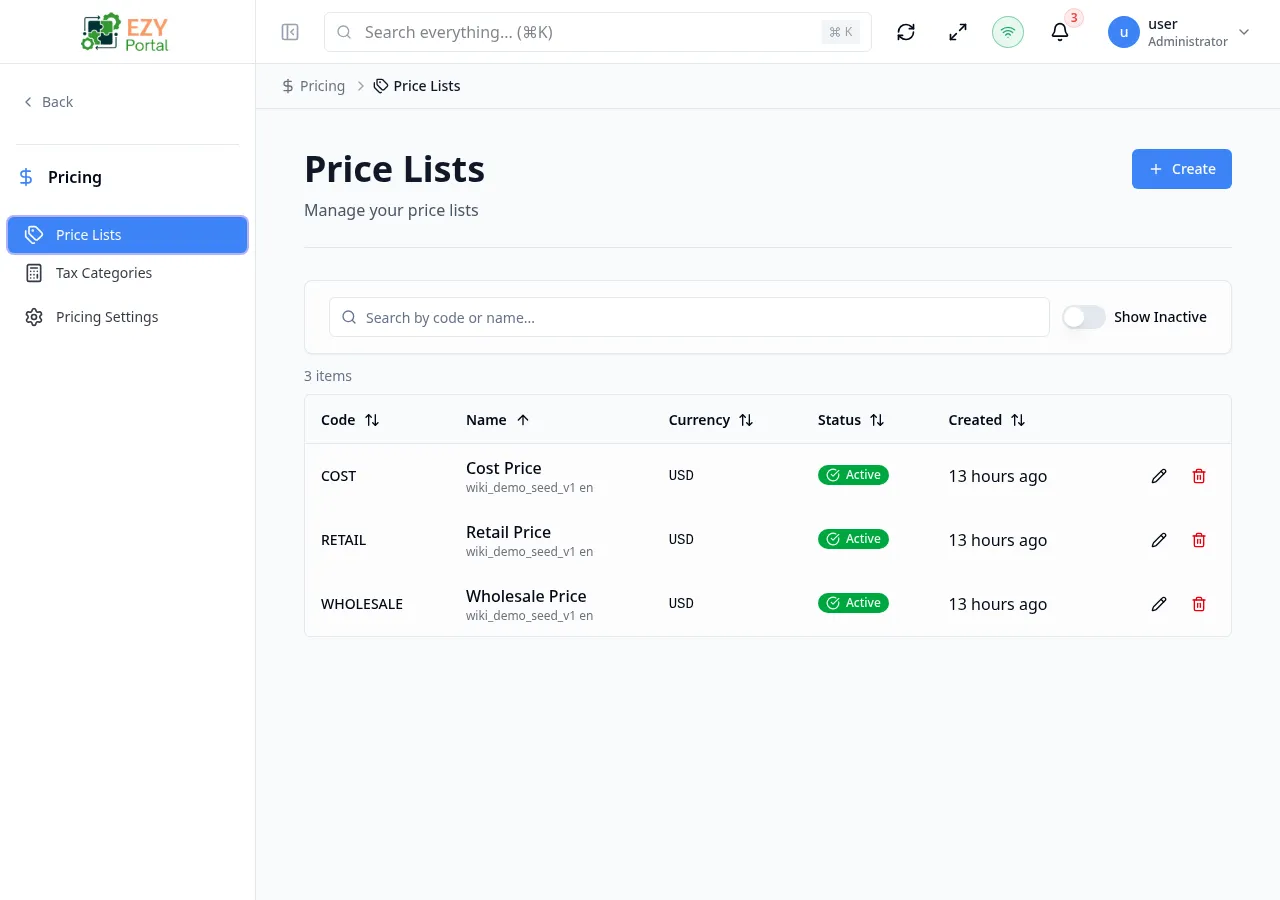
List Columns
Section titled “List Columns”| Column | Description |
|---|---|
| Code | Unique price list code |
| Name | Display name and truncated description |
| Currency | 3-letter ISO currency code (e.g., USD, EUR) |
| Based On | Base price list and factor for derived lists |
| Status | Active / Inactive status badge |
| Created | Relative creation time |
| Actions | Edit and Delete dropdown |
Filters
Section titled “Filters”| Filter | Description |
|---|---|
| Search | Search by code, name, or description |
| Status | Toggle between All, Active, and Inactive |
Creating a Price List
Section titled “Creating a Price List”- Click the Add button
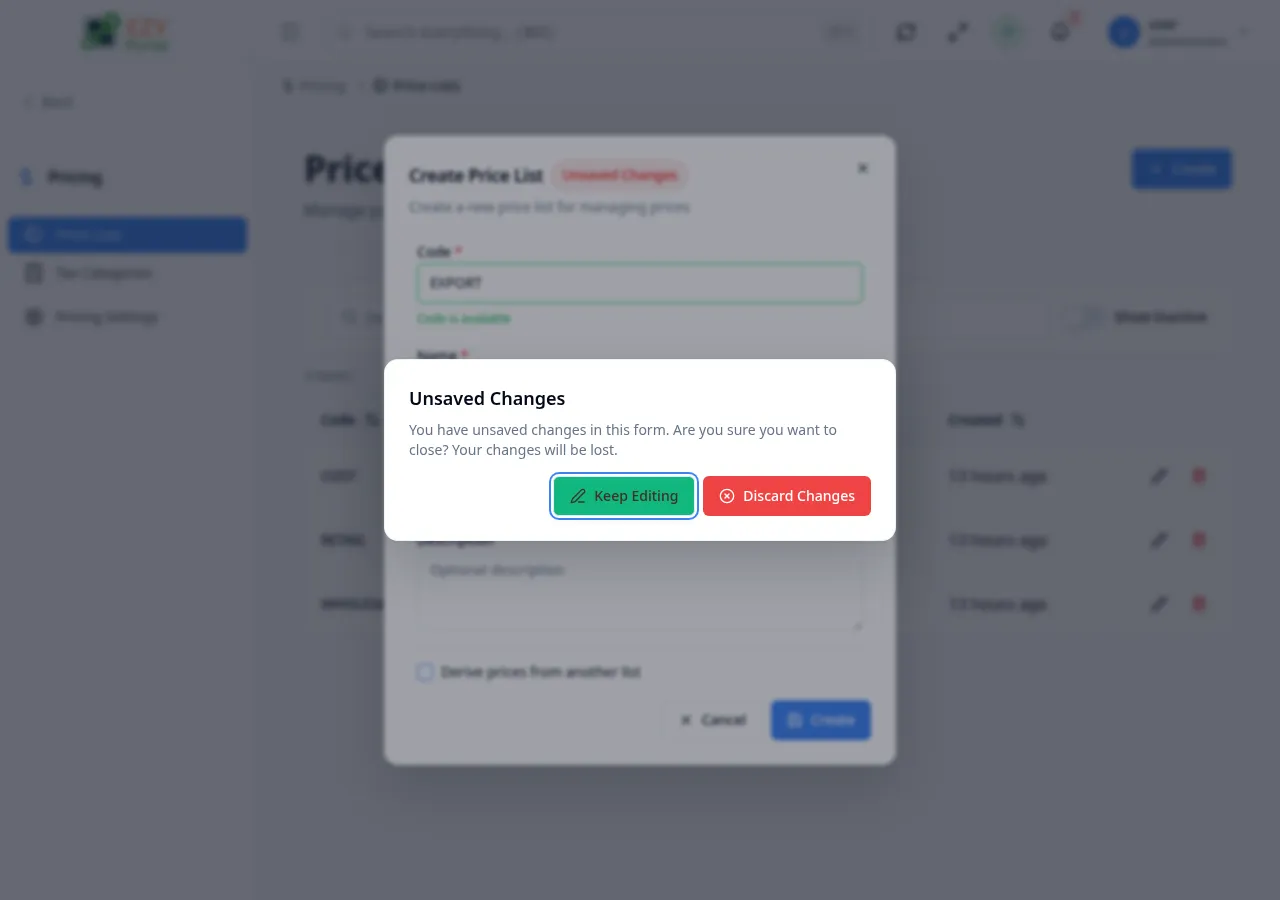
- Fill in the create dialog:
| Field | Required | Type | Max | Description |
|---|---|---|---|---|
| Code | Yes | Text | 50 | Unique code (e.g., PL-001). Validated in real-time. |
| Name | Yes | Text | 200 | Display name (e.g., “Standard Price List”) |
| Currency | Yes | Select | 3 | ISO currency code (e.g., USD, EUR, GBP) |
| Description | No | Textarea | — | Optional description |
- Click Create to save
The code field validates in real-time — green border confirms availability, red indicates a duplicate.
Derived Price Lists
Section titled “Derived Price Lists”Enable Derive prices from another list to create a derived price list:
| Field | Required | Description |
|---|---|---|
| Base Price List | Yes | The source price list to derive from |
| Factor | Yes | Multiplier applied to base prices (e.g., 1.2 for 20% markup, 0.9 for 10% discount) |
Derived prices are calculated as: base price × factor. Changing the base list or factor recalculates all derived prices (except those with manual overrides).
The system prevents circular dependencies in derived chains (for example, a list indirectly deriving from itself).
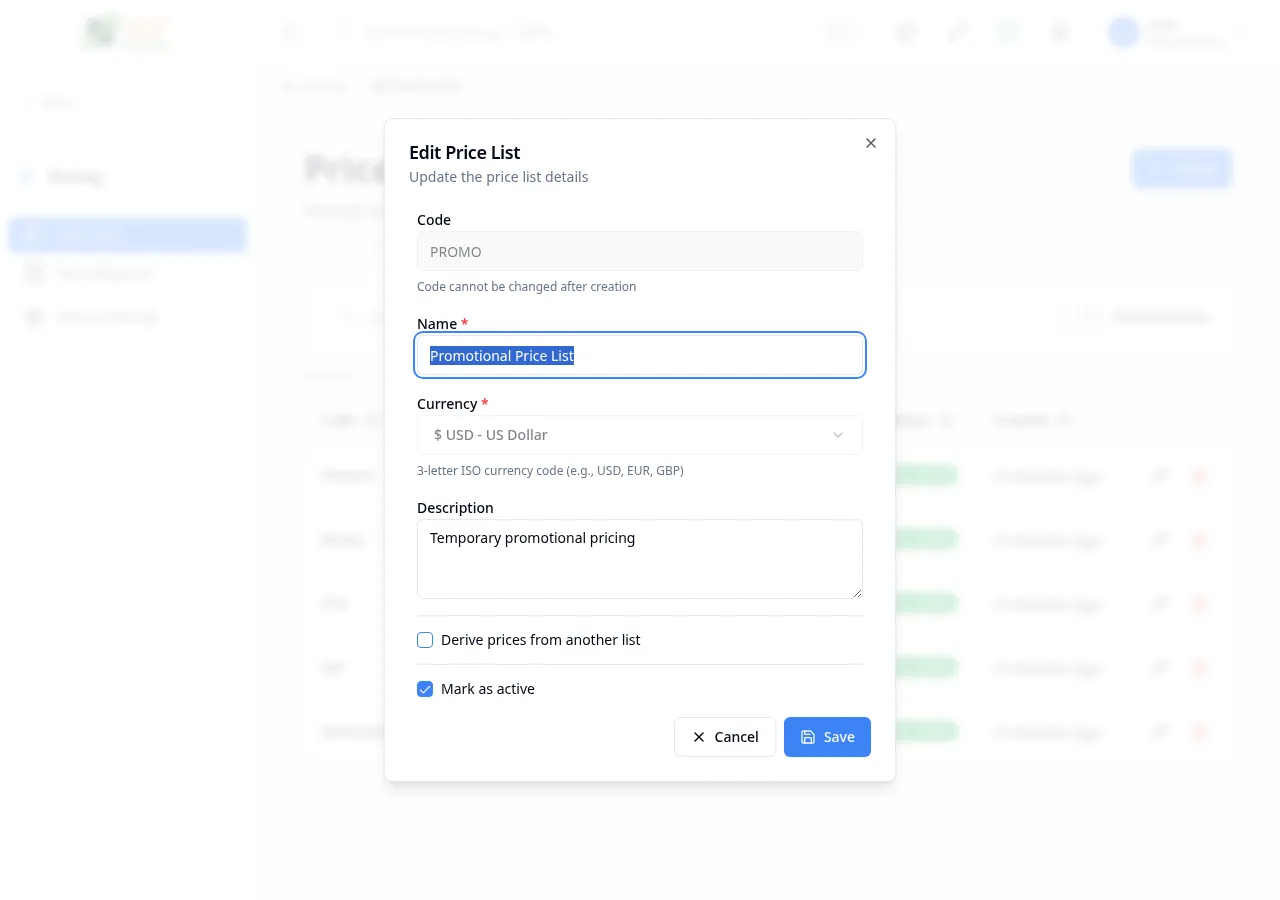
Editing a Price List
Section titled “Editing a Price List”- Click the Actions dropdown on a row → Edit
- Modify the fields:
| Field | Editable | Notes |
|---|---|---|
| Code | No | Read-only. Helper text: “Code cannot be changed” |
| Name | Yes | Max 200 characters |
| Currency | Yes | 3-letter ISO code |
| Description | Yes | Optional |
| Derived | Yes | Toggle derivation on/off. Requires base list and factor when enabled. |
| Active | Yes | Switch toggle. Inactive lists are hidden from document forms. |
- Click Save
Deleting a Price List
Section titled “Deleting a Price List”- Click the Actions dropdown on a row → Delete
- Confirm in the dialog: “Are you sure you want to delete ‘{{code}} - {{name}}’?”
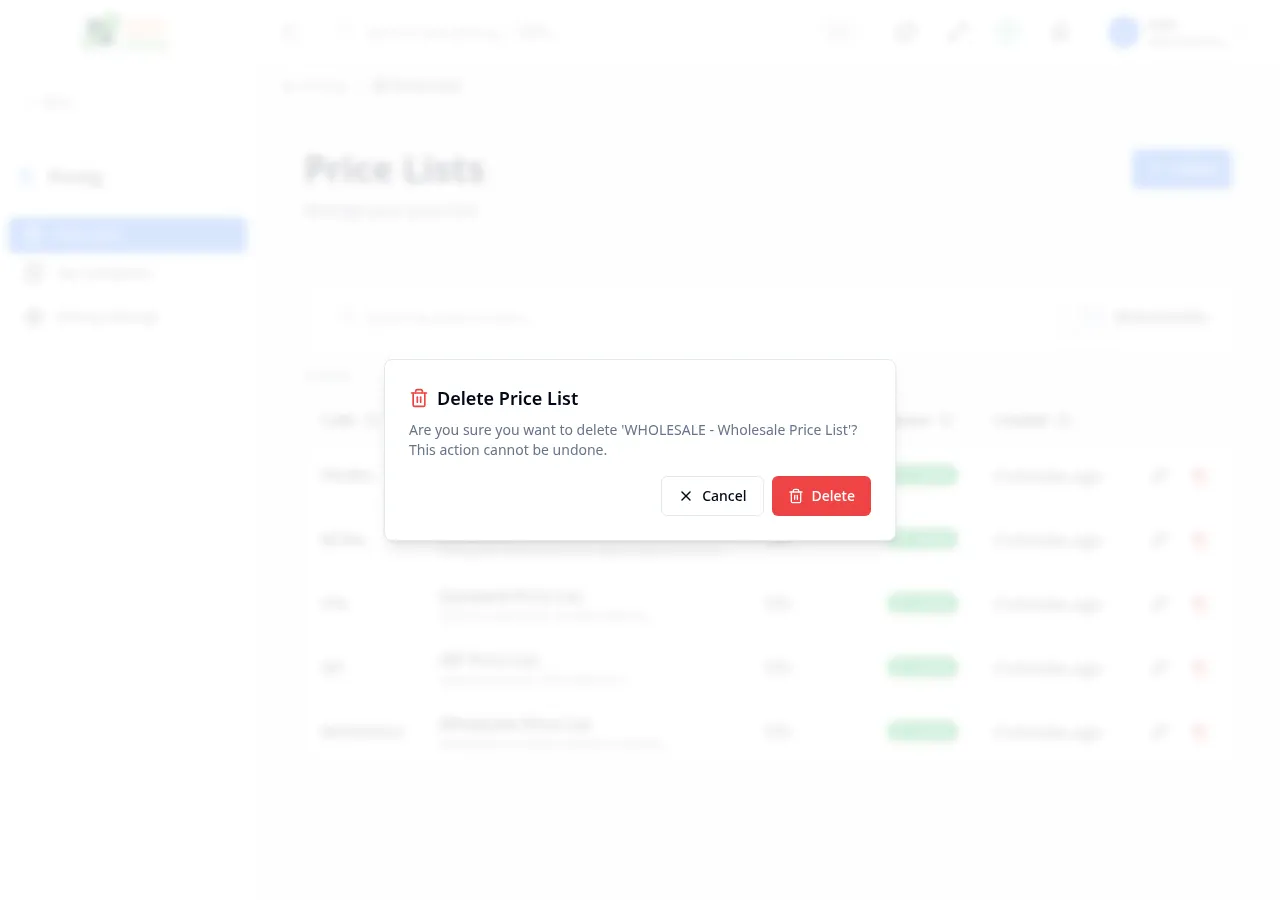
- Click Delete to confirm
Restrictions: A price list cannot be deleted if it has item prices assigned or if other price lists derive from it.
How Price Lists Are Used
Section titled “How Price Lists Are Used”- Document defaults — Tax Configuration sets default price lists for sales, purchase, and inventory documents
- Business Partner level — Each BP can have its own assigned price list
- Item prices — Individual items have prices per price list and UOM combination
- Derived pricing — Automatically calculate prices from a base list
Derived Pricing Notes
Section titled “Derived Pricing Notes”- Manual overrides on item prices are preserved when upstream base prices change.
- Deleting a list can be restricted if other lists depend on it or if active references exist.
- Users manage item-level derived prices and overrides from the Items price matrix. Derived cells are formula-based, override cells are stored as manual overrides, and masked cells appear when the user cannot view a price list.
- Clearing an override resets the item price back to the derived formula value.
Permissions & system behavior
Section titled “Permissions & system behavior”- Viewing this page requires access to the corresponding module.
- Create/edit/delete actions are visible only to users with matching permissions.
- After a successful action, the page updates list/detail data to reflect the change.
Related Pages
Section titled “Related Pages”- Tax Configuration — Set default price lists for documents
- Tax Categories — Manage tax classifications
- Create Item — Enter item prices in the price matrix
- Edit Item — Manage derived prices and manual overrides