Team Detail
View and manage a single team including its members, region coverage, and position in the team hierarchy.
Accessing the Page
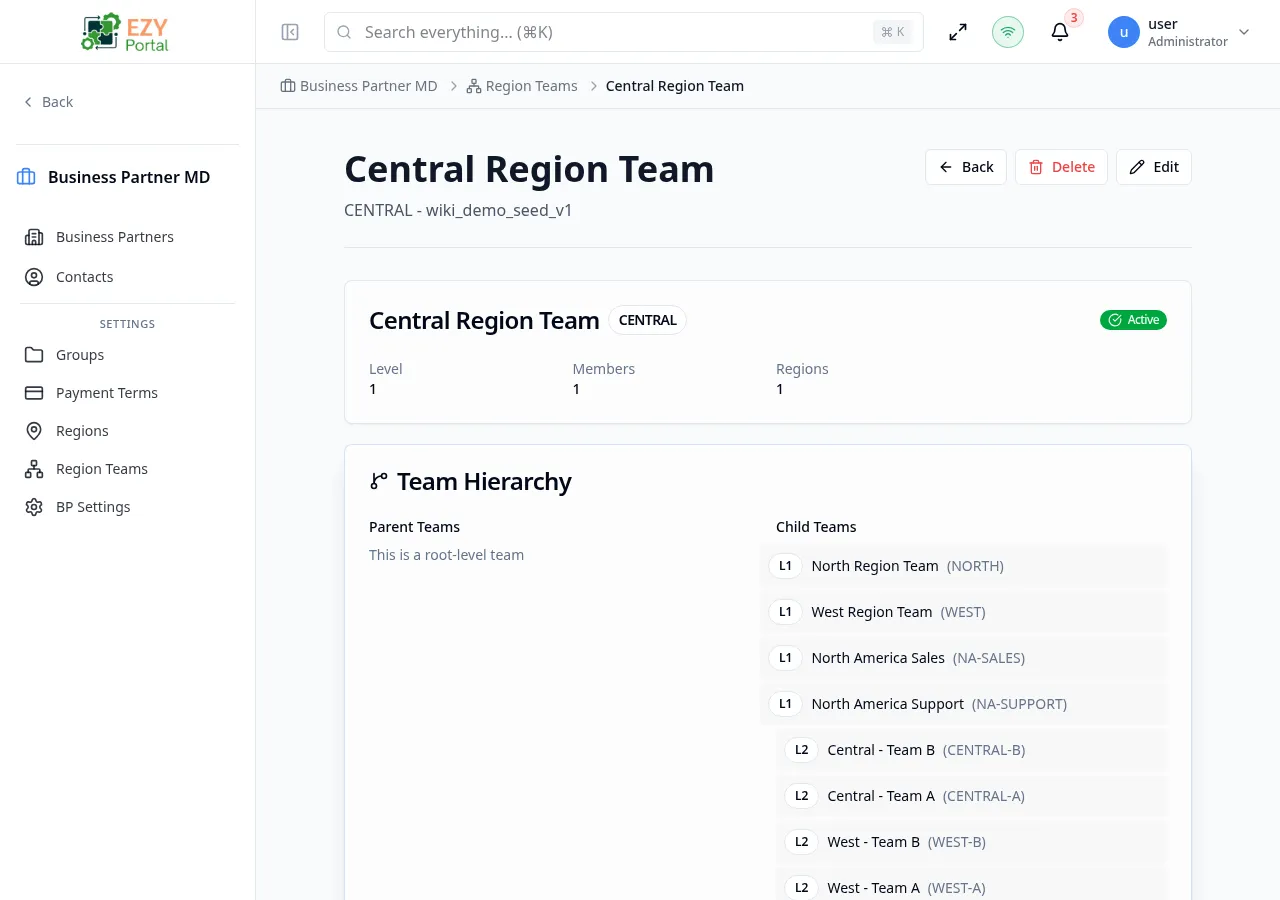
Section titled “Accessing the Page”Navigate to Business Partners → Region Teams and click any team row, or go directly to /business-partners/teams/:id.
Team Information Card
Section titled “Team Information Card”Displays the team’s core properties in a 4-column grid:
| Field | Description |
|---|---|
| Level | Team hierarchy level (1 = root, 2 = child, etc.) |
| Parent Team | Name of the parent team (hidden for root-level teams) |
| Members | Number of team members |
| Regions | Number of covered regions |
The card header shows the team name, code badge, and active/inactive status.
Action Buttons
Section titled “Action Buttons”| Button | Description |
|---|---|
| Back | Return to the teams list |
| Edit | Open the edit dialog to modify name, description, parent, or active status |
| Delete | Delete the team and all assignments (requires Admin permission) |
Editing a Team
Section titled “Editing a Team”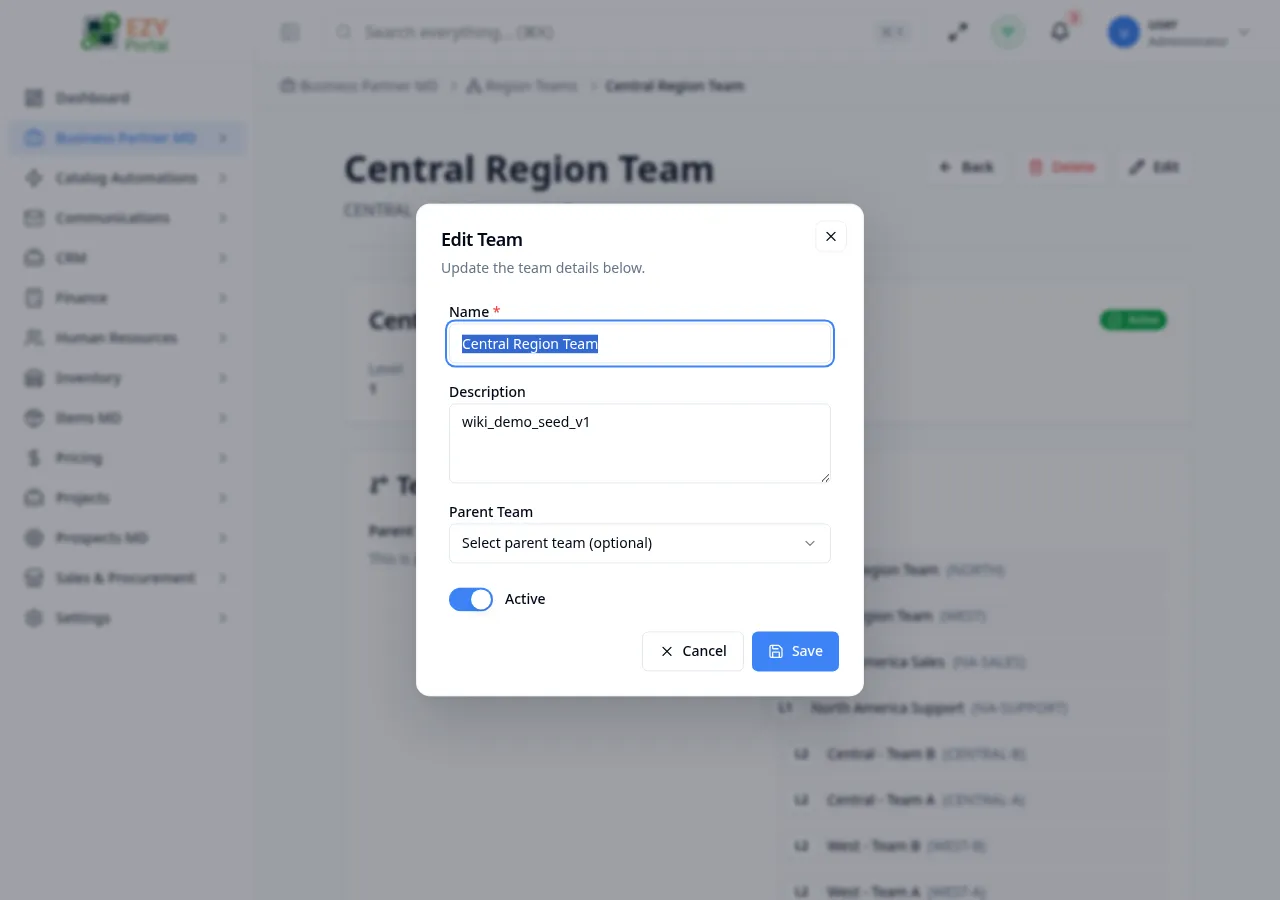
| Field | Editable | Notes |
|---|---|---|
| Code | No | Read-only after creation |
| Name | Yes | Max 200 characters |
| Description | Yes | Optional, max 500 characters |
| Parent Team | Yes | Can reassign parent; current team excluded from options |
| Active | Yes | Toggle to hide/show the team in lists |
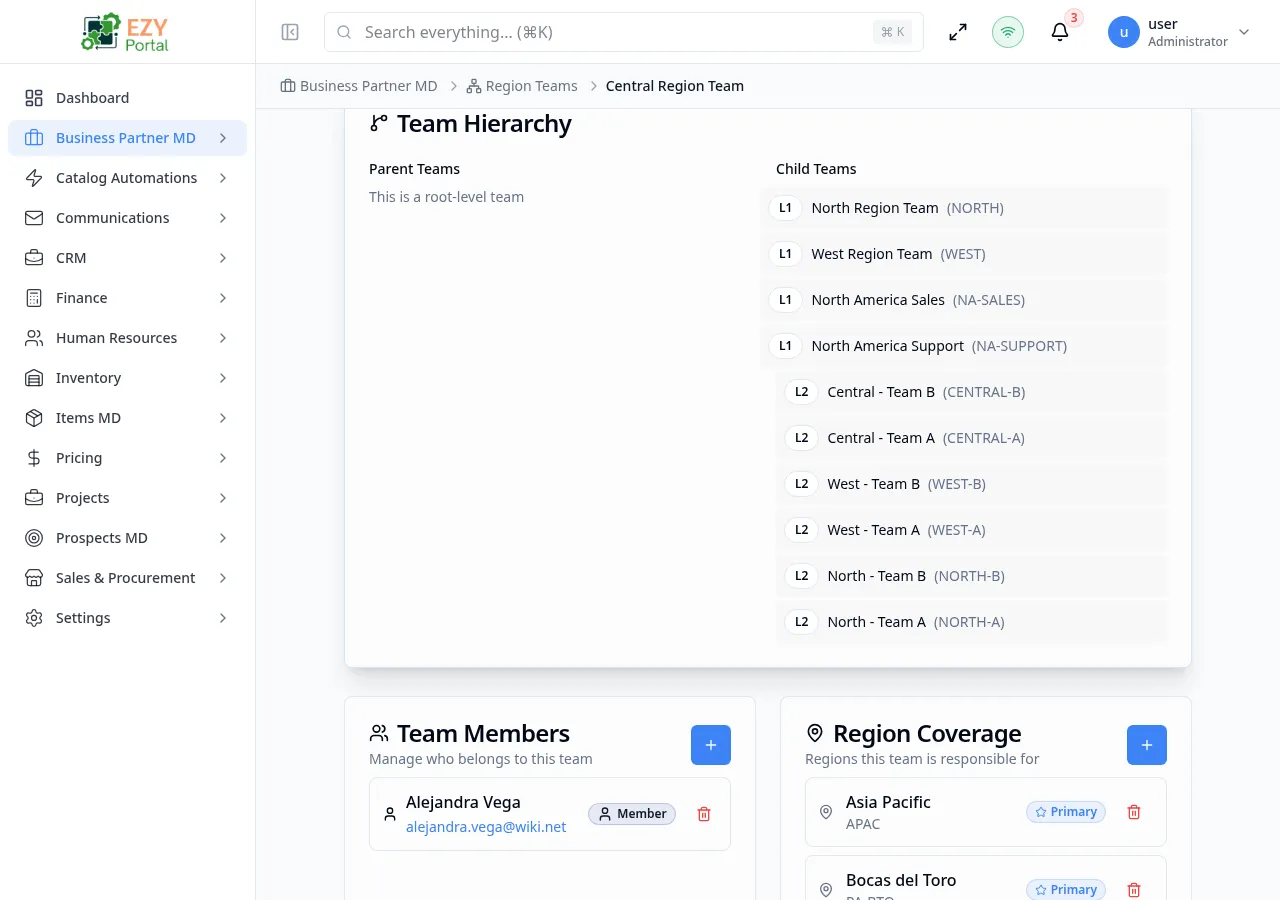
Team Hierarchy Card
Section titled “Team Hierarchy Card”Shown when the team has parent or child teams. Displays a two-column layout:
- Parent Teams — Ancestor teams from root to immediate parent, indented by level
- Child Teams — All descendant teams, indented by relative depth
Root-level teams show “This is a root-level team” in the parent section.
Hierarchy updates automatically when parent assignment changes, and descendant placement is recalculated to keep the structure consistent.
Team Members Card
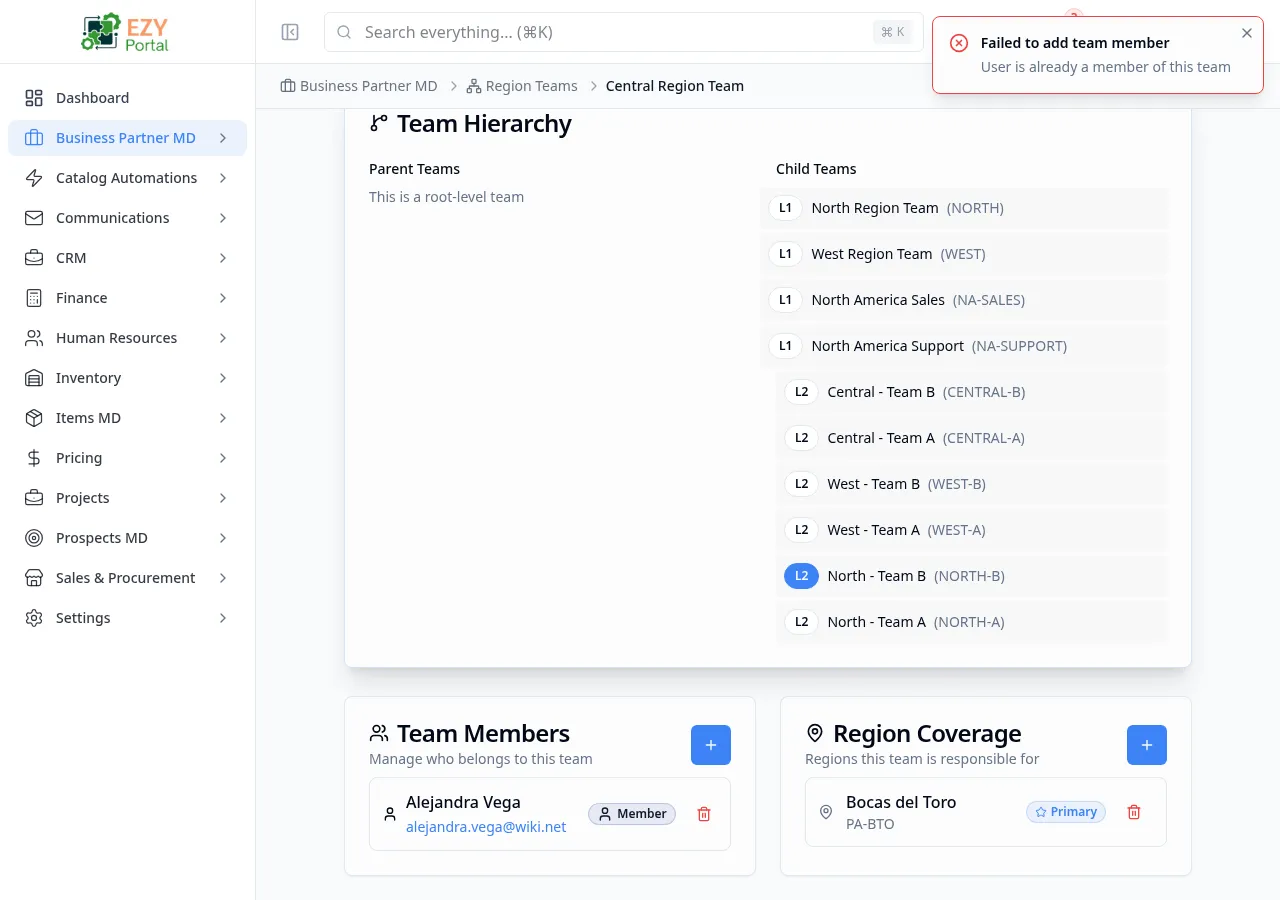
Section titled “Team Members Card”Manage who belongs to this team. Each member displays:
- Name and email of the user
- Role badge — Leader (Crown icon) or Member (User icon). Click to toggle role.
- Remove button — Remove the member from the team
Member Roles
Section titled “Member Roles”| Role | Description |
|---|---|
| Leader | Can view data from this team and all child teams |
| Member | Can only view data assigned to them |
Adding a Member
Section titled “Adding a Member”- Click the + button in the Members card header
- The Add Member dialog opens with user and role selectors
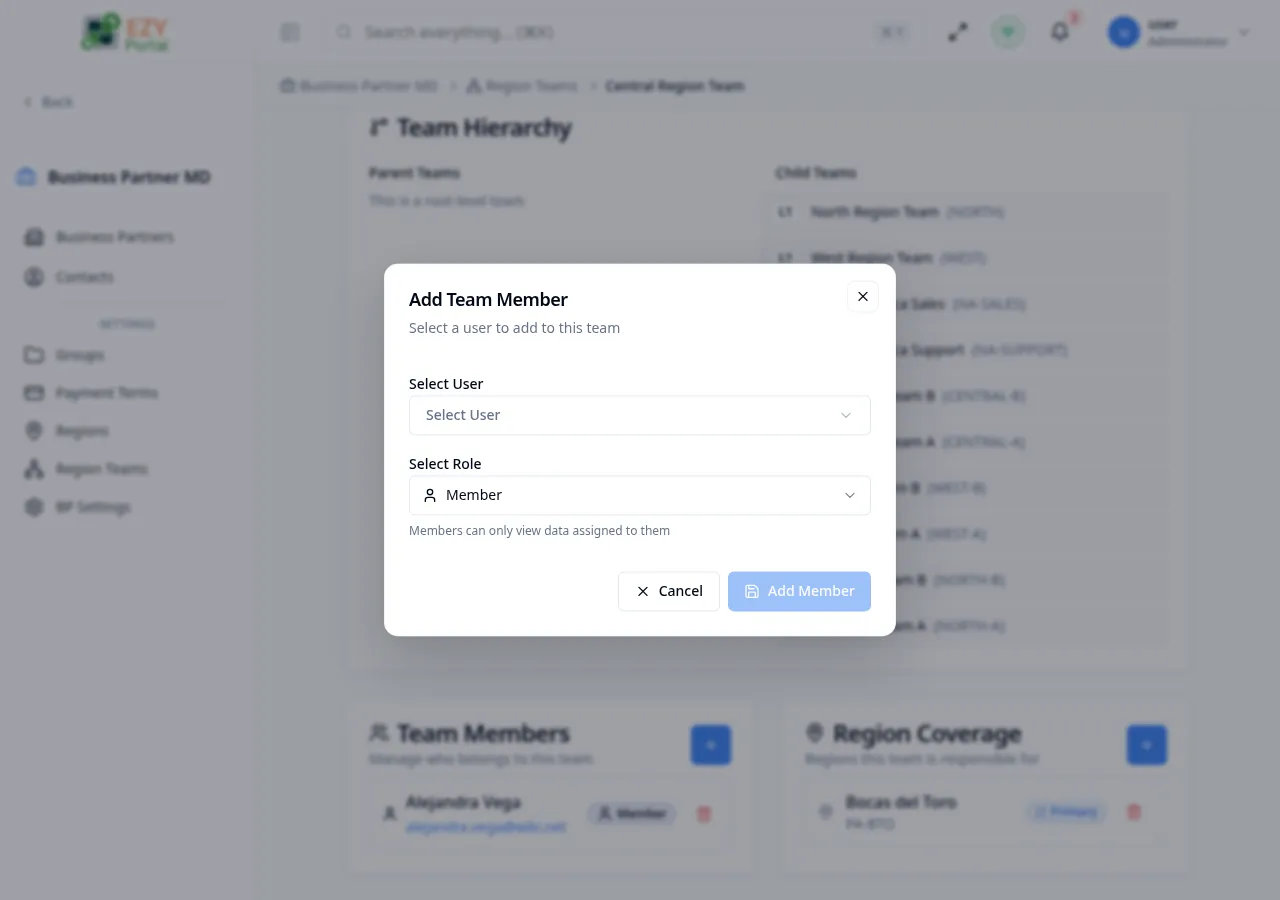
- Select a user and role (Leader or Member)
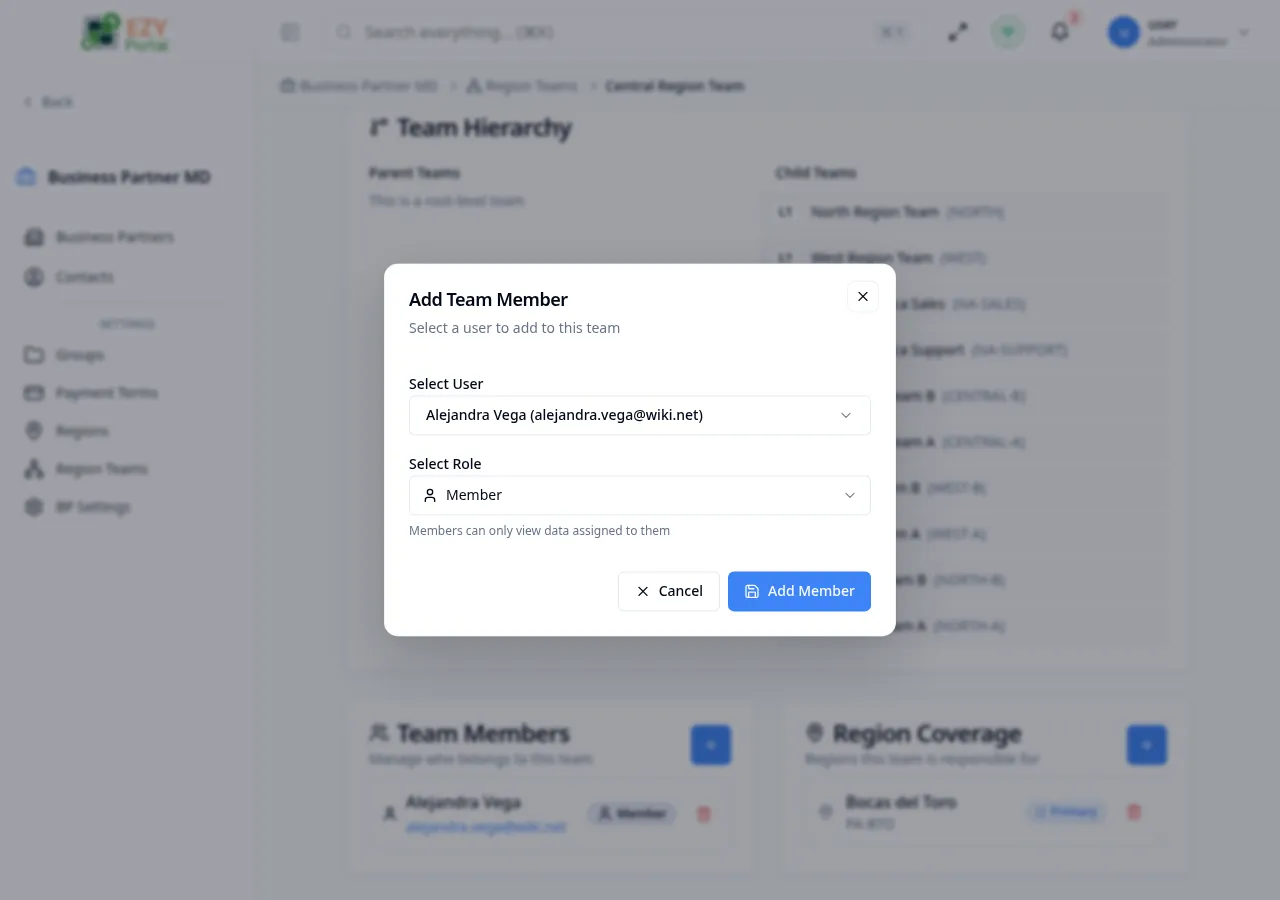
- Click Add Member to confirm
Changing a Member’s Role
Section titled “Changing a Member’s Role”Click the role badge on any member row to toggle between Leader and Member. A confirmation dialog describes the new role’s permissions.
Removing a Member
Section titled “Removing a Member”- Click the trash icon on the member row
- Confirm the removal in the dialog
Region Coverage Card
Section titled “Region Coverage Card”Manage which regions this team is responsible for. Each coverage entry displays:
- Region name and code
- Primary badge — Shown with a star icon if this is the team’s primary region
- Remove button — Remove the region from coverage
Adding Region Coverage
Section titled “Adding Region Coverage”- Click the + button in the Coverage card header
- The Add Region dialog opens
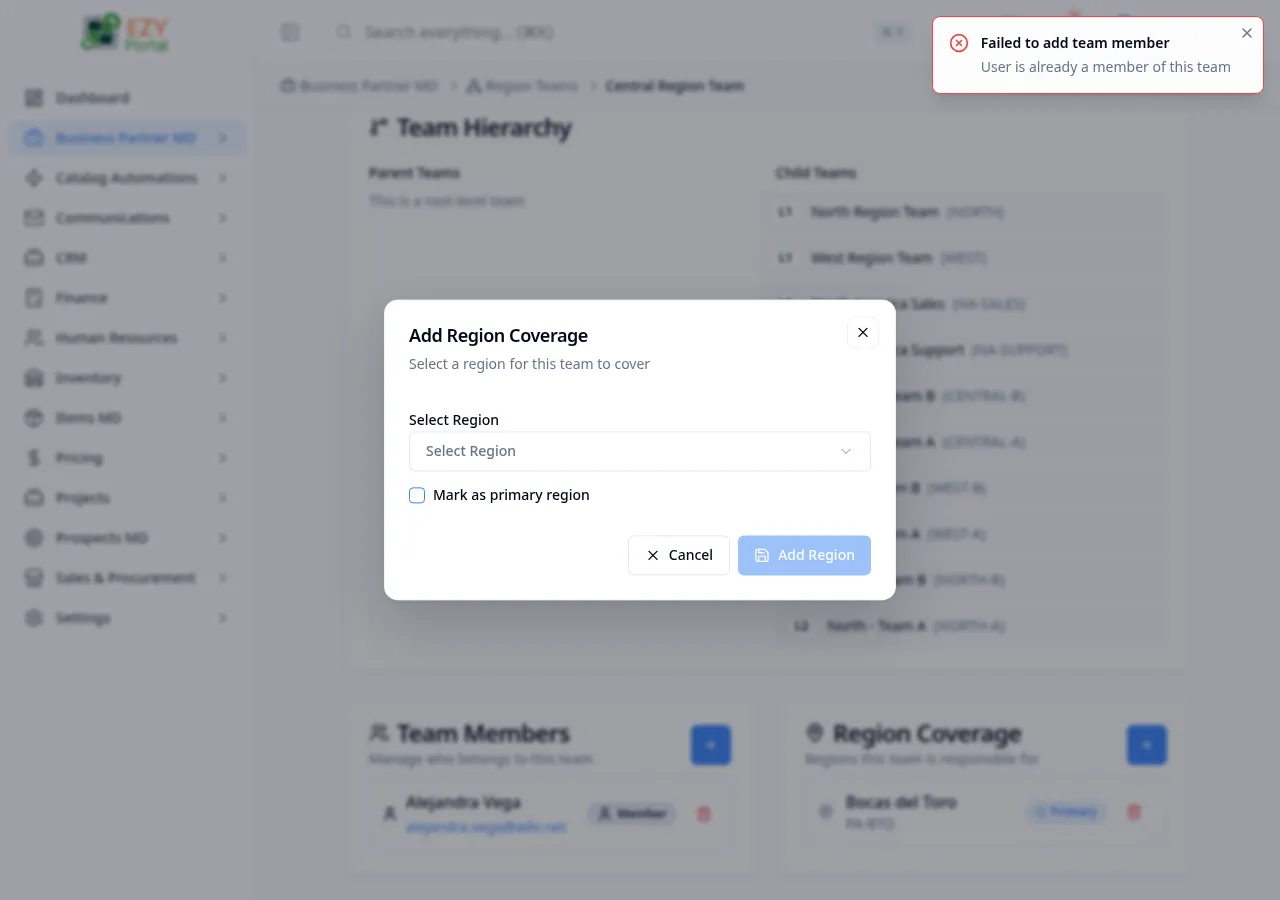
- Select a region from the dropdown and optionally check Mark as primary region
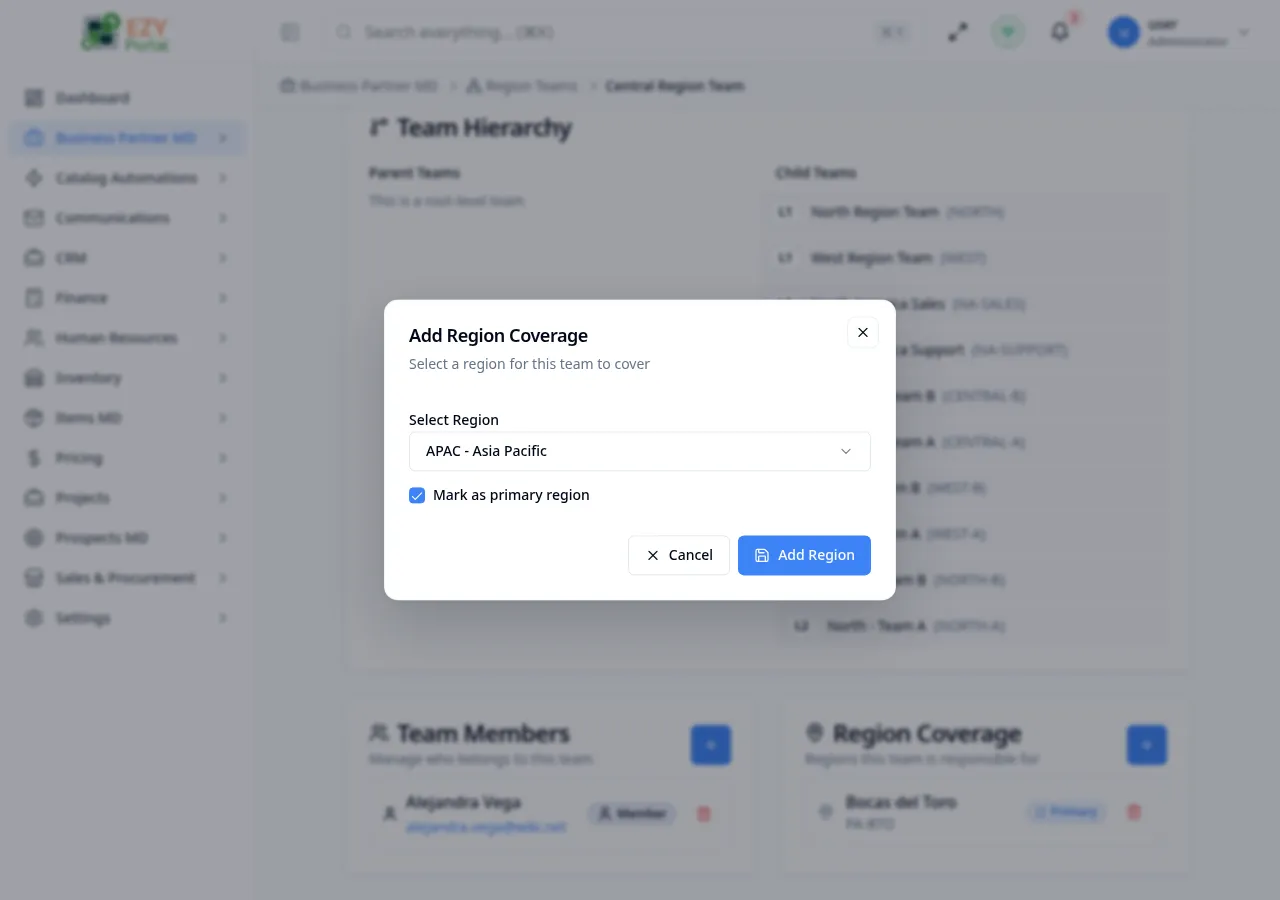
- Click Add Region to confirm
Related Pages
Section titled “Related Pages”- Region Teams — Browse and manage all teams
- Regions — Manage geographic regions
- Groups — Organize business partners into groups
- Scope Settings — Configure how team and region assignments affect data visibility