Create Business Partner
Create a new business partner record using a tabbed form that captures basic information, contact details, financial settings, and optional custom fields. The form uses tab navigation with validation on each tab before advancing.
Accessing the Page
Section titled “Accessing the Page”From the Business Partners list, click the Create button, or navigate directly to /business-partners/create.
Form Overview
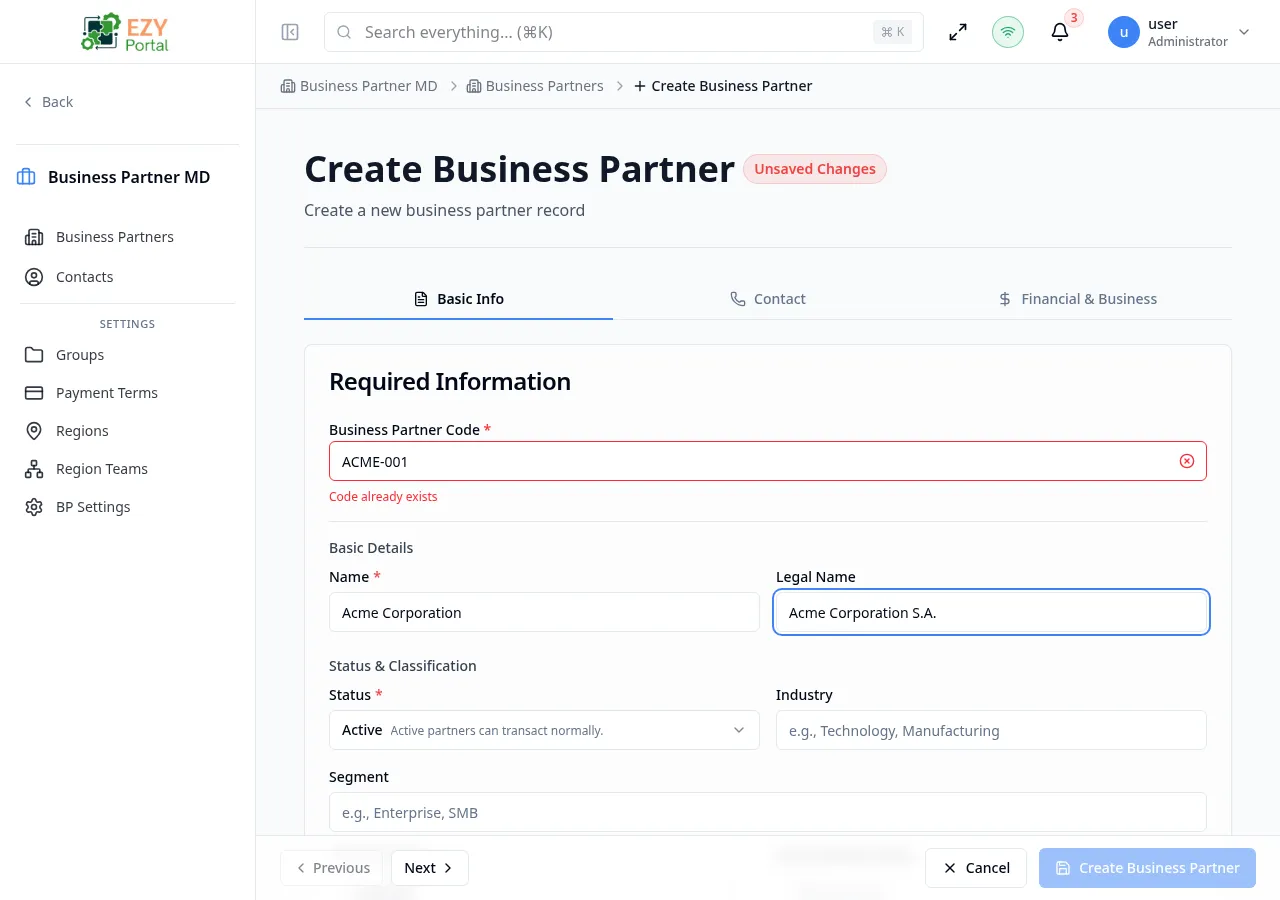
Section titled “Form Overview”The creation form is organized into three or four tabs depending on your tenant configuration:
| Tab | Description |
|---|---|
| Basic Info | Required identifiers, classification, addresses, and additional data |
| Contact | Communication details and optional primary contact person |
| Financial & Business | Tax, commercial, and business metrics |
| Custom Fields | Dynamic fields from custom field definitions (conditionally shown) |
Navigation buttons at the bottom of the form:
| Button | Behavior |
|---|---|
| Previous | Go back to the previous tab (disabled on tab 1) |
| Next | Validate current tab and advance to the next |
| Cancel | Discard and return to the list |
| Create Business Partner | Submit the form (disabled while code is validating or unavailable) |
Once you begin entering data, an Unsaved Changes guard prevents accidental navigation. Attempting to leave shows a browser confirmation dialog.
Tab 1 — Basic Info
Section titled “Tab 1 — Basic Info”
Business Partner Code
Section titled “Business Partner Code”| Field | Required | Type | Description | Default | Validation |
|---|---|---|---|---|---|
| Code | Yes | Text | Unique business partner code | — | Max 50 chars, pattern: ^[a-zA-Z0-9_ -]+$, real-time async uniqueness check |
The code field validates in real-time with a debounced check against existing codes. A green indicator confirms availability; red indicates a duplicate. The submit button is disabled while validation is in progress.
Basic Details
Section titled “Basic Details”| Field | Required | Type | Description | Default | Validation |
|---|---|---|---|---|---|
| Name | Yes | Text | Business partner display name | — | Max 200 chars |
| Legal Name | No | Text | Registered legal company name | — | Max 200 chars |
Status & Classification
Section titled “Status & Classification”| Field | Required | Type | Description | Default | Validation |
|---|---|---|---|---|---|
| Status | Yes | Select | Partner status | Active | — |
| Industry | No | Combobox | Industry classification | — | Max 100 chars, typeahead with existing values |
| Segment | No | Combobox | Market segment | — | Max 100 chars, typeahead with existing values |
Status options:
| Value | Description |
|---|---|
| Active | Active partners can transact normally |
| Inactive | Partner is deactivated |
| Prospect | Sales prospect |
| Blocked | Blocked from transactions |
Roles & Groups
Section titled “Roles & Groups”| Field | Required | Type | Description | Default | Validation |
|---|---|---|---|---|---|
| Business Roles | Yes | Multi-select | Partner type roles | Customer | At least one role required |
Role options:
| Role | Description |
|---|---|
| Customer | Purchases goods or services |
| Vendor | Supplies goods or services |
| Lead | Sales prospect in the pipeline |
| Partner | Business partner or collaborator |
Removing a role that affects assigned groups triggers a Role Removal Confirmation dialog listing the affected groups.
| Field | Required | Type | Description | Default | Validation |
|---|---|---|---|---|---|
| Group Memberships | No | Multi-select | Assign the partner to existing groups | — | Groups are filtered by selected roles (scope matching) |
| Owner | No | User select | User responsible for this partner | — | — |
Groups are filtered based on the selected roles. Groups with scope “Any” always appear. Only groups matching the partner’s assigned roles are shown.
Billing Address (Optional)
Section titled “Billing Address (Optional)”An expandable section for the partner’s billing address:
| Field | Required | Type | Description | Validation |
|---|---|---|---|---|
| Label | No | Text | Address label | Max 100 chars |
| Country | Yes (if address filled) | Combobox | Country code (2-letter) | Exactly 2 chars |
| State/Province | No | Text | Administrative area | Max 100 chars |
| City | No | Text | City/locality | Max 100 chars |
| Neighborhood | No | Text | Dependent locality | Max 100 chars |
| Postal Code | No | Text | ZIP/postal code | Max 20 chars |
| Street | No | Text | Thoroughfare | Max 200 chars |
| Building Number | No | Text | Building number | Max 20 chars |
| Suite/Apt | No | Text | Sub-premise (apartment, suite) | Max 50 chars |
| Address Line 1 | Yes (if other fields filled) | Text | Primary address line | Max 200 chars |
| Address Line 2 | No | Text | Secondary address line | Max 200 chars |
| Address Line 3 | No | Text | Tertiary address line | Max 200 chars |
| Latitude | No | Number | Geographic latitude | — |
| Longitude | No | Number | Geographic longitude | — |
The billing address section includes a checkbox “Use billing address for shipping” (checked by default). When checked, the shipping address is automatically populated from the billing address.
Shipping Address (Optional)
Section titled “Shipping Address (Optional)”Shown when “Use billing address for shipping” is unchecked. Contains the same fields as the billing address. The shipping address type is automatically set to shipping.
Additional Data
Section titled “Additional Data”| Field | Required | Type | Description | Default | Validation |
|---|---|---|---|---|---|
| Notes | No | Textarea | Free-text notes | — | Max 1000 chars |
| Tags | No | Badge input | Press Enter to add tags | [] | Typeahead with existing tags |
Tab 2 — Contact
Section titled “Tab 2 — Contact”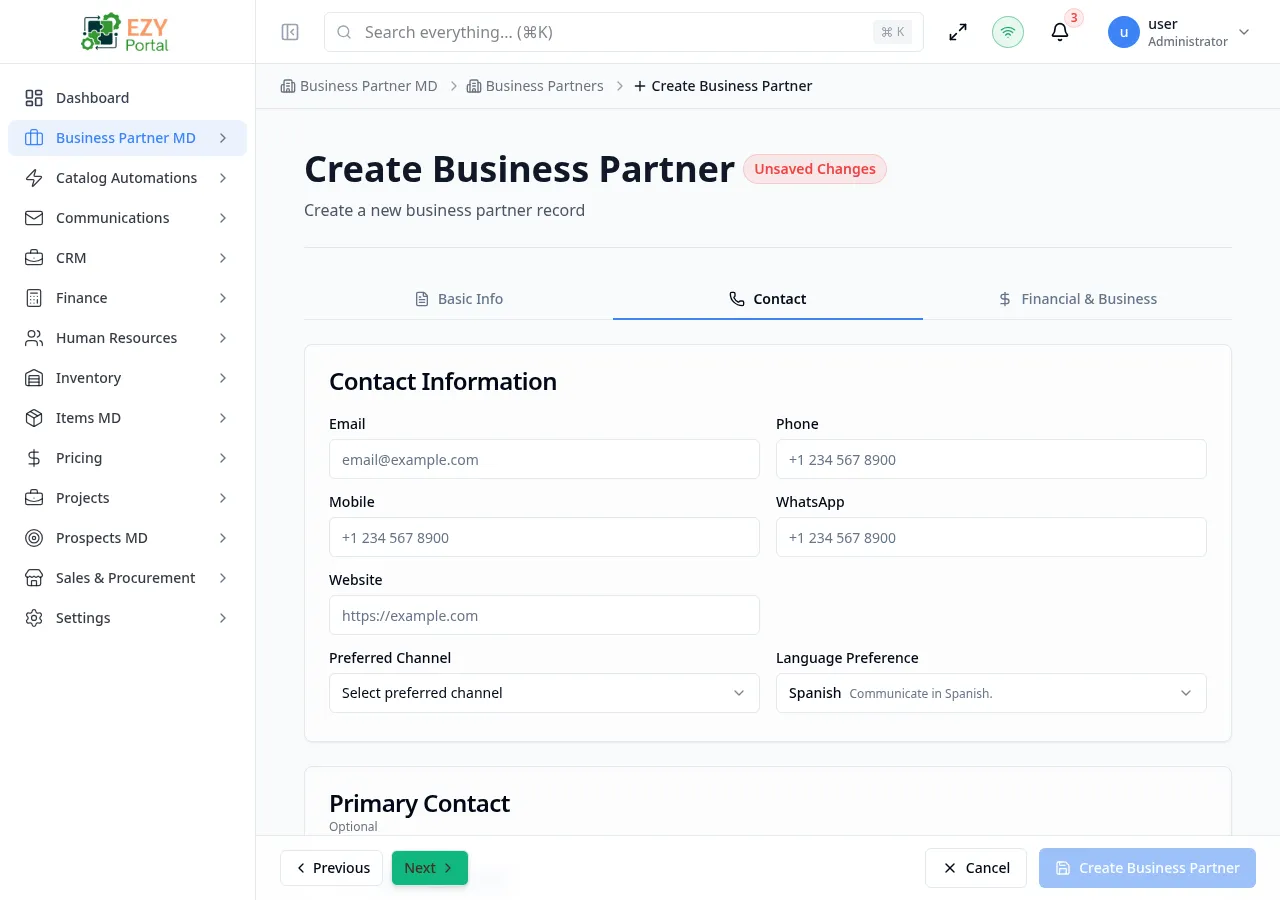
Communication Details
Section titled “Communication Details”| Field | Required | Type | Description | Default | Validation |
|---|---|---|---|---|---|
| No | Primary email address | — | Valid email format if provided | ||
| Phone | No | Text | Primary phone number | — | Max 30 chars |
| Mobile | No | Text | Mobile phone number | — | Max 30 chars |
| No | Text | WhatsApp number | — | Max 30 chars | |
| Website | No | URL | Company website URL | — | Valid URL if provided |
| Preferred Channel | No | Select | Preferred communication channel | — | Max 50 chars |
Preferred Channel options:
| Channel | Description |
|---|---|
| Use corporate email communications | |
| Phone | Reach the partner by phone |
| Preferred WhatsApp messaging | |
| SMS | Send text messages |
| Postal Mail | Send physical mail |
| Field | Required | Type | Description | Default | Validation |
|---|---|---|---|---|---|
| Language Preference | No | Select | Communication language | Tenant default language | Max 5 chars |
Primary Contact (Optional)
Section titled “Primary Contact (Optional)”An optional section to add a primary contact person for this business partner. If any field in this section is filled, First Name and Last Name become required.
| Field | Required | Type | Description | Validation |
|---|---|---|---|---|
| First Name | Yes (if section used) | Text | Contact’s first name | Max 100 chars |
| Last Name | Yes (if section used) | Text | Contact’s last name | Max 100 chars |
| Job Title | No | Text | Job title or position | Max 100 chars |
| Department | No | Text | Department name | Max 100 chars |
| Role | No | Select | Contact role (see below) | — |
| No | Contact’s email address | Valid email if provided | ||
| Phone | No | Text | Contact’s phone number | Max 30 chars |
| Mobile | No | Text | Contact’s mobile number | Max 30 chars |
| No | Text | Contact’s WhatsApp number | Max 30 chars | |
| Telegram | No | Text | Contact’s Telegram handle | Max 30 chars |
| Language | No | Select | Contact’s preferred language | Max 5 chars |
| Timezone | No | Text | Contact’s timezone | Max 50 chars |
| Notes | No | Textarea | Notes about this contact | Max 500 chars |
Contact Role options:
| Role | Description |
|---|---|
| Primary | Main point of contact for this business partner |
| Billing | Handles billing and invoicing matters |
| Purchasing | Manages purchasing decisions and orders |
| Technical | Technical point of contact for product issues |
| Decision Maker | Has authority to make business decisions |
| Logistics | Handles shipping and logistics coordination |
| Other | Other type of contact role |
Only one contact can be designated as the primary contact for a business partner. If a primary contact is set later, the previous primary designation is cleared automatically.
Tab 3 — Financial & Business
Section titled “Tab 3 — Financial & Business”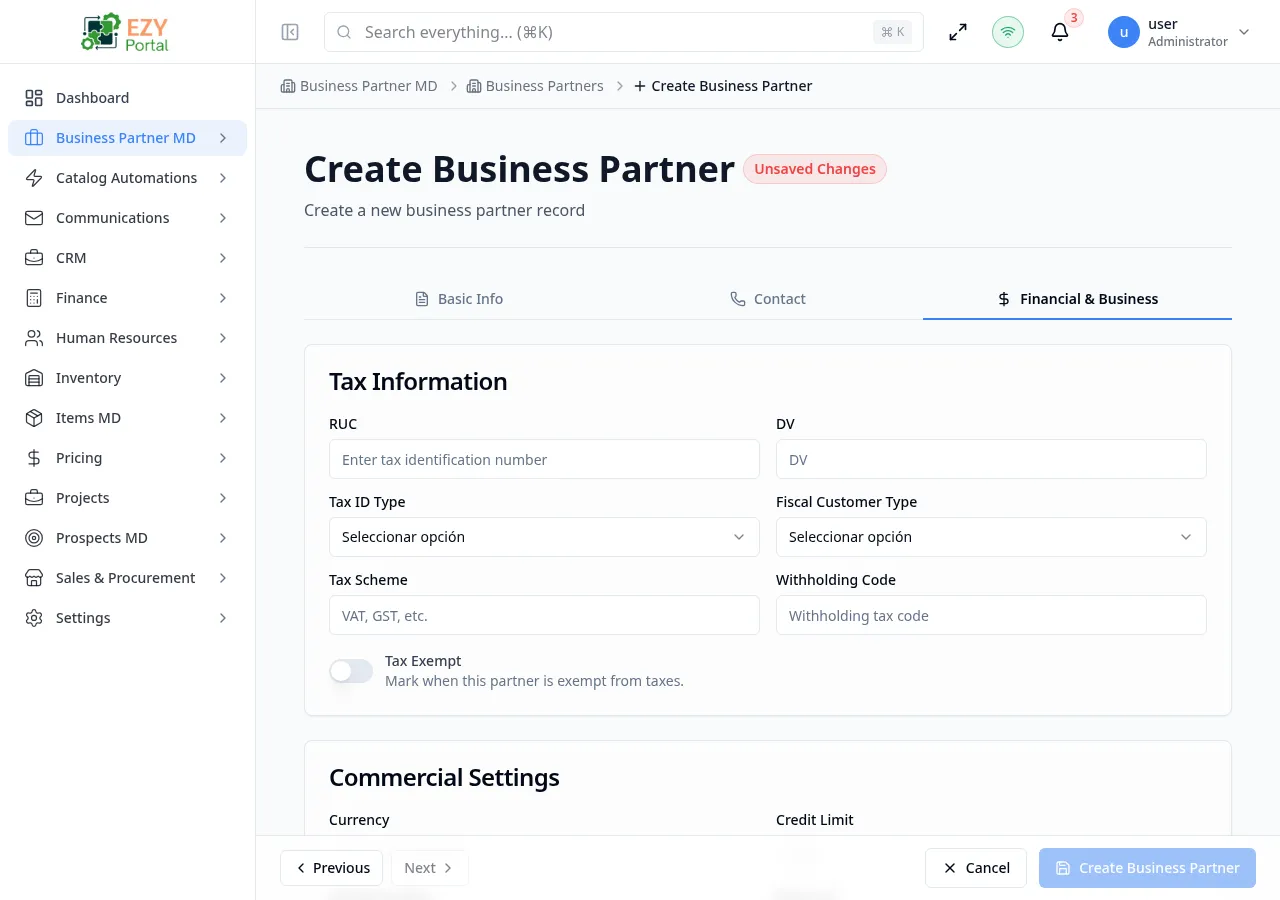
Tax Information
Section titled “Tax Information”| Field | Required | Type | Description | Default | Validation |
|---|---|---|---|---|---|
| Tax ID | No | Text | Tax identification number | — | Max 50 chars |
| Tax Scheme | No | Text | Tax scheme (e.g., VAT, GST) | — | Max 50 chars |
| Withholding Code | No | Text | Withholding tax code | — | Max 20 chars |
| Tax Exempt | No | Toggle | Mark the partner as exempt from taxes | false | — |
Country-specific fiscal fields are rendered dynamically based on the tenant’s country. For example, Colombia shows:
| Field | Required | Type | Description |
|---|---|---|---|
| DV | No | Text | Verification digit |
| Tax ID Type | No | Select | Natural Person, Juridical Person, or Foreign |
| Fiscal Customer Type | No | Select | Taxpayer, End Consumer, Government, or Foreign |
Commercial Settings
Section titled “Commercial Settings”| Field | Required | Type | Description | Default | Validation |
|---|---|---|---|---|---|
| Currency | No | Select | Default transaction currency | USD | 3-letter ISO code if provided |
| Credit Limit | No | Number | Maximum credit allowed | — | Min 0 |
| Payment Terms | No | Entity select | Payment terms from Payment Terms setup | Tenant default sales payment terms | — |
| Price List | No | Entity select | Default price list | Tenant default sales price list | — |
| Region | No | Entity select | Assigned region from Regions setup | — | — |
| On Hold | No | Toggle | Place partner on hold (blocks transactions) | false | — |
Payment Terms and Price List are auto-populated from tenant-level commercial settings defaults. You can override them per partner.
Enabling On Hold shows a confirmation dialog warning that the partner will be blocked from transactions.
Business Metrics
Section titled “Business Metrics”| Field | Required | Type | Description | Default | Validation |
|---|---|---|---|---|---|
| Employees Count | No | Number | Number of employees | — | Min 0 |
| Annual Revenue | No | Number | Annual revenue amount | — | Min 0 |
Tab 4 — Custom Fields (Conditional)
Section titled “Tab 4 — Custom Fields (Conditional)”This tab appears only when custom field definitions are configured for the tenant. Fields are dynamically rendered based on the field-definitions endpoint. Validation rules are defined per custom field.
If custom fields are configured as searchable or filterable, their values also become available in list search and filtering behavior across Business Partners and Contacts.
Address Behavior Notes
Section titled “Address Behavior Notes”- If this is the first billing, shipping, or office-style address for the partner, default billing or shipping can be auto-assigned.
- When Use billing address for shipping is enabled, shipping values mirror billing values to reduce duplicate entry.
- Country availability follows Country Settings. If your tenant restricts countries, disallowed countries cannot be selected.
- Latitude and longitude are optional and can be captured for location-aware operations.
Creating a Business Partner
Section titled “Creating a Business Partner”- Click Create from the Business Partners list
- On Basic Info, enter the partner code (validated in real-time), name, status, roles, and optional fields
- Click Next to advance to Contact — enter email, phone, and optional primary contact
- Click Next to advance to Financial & Business — set tax and commercial settings
- If custom fields are configured, fill in the Custom Fields tab
- Click Create Business Partner to submit
After successful creation:
- The partner is created via the API
- Group memberships are assigned for any selected groups
- You are redirected to the Business Partner Detail page
Validation Rules
Section titled “Validation Rules”| Rule | Behavior |
|---|---|
| Code required | Cannot submit without a code |
| Code uniqueness | Real-time async validation with green/red indicator |
| Code format | Letters, numbers, spaces, dashes, and underscores only |
| Name required | Cannot submit without a name |
| Roles required | At least one role must be selected |
| Email format | Validated if provided |
| Website format | Must be a valid URL if provided |
| Currency format | 3-letter ISO code if provided |
| Tab validation | Clicking Next validates the current tab; errors switch to the error tab |
| Error summary | All validation errors shown at the top of the form |
| Address validation | Country required if any address field is filled; Address Line 1 required with content |
Prospect-Sourced Business Partners
Section titled “Prospect-Sourced Business Partners”Business Partners can also be created automatically when a prospect is converted. In that case, the system creates the BP with the prospect’s code, company name, contact details, region, and a primary contact — all carried over from the prospect record. These BPs behave identically to manually created ones and appear in the same list.
Permissions & system behavior
Section titled “Permissions & system behavior”- Viewing this page requires access to the corresponding module.
- Create/edit/delete actions are visible only to users with matching permissions.
- After a successful action, the page updates list/detail data to reflect the change.
Related Pages
Section titled “Related Pages”- Business Partners — List and search all business partners
- Business Partner Detail — View a specific business partner
- Edit Business Partner — Edit an existing business partner
- Groups — Organize business partners into groups
- Teams — Manage region team assignments
- Payment Terms — Configure payment terms
- Regions — Configure geographic regions