Device Registration
EZY WMS uses per-device licensing. Every phone, tablet, or browser that accesses the system must be registered once and activated by a Super User before it can be used for warehouse operations.
How Registration Works
Section titled “How Registration Works”The first time any user logs in from a new device, the system detects an unrecognised device UUID and prompts for a device name before allowing access.
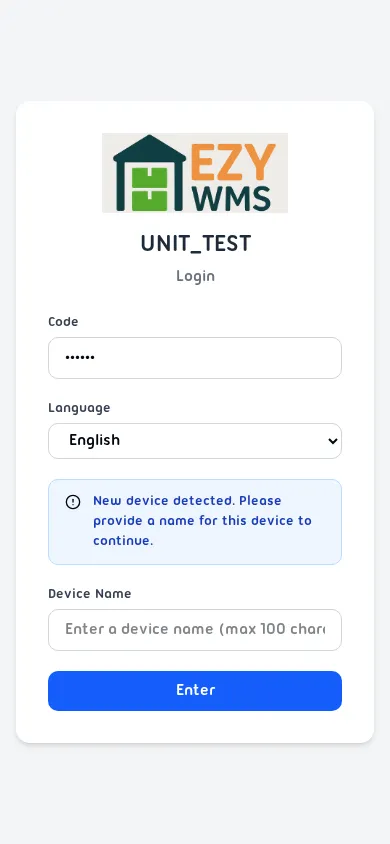
- Open the WMS URL in the browser.
- Enter your Code and tap Enter.
- The system shows: “New device detected. Please provide a name for this device to continue.”
- Enter a descriptive Device Name (e.g.
Warehouse A — Scanner 3, max 100 characters). - Tap Enter.
The device is now registered with status Inactive.
Activating the Device
Section titled “Activating the Device”Only a Super User can activate devices. After a new device is registered:
- Log in to WMS with a Super User account — the system redirects automatically to Settings → Devices.
- Find the new device in the list (it will show Inactive status).
- Open the device and click Activate Device.
- Optionally enter a reason for the audit trail.
- Click Activate.
The device status changes to Active and the user can now log in normally.
Device Statuses
Section titled “Device Statuses”| Status | Meaning |
|---|---|
| Active | Device is fully operational; users can log in |
| Inactive | Registered but not yet activated; login is blocked for non-Super Users |
| Disabled | Manually disabled by an administrator; login is blocked |
Restricted Access on Inactive Devices
Section titled “Restricted Access on Inactive Devices”When a Super User logs in on an Inactive device, the main operational menu (Goods Receipt, Picking, Counting, Transfer, etc.) is hidden. Only Settings is accessible, allowing the Super User to activate the device directly from the same session.
A yellow status banner also appears on the login page and inside the app when a device is Inactive or Disabled.
Managing Devices
Section titled “Managing Devices”All device management is under Settings → Devices and requires Super User access:
- View device UUID, registration date, and last active date
- Change device status (Activate / Disable) with a reason
- Rename a device
- View the full audit history of status changes