Import Wizard
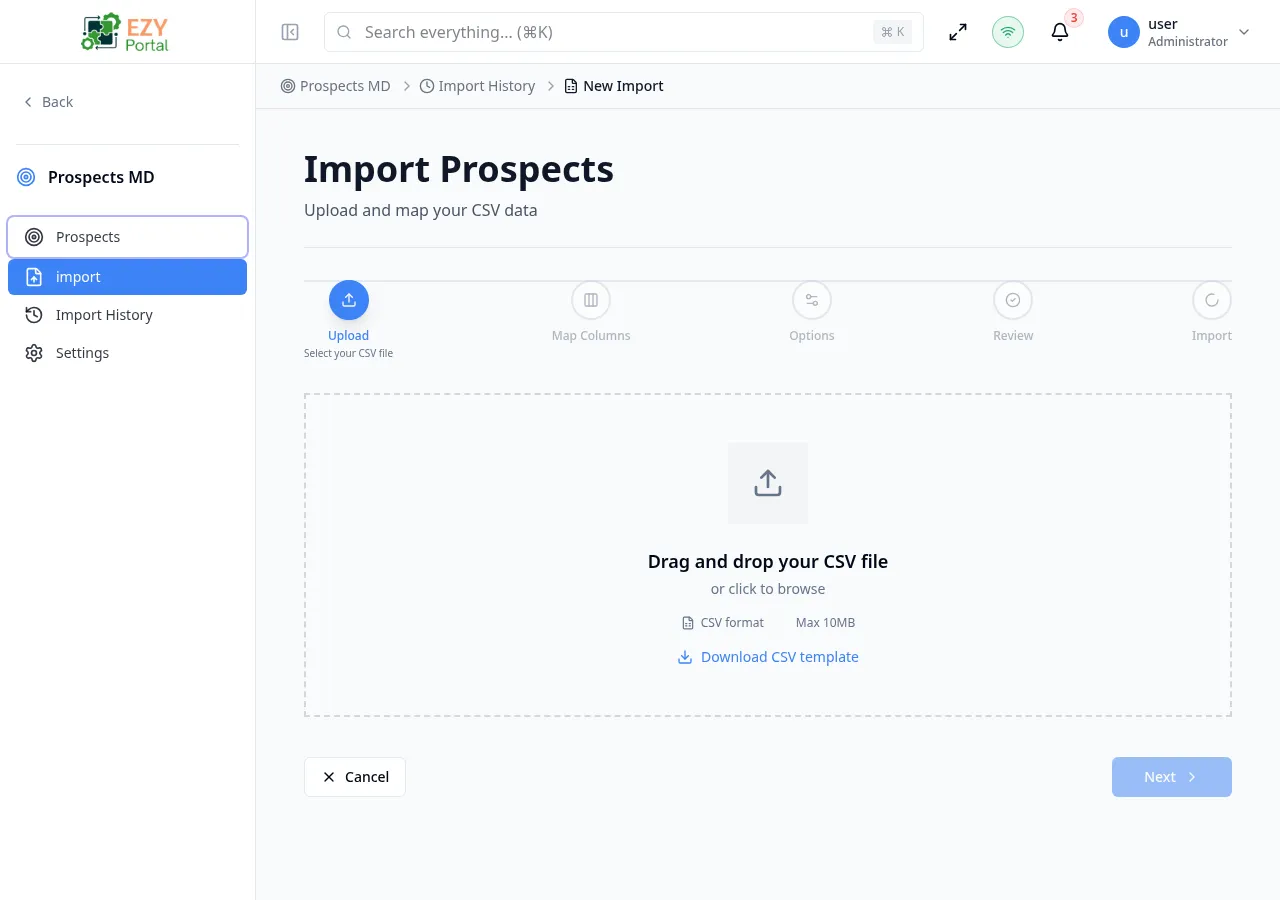
The Import Wizard guides you through importing prospects from a CSV file in five steps: file upload, column mapping, options, validation, and import progress.
Accessing the Page
Section titled “Accessing the Page”Navigate to /prospects/import or click New Import from the Import History page. Requires the canUploadCSV permission.
Wizard Steps
Section titled “Wizard Steps”Step 1 — File Upload
Section titled “Step 1 — File Upload”Upload a CSV file by dragging and dropping or clicking to browse.
| Requirement | Value |
|---|---|
| Accepted format | .csv |
| Maximum file size | 10 MB |
After uploading, the wizard displays:
- File info card — filename, size, row count, and a ready status
- CSV preview table — first 5 rows of the parsed data
You can download a CSV template with sample data and required columns.
Template columns: firstName, lastName, email, phone, company, jobTitle, notes, tags, leadScore, consentStatus, privacyPolicyVersion
Step 2 — Column Mapping
Section titled “Step 2 — Column Mapping”Map each CSV column to a prospect field. Auto-detection attempts to match columns by name.
| Setting | Description |
|---|---|
| Auto-detect | Columns are automatically mapped by header name |
| Manual mapping | Use dropdowns to map each column to a prospect field |
| Skip column | Exclude a column from import |
| Reset | Revert to auto-detected mappings |
Required fields (must be mapped to proceed): First Name, Last Name, Email
Optional fields: Phone, Company, Job Title, Source Type, Region ID, Notes, Tags, Lead Score
The mapping table shows:
- CSV column name
- Arrow indicator
- Prospect field selector (with required badge)
- Sample value preview
- Mapping status checkmark
Step 3 — Import Options
Section titled “Step 3 — Import Options”Configure default values and duplicate handling:
| Option | Description | Default |
|---|---|---|
| Default Source Type | Applied when source type is not mapped from CSV | CSV Import |
| Default Status | Initial status for imported prospects | New |
| Duplicate Handling | How to handle prospects with existing emails | Skip |
Duplicate Handling Options
Section titled “Duplicate Handling Options”| Option | Icon | Description |
|---|---|---|
| Skip | Skip forward | Skip duplicate rows entirely |
| Update | Refresh | Update existing prospects with CSV data |
| Create | Copy plus | Create new prospects regardless of duplicates |
Additional option: Skip first row — enabled by default to skip the CSV header.
Step 4 — Validation
Section titled “Step 4 — Validation”The system validates all rows before importing:
| Metric | Description |
|---|---|
| Total Rows | Number of rows in the CSV |
| Valid Rows | Rows that passed validation |
| Error Rows | Rows with validation errors |
| Warning Rows | Rows with non-blocking warnings |
Validation checks include:
- Required field presence (firstName, lastName, email)
- Email format validation
- Data type validation (e.g., lead score must be numeric)
- Duplicate detection (advisory)
A preview table shows which rows are valid and which have errors, with specific error messages.
Step 5 — Import Progress
Section titled “Step 5 — Import Progress”After validation passes, the import begins. The progress view shows:
| Metric | Description |
|---|---|
| Total Rows | Total rows being processed |
| Processed | Rows completed so far |
| Success Count | Successfully imported prospects |
| Error Count | Rows that failed to import |
The wizard polls for progress updates every few seconds. When complete, a summary is displayed with options to:
- View Prospects — Navigate to the Prospects List (filtered by this import)
- New Import — Start another import
Canceling
Section titled “Canceling”Click Cancel at any step to abort and return to the Import History page.
Related Pages
Section titled “Related Pages”- Import History — View past imports
- Import Detail — View details of a completed import
- Prospects List — View all prospects