Onboarding Employee
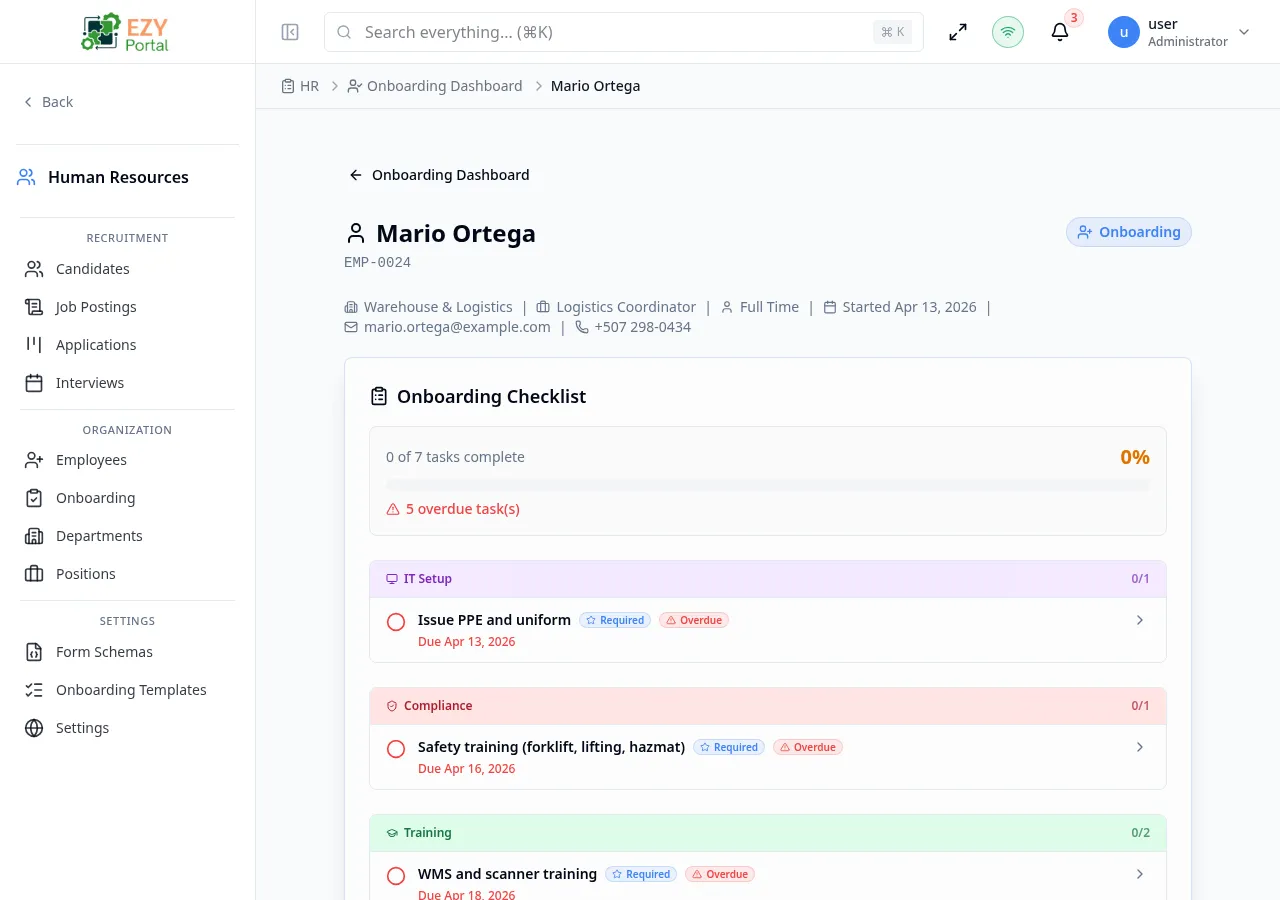
The Onboarding Employee page displays the full onboarding checklist for a single employee. Each task from the assigned template is listed with its due date, completion status, category, required flag, and description. HR staff can mark tasks complete, record notes per task, and close out the entire onboarding when all required tasks are done. An optional onboarding form (if attached to the template) is also accessible from this page.
Accessing the Page
Section titled “Accessing the Page”- Route:
/hr/onboarding/:employeeId - Menu Path: HR → Onboarding → Dashboard → click an employee row
The page can also be accessed from the Onboarding tab of the Employee Detail panel on the Employees page.
Header / Employee Summary
Section titled “Header / Employee Summary”The top section displays:
| Field | Description |
|---|---|
| Employee Name | Full name |
| Position | Assigned position |
| Department | Assigned department |
| Onboarding Start Date | When onboarding began |
| Progress Bar | Visual indicator of completed tasks / total tasks with percentage |
Onboarding Checklist
Section titled “Onboarding Checklist”Tasks are displayed in order (as defined in the template). Each task row shows:
| Element | Description |
|---|---|
| Completion checkbox | Check to mark the task as complete |
| Task title | Name of the task |
| Category badge | Documentation, IT Setup, Training, Introductions, Compliance, or Other |
| Required badge | Shown if the task is marked required in the template |
| Due indicator | Due Day relative to start date; shown as “Overdue” in red if past the due date |
| Description | Expanded detail when the task row is clicked |
Task Detail
Section titled “Task Detail”Clicking a task row expands it to show:
- Full description of what needs to be done
- Assigned-to label (role or person)
- Notes field — free text notes specific to this employee’s completion of the task
- Completed by line (shown after completion): who completed it and when
Marking a Task Complete
Section titled “Marking a Task Complete”Check the checkbox on any task row to mark it complete. The progress bar updates immediately. If a required task is unchecked, it must be re-completed before onboarding can be closed.
Onboarding Form
Section titled “Onboarding Form”If the assigned template includes an onboarding form schema, a Onboarding Form section is accessible from this page. The employee or HR staff can fill in the form fields. Submitted form data is saved and associated with the employee’s onboarding record.
Completing Onboarding
Section titled “Completing Onboarding”When all required tasks are checked, the Complete Onboarding button becomes active.
- Ensure all required tasks are checked.
- Click Complete Onboarding.
- Confirm in the dialog.
After completion:
- The employee’s status changes from
OnboardingtoActive. - A completion timestamp is recorded.
- The employee is removed from the Onboarding Dashboard.
Note: Optional (non-required) tasks can remain unchecked when completing onboarding. The system only enforces that all required tasks are completed.
Business rule notes
Section titled “Business rule notes”- The checklist is generated from the template assigned at the time the employee entered the Onboarding status. Changes to the template after the checklist is generated do not affect existing checklists.
- Overdue tasks are determined by comparing the task’s due day (relative to the start date) with today’s date.
- Once onboarding is marked complete, the checklist becomes read-only.
Common tasks
Section titled “Common tasks”- Open the Onboarding Dashboard and click an employee row.
- Review which tasks are overdue or pending.
- Check off completed tasks and add notes where appropriate.
- Click Complete Onboarding when all required tasks are done.
Related Pages
Section titled “Related Pages”- Onboarding Dashboard — Overview of all employees in onboarding
- Onboarding Templates — Configure the task checklists
- Employees — Employee records and status management