Item Check
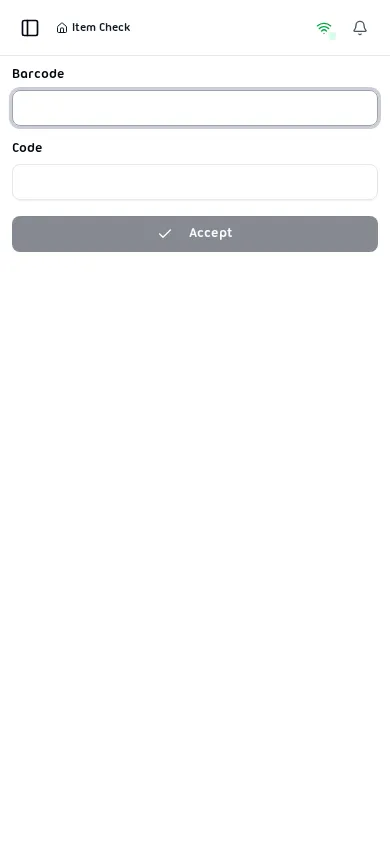
Item Check allows you to query detailed stock information for any item by scanning its barcode or entering its code.
Accessing the Page
Section titled “Accessing the Page”Route: /itemCheck
Navigation: Dashboard → Item Check
You can also access item details directly with a code parameter: /itemCheck/:code
How to Use
Section titled “How to Use”- Enter or scan the item code or barcode.
- The system searches for the item and displays:
- Item name and description
- All barcodes associated with the item
- Stock quantities per bin location
- Unit type breakdown (packs, dozens, units)
- If multiple items match, the system shows an error and requests correction.
Results Display
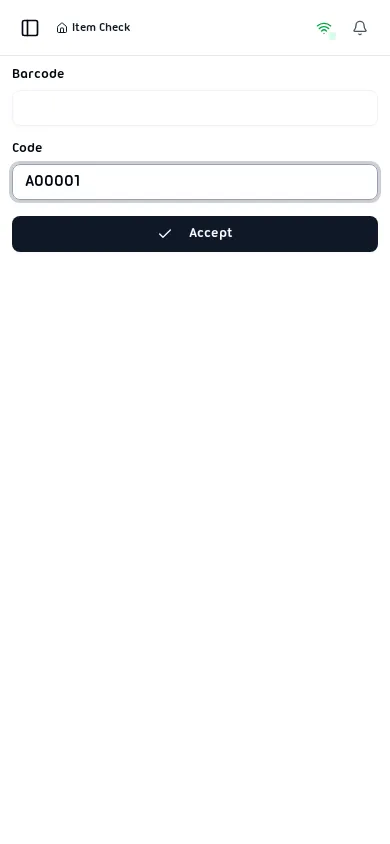
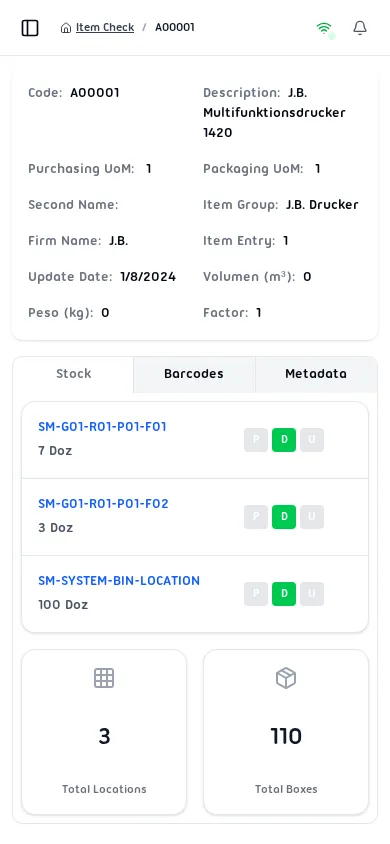
Section titled “Results Display”After entering a valid code and pressing Accept, the system displays the item details with three tabs: Stock, Barcodes, and Metadata.
Stock Tab
Section titled “Stock Tab”Shows stock quantities per bin location with links to bin details.
| Field | Description |
|---|---|
| Bin Location | Warehouse bin where stock is stored (links to Bin Check) |
| Quantity | Available quantity in the bin with unit of measure |
| Total Locations | Number of distinct bin locations holding the item |
| Total Boxes | Total box count across all locations |
Unit Breakdown Badges (P / D / U)
Section titled “Unit Breakdown Badges (P / D / U)”Each stock row displays three colored badges that break down the total quantity into hierarchical unit levels:
| Badge | Color | Label | Description |
|---|---|---|---|
| P | Blue | Pack | Number of full packs (shipping units) |
| D | Green | Dozen | Number of dozen groups remaining after packs |
| U | Amber | Unit | Individual units remaining after dozens |
A gray badge means the count for that level is zero.
The breakdown is calculated as:
- Packs =
total quantity / (units per buy × purchase pack units) - Dozens =
remainder / units per buy - Units = leftover individual pieces
Barcodes Tab
Section titled “Barcodes Tab”Displays all barcodes registered for the item.
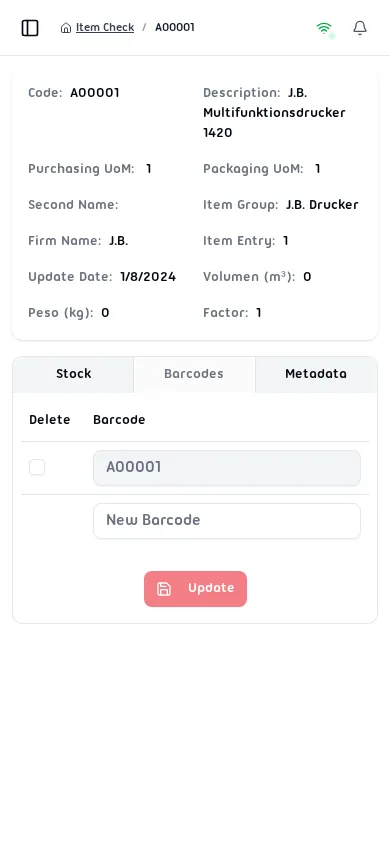
Items can have multiple barcodes. The system displays all registered barcodes and allows validating whether a scanned barcode belongs to the item.
Adding a Barcode
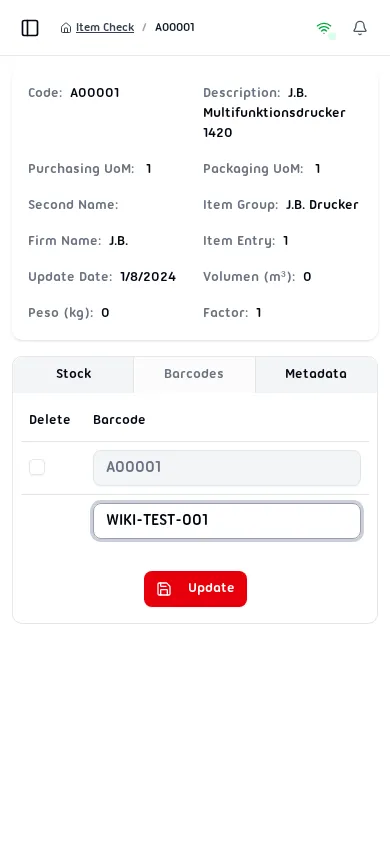
Section titled “Adding a Barcode”Enter a new barcode in the New Barcode field and click Update.
Removing a Barcode
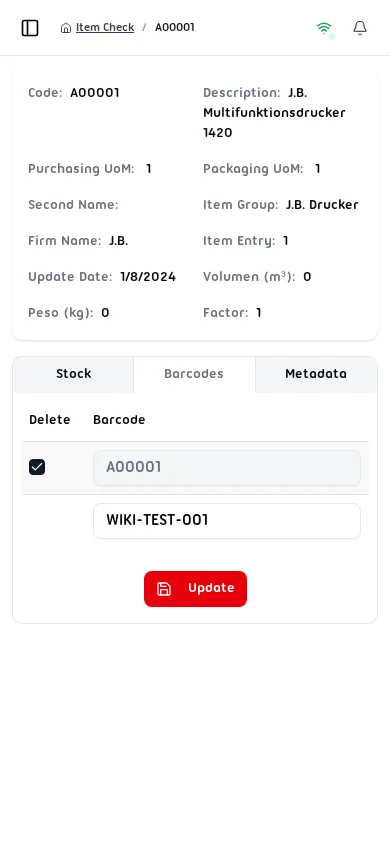
Section titled “Removing a Barcode”Check the checkbox next to an existing barcode and click Update to remove it.
Metadata Tab
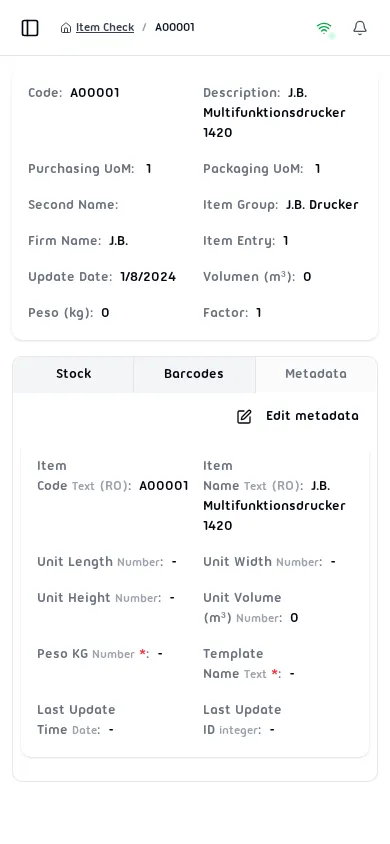
Section titled “Metadata Tab”Displays custom metadata fields configured for items. Click Edit metadata to modify values.
Editing Metadata
Section titled “Editing Metadata”Click Edit metadata to open the edit dialog. Metadata fields support the following types:
| Type | Description |
|---|---|
| Text | Free-form string value |
| Number | Decimal numeric value |
| Integer | Whole number value |
| Date | Date picker |
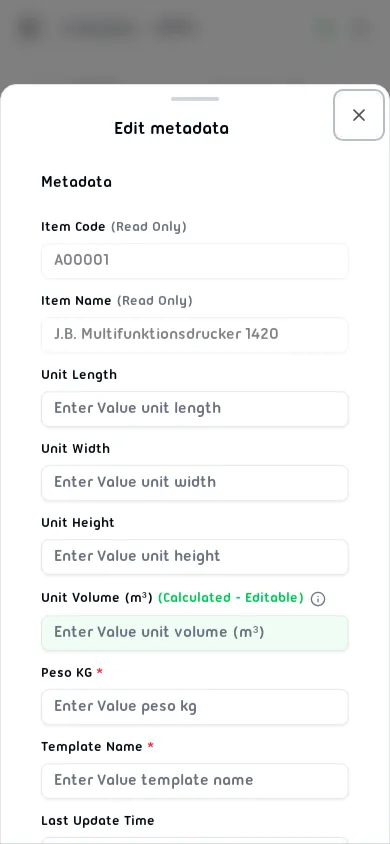
Calculated fields are automatically computed from other metadata values. Manually editing a calculated field will clear all dependent calculated fields.
Error Messages
Section titled “Error Messages”If a code is not found, the system displays an error notification.
| Message | Cause |
|---|---|
| Code not found | The entered code does not exist |
| Barcode not found | The scanned barcode is not registered |
| Multiple items detected | The code returns multiple item codes |
| Item not enabled in warehouse | The item is not active in the current warehouse |
| Not a stock item | The item is not inventory-managed |