Account Statement
View the account statement and transaction history for a business partner, including opening balance, debits, credits, and closing balance.
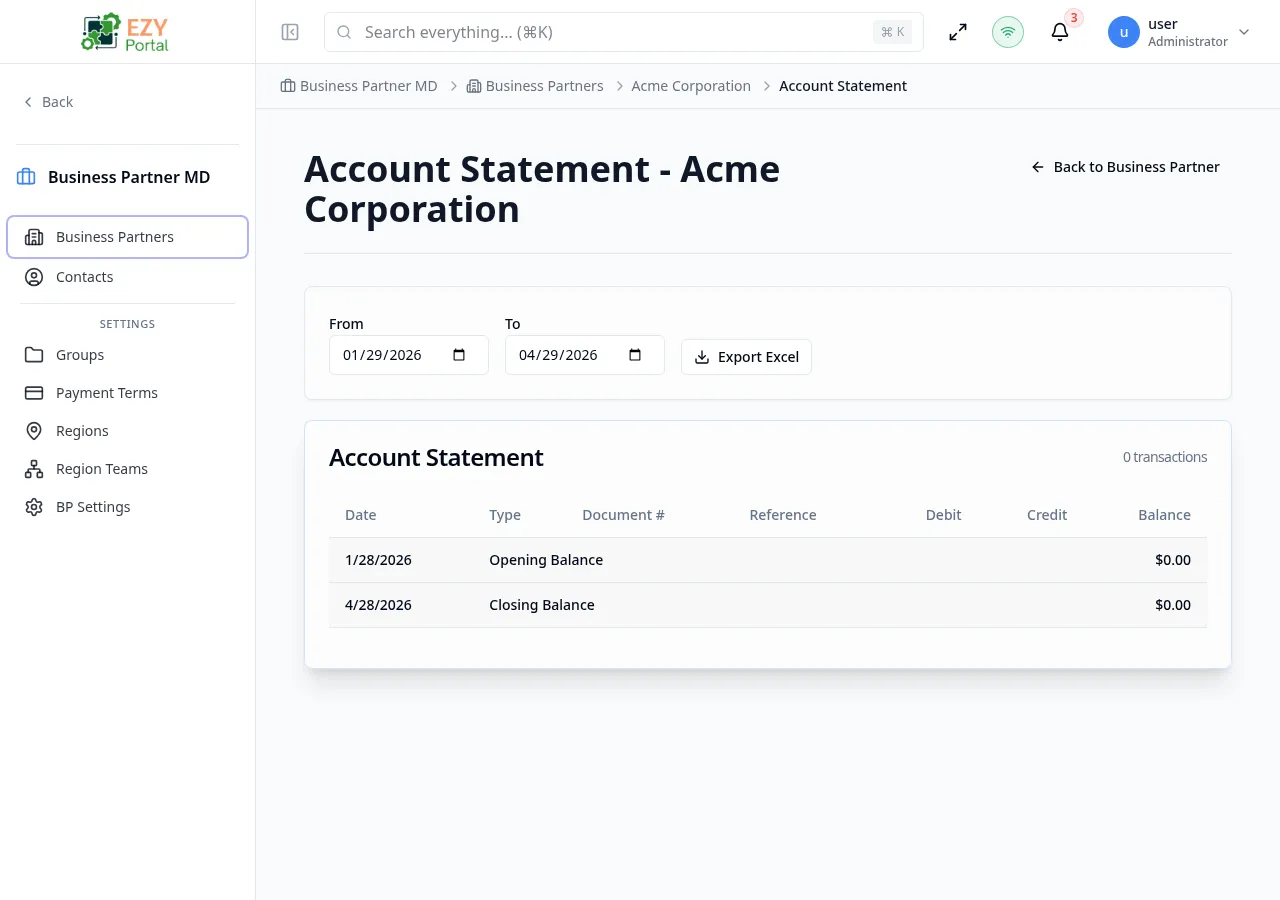
Accessing the Page
Section titled “Accessing the Page”Navigate to a business partner’s detail page and click the Account Statement tab, or go directly to /business-partners/:id/account-statement.
Page Header
Section titled “Page Header”The page title is displayed as Account Statement - [BP Name], showing the business partner’s name. In the top-right corner, a Back to Business Partner link returns you to the business partner detail page.
Filters
Section titled “Filters”Use the filter controls above the transaction list to narrow down results:
| Filter | Description |
|---|---|
| From | Start date for the statement period |
| To | End date for the statement period |
Applying Filters
Section titled “Applying Filters”- Select the desired From date using the date picker
- Select the desired To date using the date picker
- The transaction list updates automatically based on the selected range
Transaction List
Section titled “Transaction List”The table lists all individual transactions for the business partner in the selected period and shows the total transaction count (e.g., “0 transactions”). Each row displays:
| Column | Description |
|---|---|
| Date | Transaction date |
| Type | Type of document (e.g., Invoice, Payment, Credit Memo) |
| Document # | Unique document identifier |
| Reference | Reference number or description for the transaction |
| Debit | Debit amount (if applicable) |
| Credit | Credit amount (if applicable) |
| Balance | Cumulative balance after the transaction |
The table always includes the following rows:
- Opening Balance — The balance at the start of the selected period, displayed as the first row
- Closing Balance — The balance at the end of the selected period, displayed as the last row
Transactions are sorted by date in descending order by default.
Credit and Exposure Context
Section titled “Credit and Exposure Context”The account statement complements the financial summary shown on Business Partner Detail:
- Customer and vendor balances contribute to overall exposure.
- On-account movements represent payments not fully allocated to documents.
- Available credit is affected by current customer exposure and configured credit limit.
Export
Section titled “Export”Export the account statement to Excel for sharing or record-keeping.
| Button | Description |
|---|---|
| Export Excel | Download the statement as an Excel spreadsheet |
Exporting a Statement
Section titled “Exporting a Statement”- Apply any desired filters to narrow the transaction list
- Click Export Excel
- The file will be generated and downloaded automatically
Messages
Section titled “Messages”| Event | Message |
|---|---|
| Load error | ”Failed to load account statement” |
| Export success | ”Statement exported successfully” |
| No data | ”No transactions found for the selected period” |
Permissions & system behavior
Section titled “Permissions & system behavior”- Viewing this page requires access to the corresponding module.
- Create/edit/delete actions are visible only to users with matching permissions.
- After a successful action, the page updates list/detail data to reflect the change.
Related Pages
Section titled “Related Pages”- Business Partner Detail — View detailed information about a business partner
- Business Partners — Browse and manage all business partners