Login Guide
This guide walks you through logging in to EZY Portal using email/password or SSO, and covers common issues you may encounter.
Accessing the Portal
Section titled “Accessing the Portal”Navigate to your organization’s portal URL in a web browser:
https://<your-tenant>.portal.net/You will be presented with the Sign In screen showing your organization’s branding.
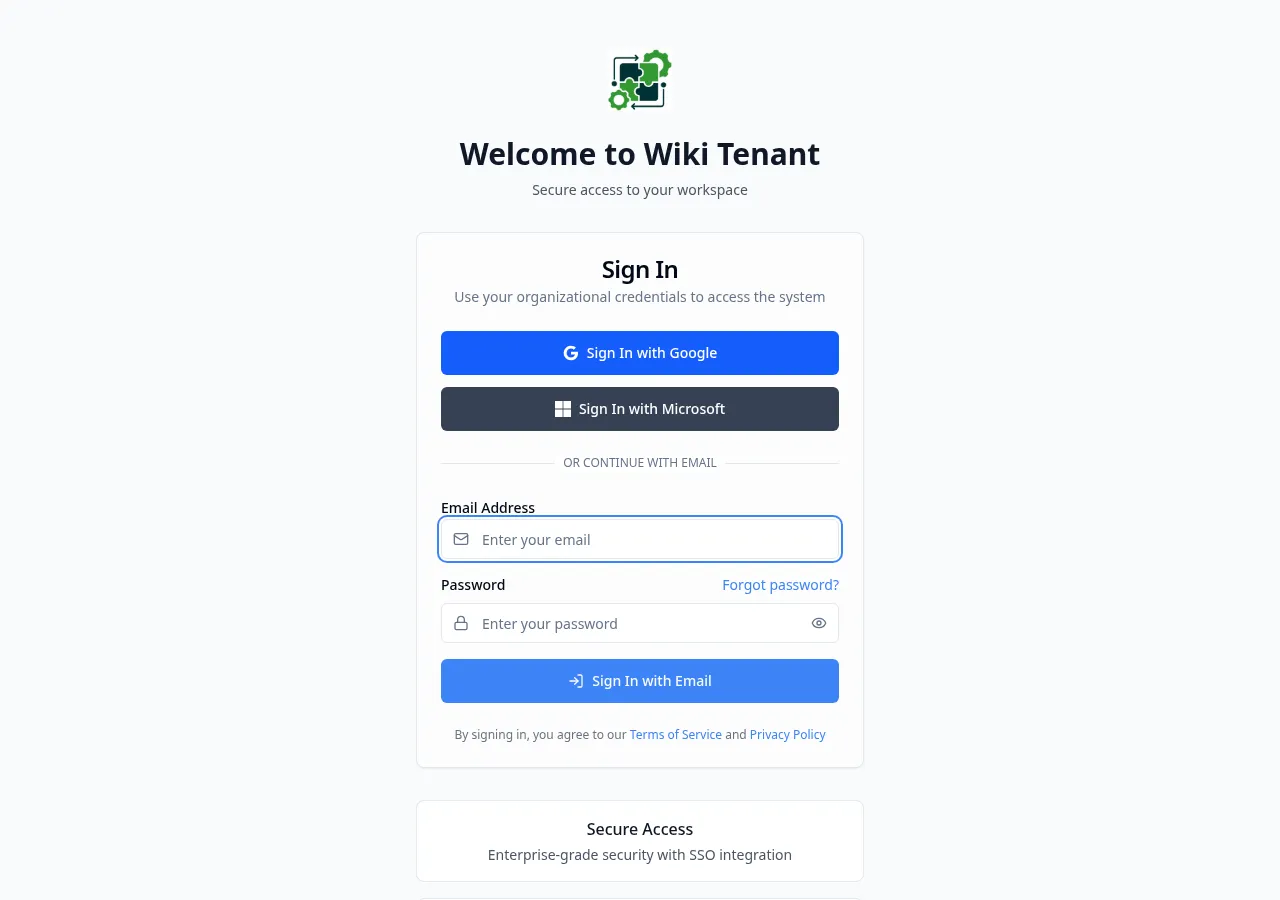
The login page offers two ways to authenticate:
- SSO (Single Sign-On) — Use your existing Google or Microsoft organizational account.
- Email & Password — Enter the credentials provided by your administrator.
Signing In with SSO
Section titled “Signing In with SSO”- Click Sign In with Google or Sign In with Microsoft.
- You will be redirected to your identity provider.
- Authenticate with your organizational account.
- You will be returned to the portal and signed in automatically.
Signing In with Email & Password
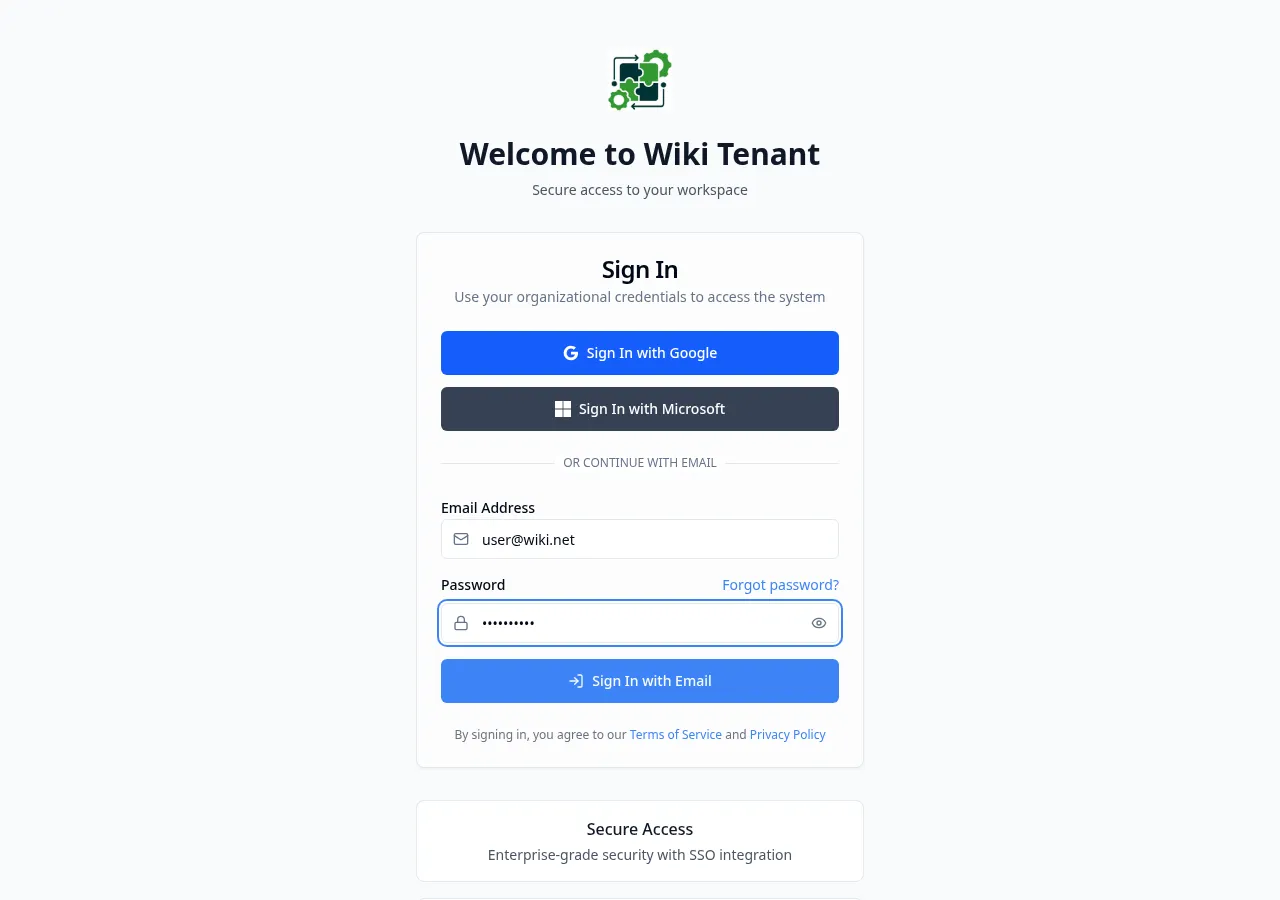
Section titled “Signing In with Email & Password”- Enter your Email Address in the email field.
- Enter your Password in the password field.
- Click the eye icon on the right to toggle password visibility.
- Click Sign In with Email.
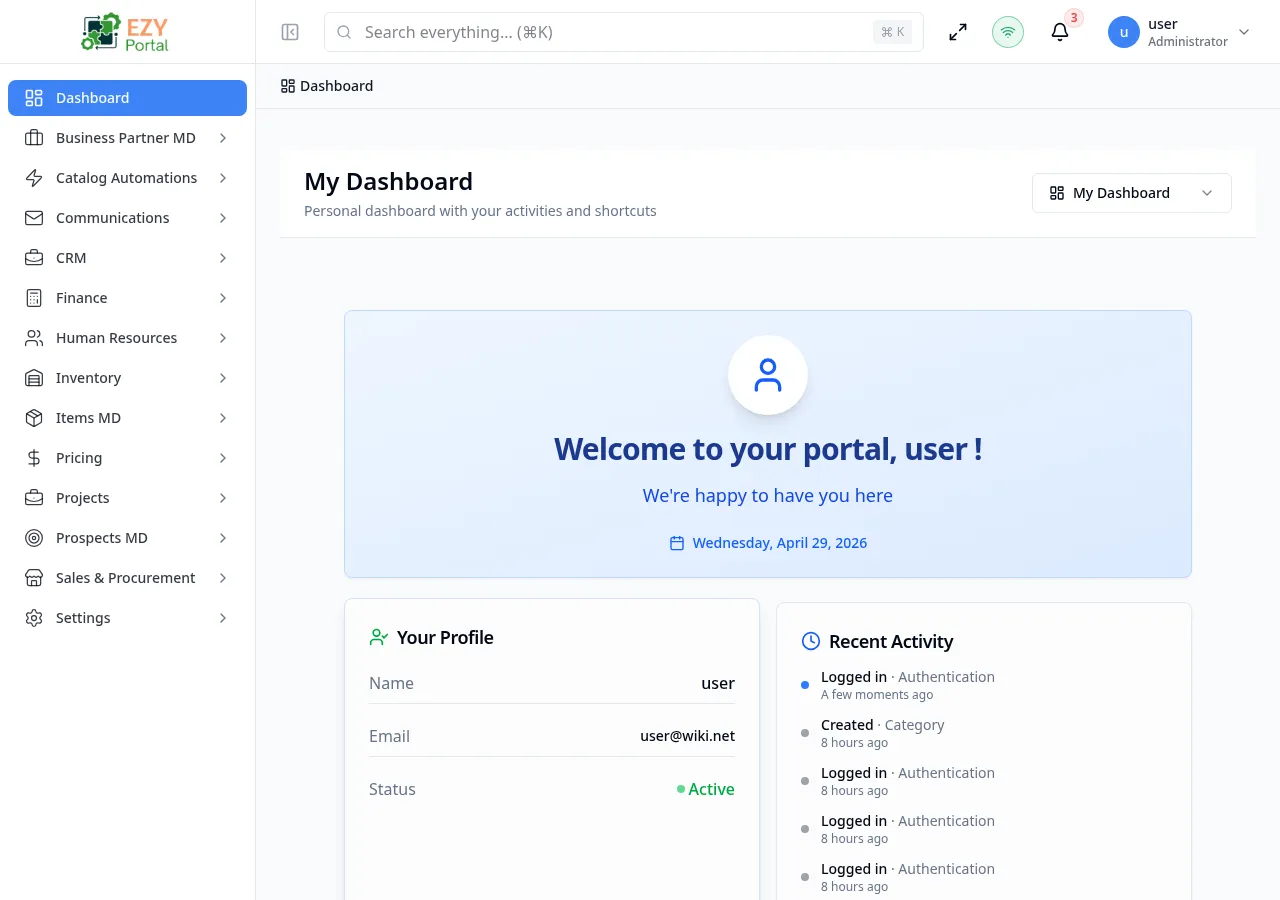
If your credentials are valid, you will be redirected to your personal dashboard.
Forgot Password
Section titled “Forgot Password”If you have forgotten your password, click Forgot password? on the login page. You will receive a password reset email at your registered address.
Common Login Issues
Section titled “Common Login Issues”Invalid Credentials
Section titled “Invalid Credentials”If you enter an incorrect email or password, an error banner appears:
“Invalid email or password”
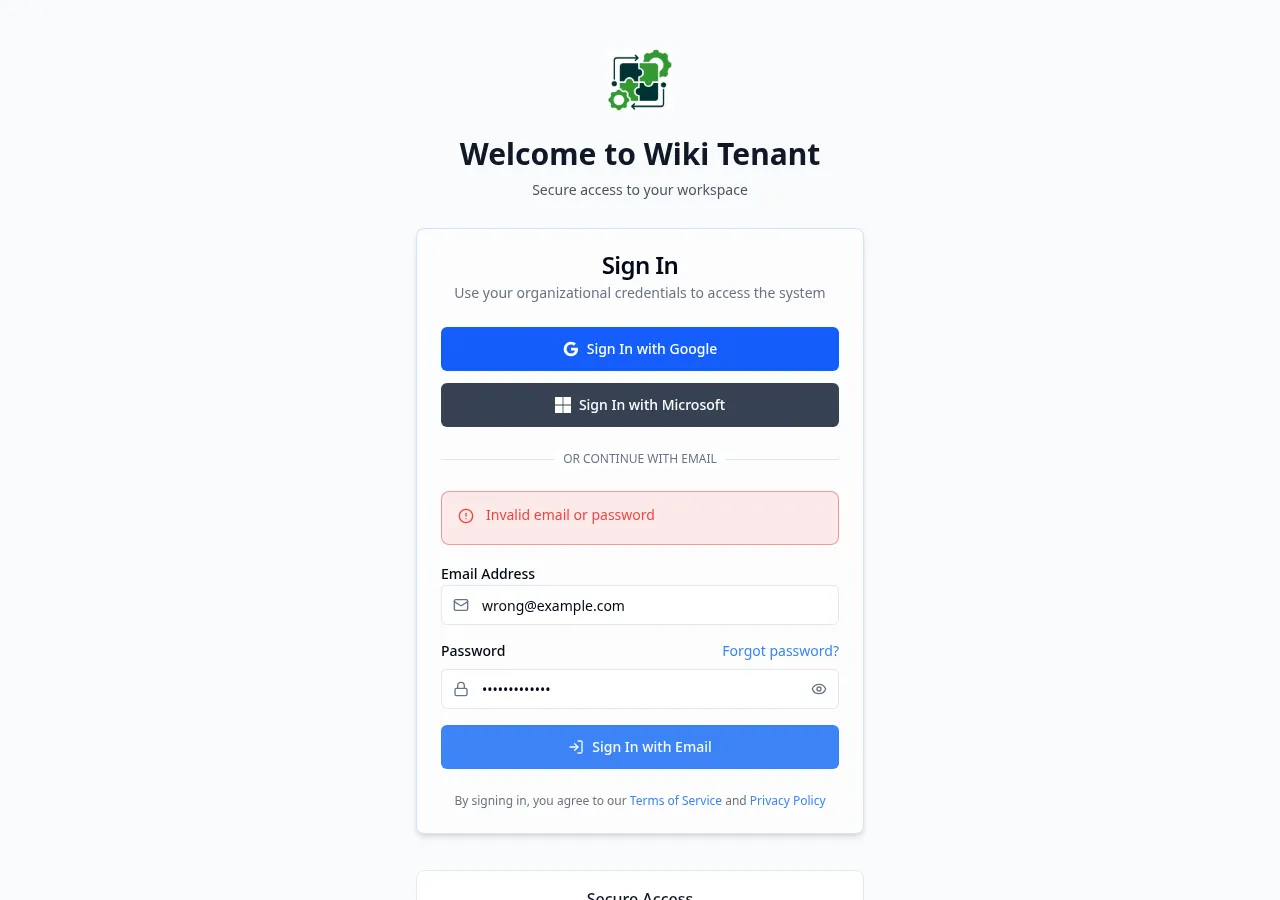
- Double-check that your email address is correct.
- Passwords are case-sensitive.
- Use Forgot password? if you are unsure of your password.
Account Locked
Section titled “Account Locked”After several failed login attempts, your account may be temporarily locked for security reasons. Contact your system administrator to unlock it.
SSO Not Working
Section titled “SSO Not Working”If SSO login fails, verify that:
- You are using an account that belongs to your organization’s domain.
- Your administrator has configured SSO for your tenant.
- Try clearing your browser cache and cookies, then attempt again.