Login
The login page is the entry point to EZY WMS. Open your device’s browser and navigate to the WMS URL provided by your administrator. The page loads the company branding and a single Code field for authentication.
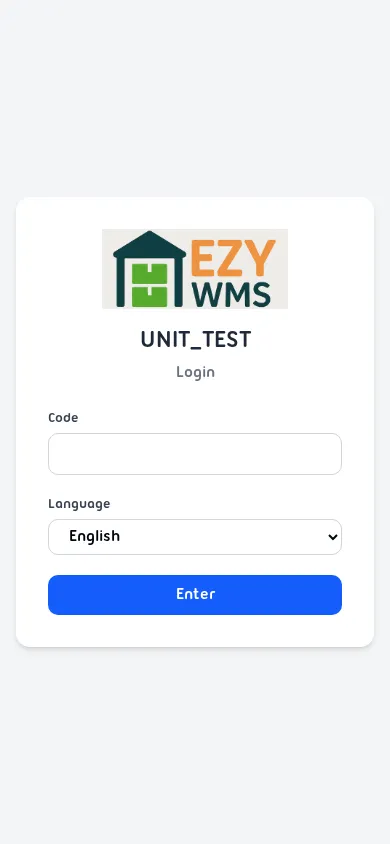
Login Fields
Section titled “Login Fields”| Field | Description |
|---|---|
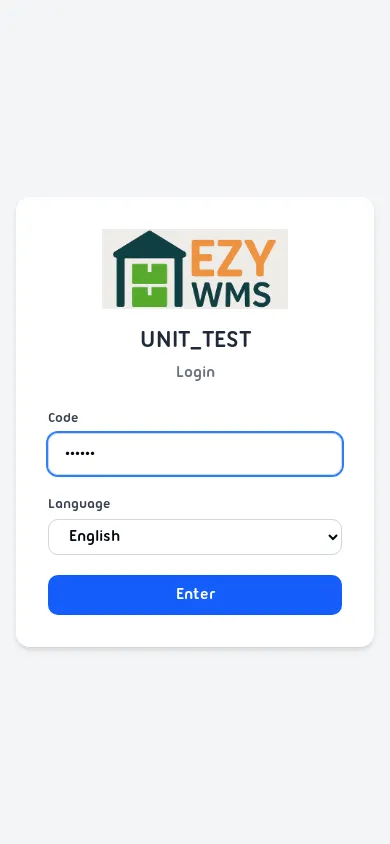
| Code | Your personal access code (assigned by your administrator) |
| Language | Interface language — English or Español |
| Warehouse | Shown only when your account has access to multiple warehouses |
| Device Name | Shown only on first use from a new device |
Logging In
Section titled “Logging In”- Enter your Code.
- Select your preferred Language.
- If prompted, select your Warehouse.
- If this is a new device, enter a Device Name (see below).
- Tap Enter.
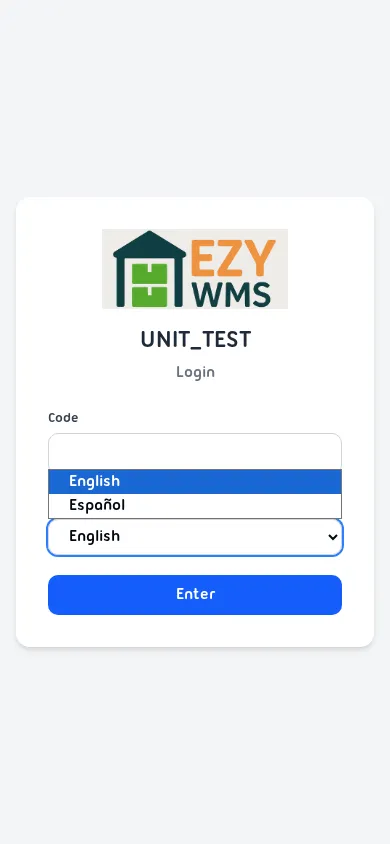
Language Selection
Section titled “Language Selection”Tap the Language dropdown to switch between English and Español before logging in. The interface language updates immediately.
First-Time Device Setup
Section titled “First-Time Device Setup”EZY WMS uses per-device licensing. The first time you log in from a new phone, tablet, or browser, the system detects an unregistered device and asks you to name it before granting access.
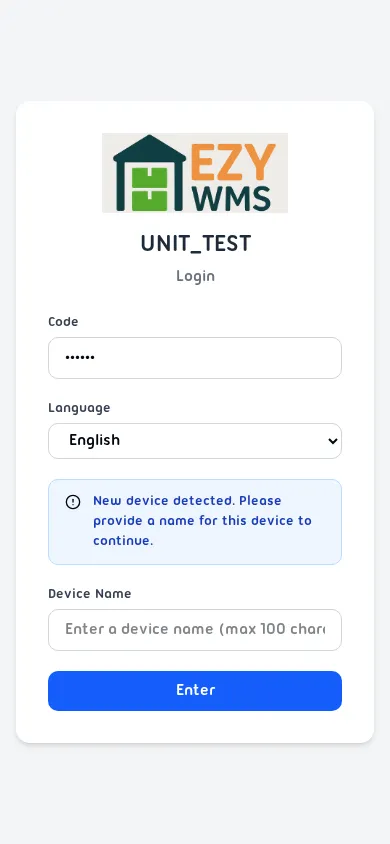
- Enter a descriptive name (e.g.
Warehouse A — Scanner 3). - Tap Enter.
The device is registered and your session starts. An administrator can manage registered devices under Settings → Devices.
Session Management
Section titled “Session Management”- Sessions expire automatically after a period of inactivity (configurable by your administrator).
- When a session expires you are redirected back to the login page.
- To end your session manually, use the logout option from the sidebar menu.
Connection Errors
Section titled “Connection Errors”If the device cannot reach the WMS server, a connection error overlay appears with a Retry button. Verify that your device is on the correct network and tap Retry.
Account Status Warnings
Section titled “Account Status Warnings”Depending on the license state, a status banner may appear below the login form:
| Banner | Meaning |
|---|---|
| Payment Due | Subscription payment is overdue |
| Demo | Running on a time-limited demo license |
| Demo Expired | Demo period has ended — contact support |
| Disabled | Account has been disabled by an administrator |