Dashboard
The Dashboard is the main landing page after login. It provides an overview of active modules and operations available to the logged-in user based on their authorization group.
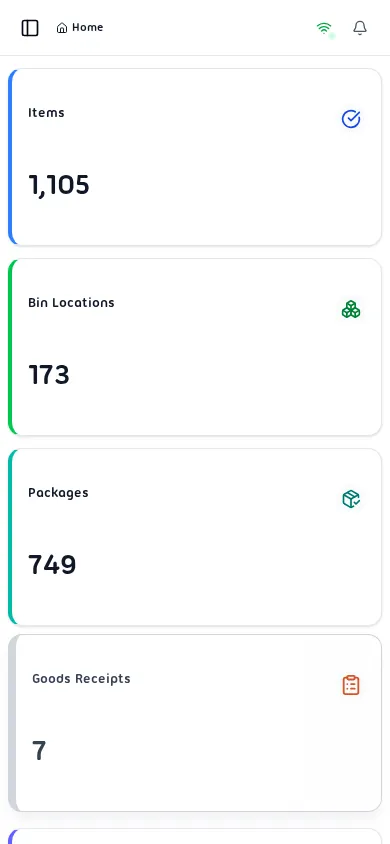
Dashboard Overview
Section titled “Dashboard Overview”The dashboard displays:
- Active Modules — cards for each module the user is authorized to access.
- Notifications — system alerts and messages.
- Network Status — online/offline indicator and connection quality.
Active Modules
Section titled “Active Modules”Depending on the user’s role, the following modules may appear:
| Module | Description |
|---|---|
| Goods Receipt | Receive incoming merchandise |
| Receipt Confirmation | Confirm received goods |
| Picking | Prepare orders for dispatch |
| Counting | Physical inventory counts |
| Transfer | Move inventory between locations |
| Transfer Confirmation | Confirm transfers |
| Direct Transfer | Quick item transfers |
| Item Check | Query item stock information |
| Bin Check | Query bin location contents |
| Package Check | Query package contents |
| Settings | System administration |
Navigation
Section titled “Navigation”Click any module card to navigate to that module. The sidebar or top navigation shows available sub-pages based on the current module.
Network Quality Indicator
Section titled “Network Quality Indicator”The dashboard shows real-time network status:
| Status | Description |
|---|---|
| Excellent Connection | Strong and stable connection |
| Good Connection | Stable connection |
| Poor Connection | Intermittent connectivity |
| Offline | No internet connection |
Notifications
Section titled “Notifications”The notification panel shows:
- Pending approvals
- System alerts
- Sync status messages
- Error notifications
Click the notification bell to view all messages. Click Mark all as read to clear notifications.