External Alerts
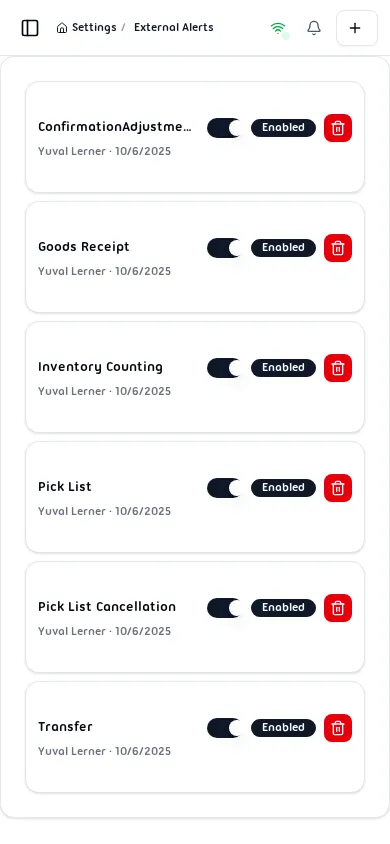
The External Alerts page lets administrators set up event-driven notifications that are pushed to users in external systems (such as SAP Business One) whenever specific WMS document types are processed.
Navigation
Section titled “Navigation”Settings → External Alerts (/settings/externalAlerts)
This page is restricted to super users.
Alert List
Section titled “Alert List”Each configured alert appears as a row in the table with the following columns:
| Column | Description |
|---|---|
| Object Type | The WMS document type that triggers the alert |
| External User | The external system user who receives the notification |
| Status | Enabled / Disabled toggle — can be changed inline |
| Created At | Date the alert was created |
| Actions | Delete button to remove the alert |
When no alerts have been configured yet, the table shows No external alerts found.
Supported Object Types
Section titled “Supported Object Types”Alerts can be configured for the following WMS document types:
| Object Type | Description |
|---|---|
| Transfer | Stock transfer operations between locations |
| Goods Receipt | Incoming goods receipt documents |
| Inventory Counting | Cycle count and inventory counting sessions |
| Pick List | Picking operations |
| Confirmation Adjustments | Quantity adjustments during receipt confirmation |
| Pick List Cancellation | Cancellation of an active pick list |
Adding an External Alert
Section titled “Adding an External Alert”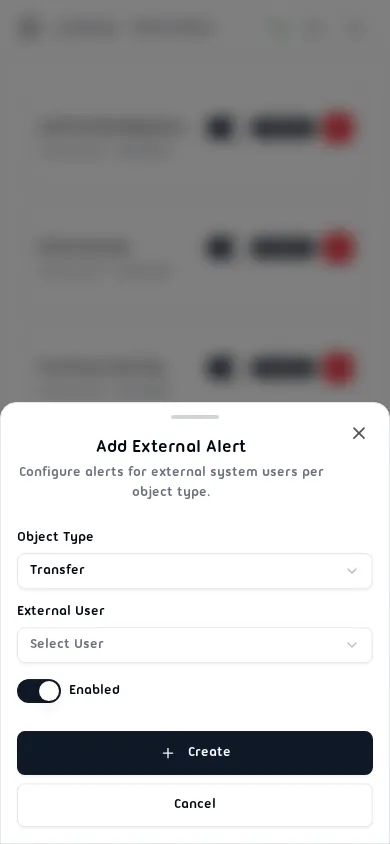
- Tap the + button in the top-right corner.
- Select an Object Type from the dropdown (defaults to Transfer).
- Select the External User who should receive the notification.
- Toggle Enabled on or off (defaults to on).
- Tap Create to save.
Duplicate check: the system prevents creating two alerts with the same Object Type + External User combination. If a duplicate is detected, an error message is shown and the alert is not saved.
Enabling or Disabling an Alert
Section titled “Enabling or Disabling an Alert”Use the toggle switch in the Status column to enable or disable an alert without deleting it. The badge next to the switch updates immediately to reflect the new state.
Deleting an Alert
Section titled “Deleting an Alert”- Tap Delete on the row you want to remove.
- Confirm the deletion in the dialog that appears.
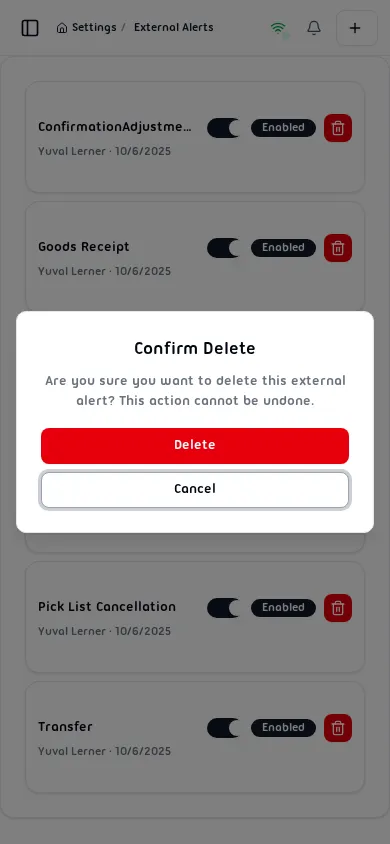
The action is permanent and cannot be undone.
Validation Rules
Section titled “Validation Rules”| Field | Rule |
|---|---|
| Object Type | Required; selected from a fixed list |
| External User | Required; must be selected from available external system users |
| Uniqueness | Object Type + External User combination must be unique |