Group Detail
View and manage a single business partner group including its members and properties.
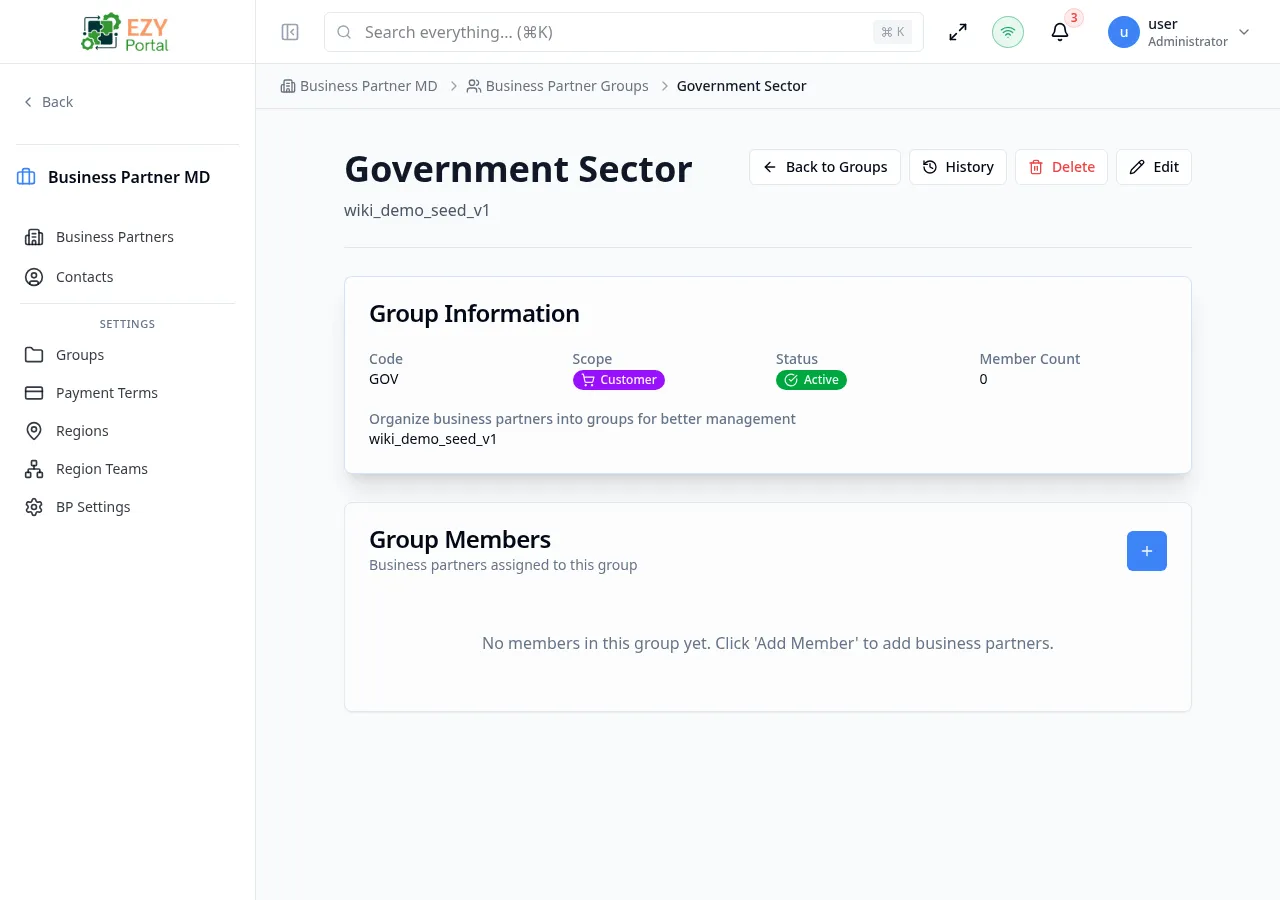
Accessing the Page
Section titled “Accessing the Page”Navigate to Business Partners → Groups and click any group row, or go directly to /business-partners/groups/:id.
Group Information Card
Section titled “Group Information Card”Displays the group’s core properties:
| Field | Description |
|---|---|
| Code | The unique group code |
| Scope | Scope badge — Customer (purple), Vendor (cyan), Lead (amber), or Any (indigo) |
| Status | Active or Inactive badge |
| Member Count | Number of business partners in the group |
| Description | Group description (shown if set) |
Action Buttons
Section titled “Action Buttons”| Button | Description |
|---|---|
| Back to Groups | Return to the groups list |
| Edit | Open the edit dialog to modify name, scope, description, or active status |
| Delete | Delete the group and all member associations (requires Admin permission) |
Editing a Group
Section titled “Editing a Group”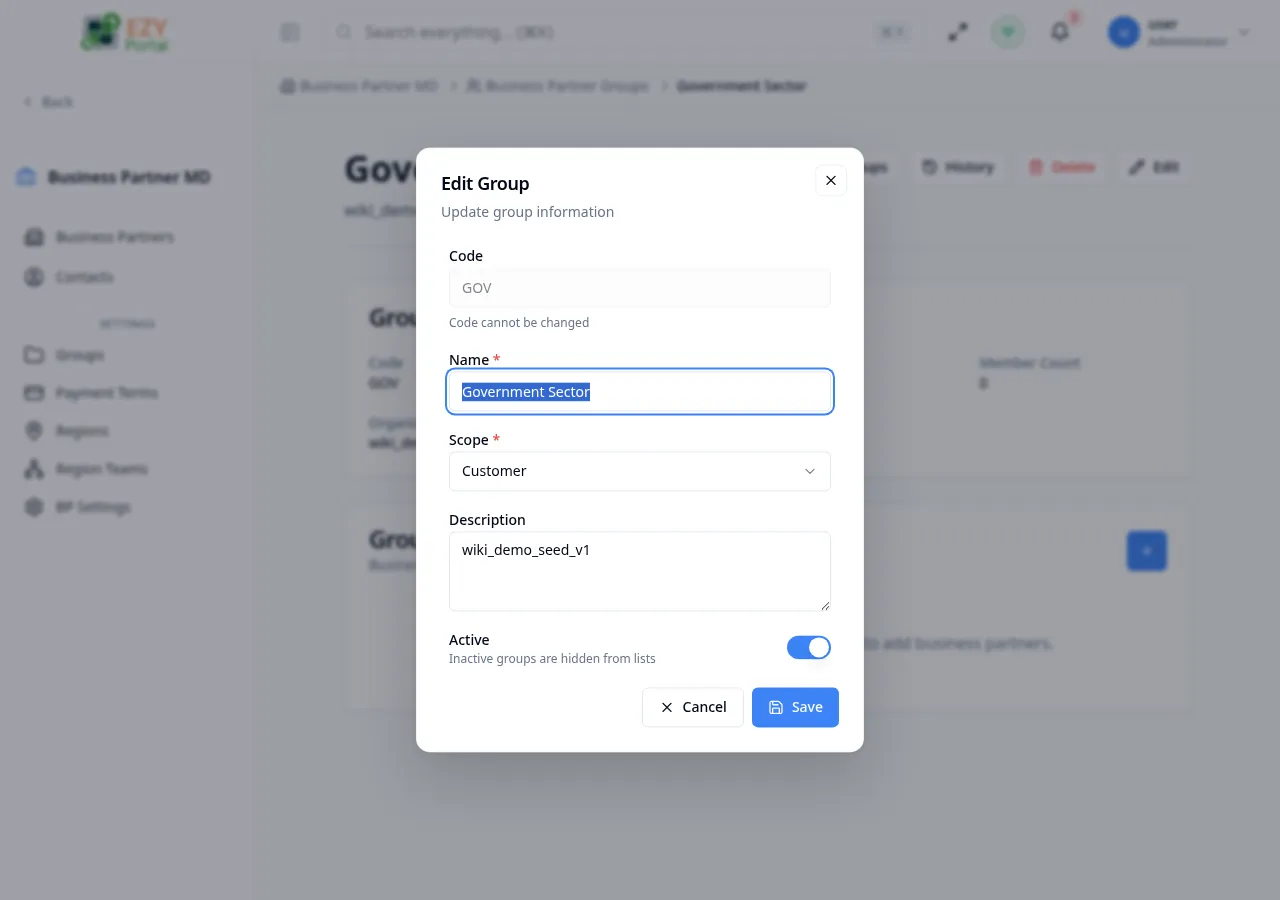
| Field | Editable | Notes |
|---|---|---|
| Code | No | Read-only after creation |
| Name | Yes | Max 200 characters |
| Scope | Conditional | Locked when group has members — remove all members first |
| Description | Yes | Optional |
| Active | Yes | Toggle to hide/show the group in lists |
When the scope is locked, an amber warning explains that members must be removed before changing the scope.
Group Members
Section titled “Group Members”The Members card shows all business partners assigned to the group.
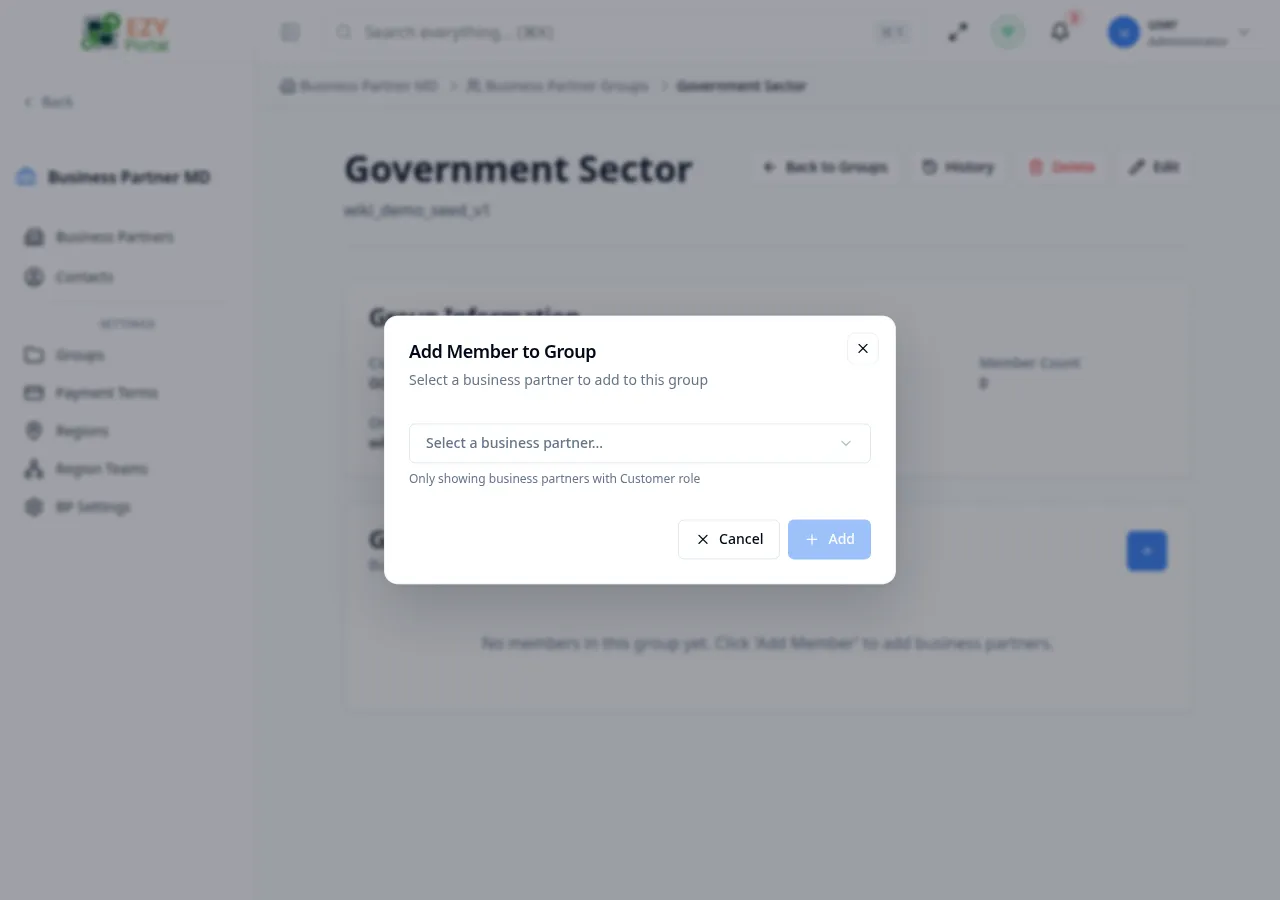
Each member displays:
- Name and Code of the business partner
- Role badges — Customer, Vendor, or Lead (based on partner roles)
- Status badge — Active or Inactive
- Remove button — Remove the member from the group
When no members exist, the card shows: “No members in this group yet. Click ‘Add Member’ to add business partners.”
Adding a Member
Section titled “Adding a Member”- Click the + button in the Members card header
- The Add Member dialog opens with a business partner dropdown
- Select a business partner from the dropdown
- Click Add to confirm
The dropdown automatically filters by the group’s scope — a Customer scope group only shows customer-type partners. Partners already in the group are excluded from the list.
Removing a Member
Section titled “Removing a Member”- Click the trash icon on the member row
- A confirmation dialog asks: “Are you sure you want to remove “{name}” from the group “{group}”?”
- Click Remove to confirm
Deleting a Group
Section titled “Deleting a Group”- Click the Delete button in the action bar
- A confirmation dialog warns that all member associations will be removed
- Click Delete to confirm — you will be redirected back to the groups list
Related Pages
Section titled “Related Pages”- Groups — Browse and manage all groups
- Business Partners — Main business partners listing
- Teams — Manage teams with region assignments