Create Return Delivery
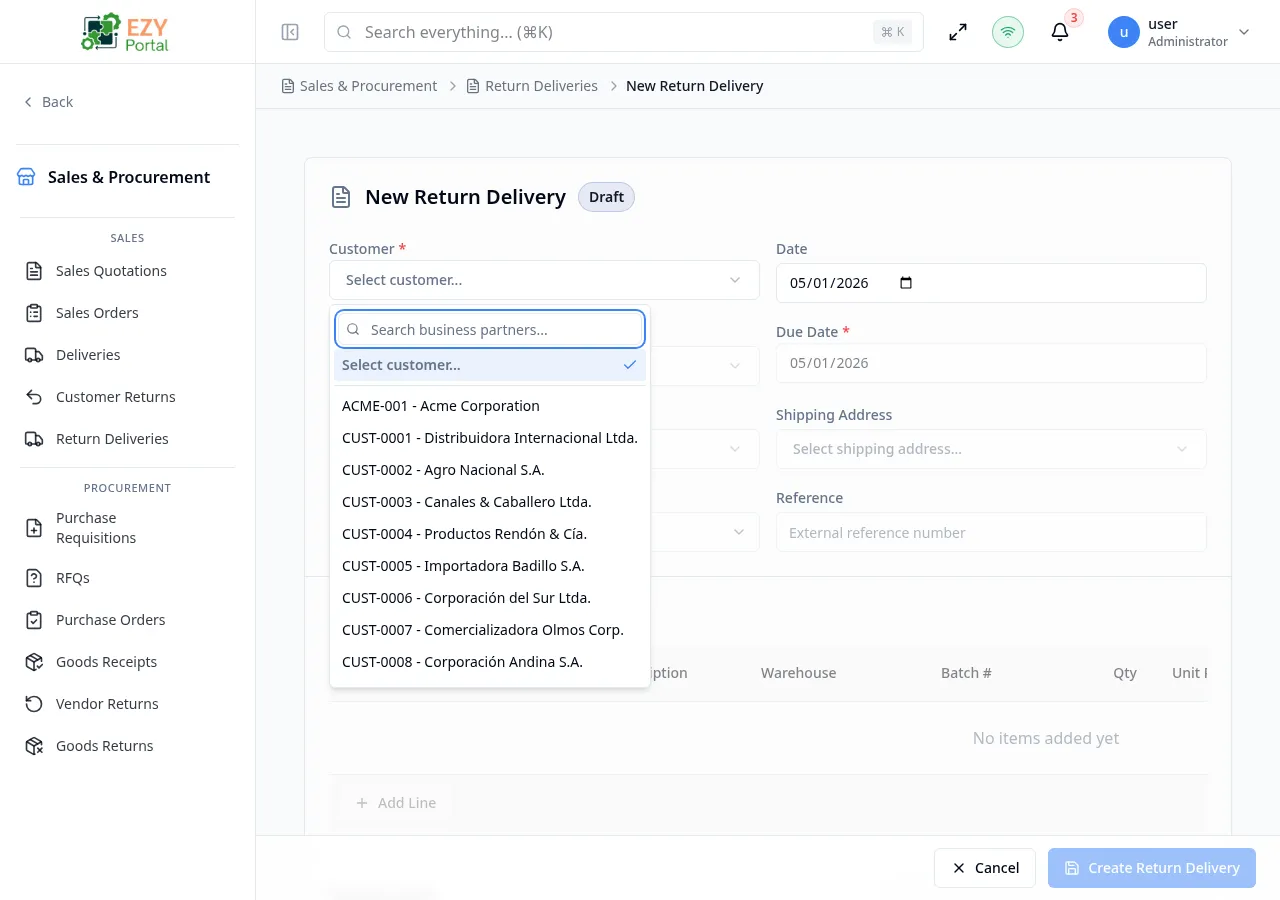
Create a new return delivery to record the physical receipt of goods being returned by a customer. Return deliveries can be created manually or generated from a confirmed Customer Return using the Create Return Delivery action, which copies the returnable lines. Confirming a return delivery commits the inventory movement back into the warehouse.
Accessing the Page
Section titled “Accessing the Page”From the Return Deliveries list, click New Return Delivery, or navigate directly to /commerce/sales/return-deliveries/new.
To create a return delivery from a Customer Return, open the confirmed return’s detail page and click Create Return Delivery.
To create a return delivery directly from a Delivery, open the confirmed delivery’s detail page and click Create Return Delivery (where available).
Form Overview
Section titled “Form Overview”| Section | Description |
|---|---|
| Document Header | Customer, dates, addresses, and reference fields |
| Line Items | Editable table of items being received back, with batch numbers |
A footer bar contains the Create Return Delivery and Cancel buttons.
Document Header Fields
Section titled “Document Header Fields”| Field | Required | Type | Description | Default | Validation |
|---|---|---|---|---|---|
| Customer | Yes | Entity select | Business partner returning goods | — | Must select a customer; partner on hold blocks submission |
| Date | Yes | Date | Document date | Today | — |
| Currency | Yes | Select | Document currency | Company default | — |
| Payment Terms | Yes | Entity select | Payment terms | Customer default | — |
| Price List | Yes | Entity select | Price list | Customer default | — |
| Contact | No | Entity select | Customer contact person | Customer primary contact | — |
| Billing Address | No | Entity select | Billing address | Customer default | — |
| Shipping Address | No | Entity select | Shipping address | Customer default | — |
| Sales Person | No | User select | Sales person | — | — |
| Reference | No | Text | External reference number | — | — |
| Remarks | No | Textarea | Additional remarks | — | — |
| Disc % | No | Number | Document-level discount percentage | 0 | 0–100 |
Line Items
Section titled “Line Items”| Column | Required | Description | Validation |
|---|---|---|---|
| Item | Yes | Item code | Must select an item |
| Description | No | Line description | — |
| Qty | Yes | Quantity being received back | Must be greater than 0 |
| UoM | No | Unit of measure | — |
| Warehouse | Yes | Destination warehouse for received goods | Must select a warehouse |
| Batch # | No | Batch number for batch-tracked items | — |
| Unit Price | Yes | Credit price per unit | — |
| Disc % | No | Line discount | 0–100 |
| Tax Category | Yes | Tax category | Must select a tax category |
| Tax Amount | — | Computed tax | Read-only |
| Price After Disc. | — | Price after discount | Read-only |
| Line Total | — | Computed total | Read-only |
Validation Rules
Section titled “Validation Rules”| Rule | Behavior |
|---|---|
| Customer required | Submission blocked until a customer is selected |
| Payment Terms required | Submission blocked until payment terms are selected |
| Price List required | Submission blocked until a price list is selected |
| At least one line | Submission blocked if no line items exist |
| Quantity positive | Each line must have a quantity greater than 0 |
| Warehouse required per line | Each line must have a warehouse selected |
| Tax category required per line | Each line must have a tax category selected |
| Partner on hold | Submission blocked if the selected customer is on hold |
Post-save Behavior
Section titled “Post-save Behavior”After the return delivery is created:
- The document is saved with status Draft.
- You are redirected to the Return Delivery Detail page.
- A success notification confirms creation.
Common tasks
Section titled “Common tasks”- From a confirmed Customer Return, click Create Return Delivery.
- Review the pre-populated lines and quantities.
- Add batch numbers if applicable.
- Click Create Return Delivery to save the draft.
Permissions & system behavior
Section titled “Permissions & system behavior”- Creating return deliveries requires Write permission.
- When creating from a Customer Return, quantities are capped at the unfulfilled return quantities.
Related Pages
Section titled “Related Pages”- Return Deliveries — List all return deliveries
- Return Delivery Detail — View and confirm a return delivery
- Edit Return Delivery — Edit a draft return delivery
- Customer Returns — Source returns