Create Customer Return
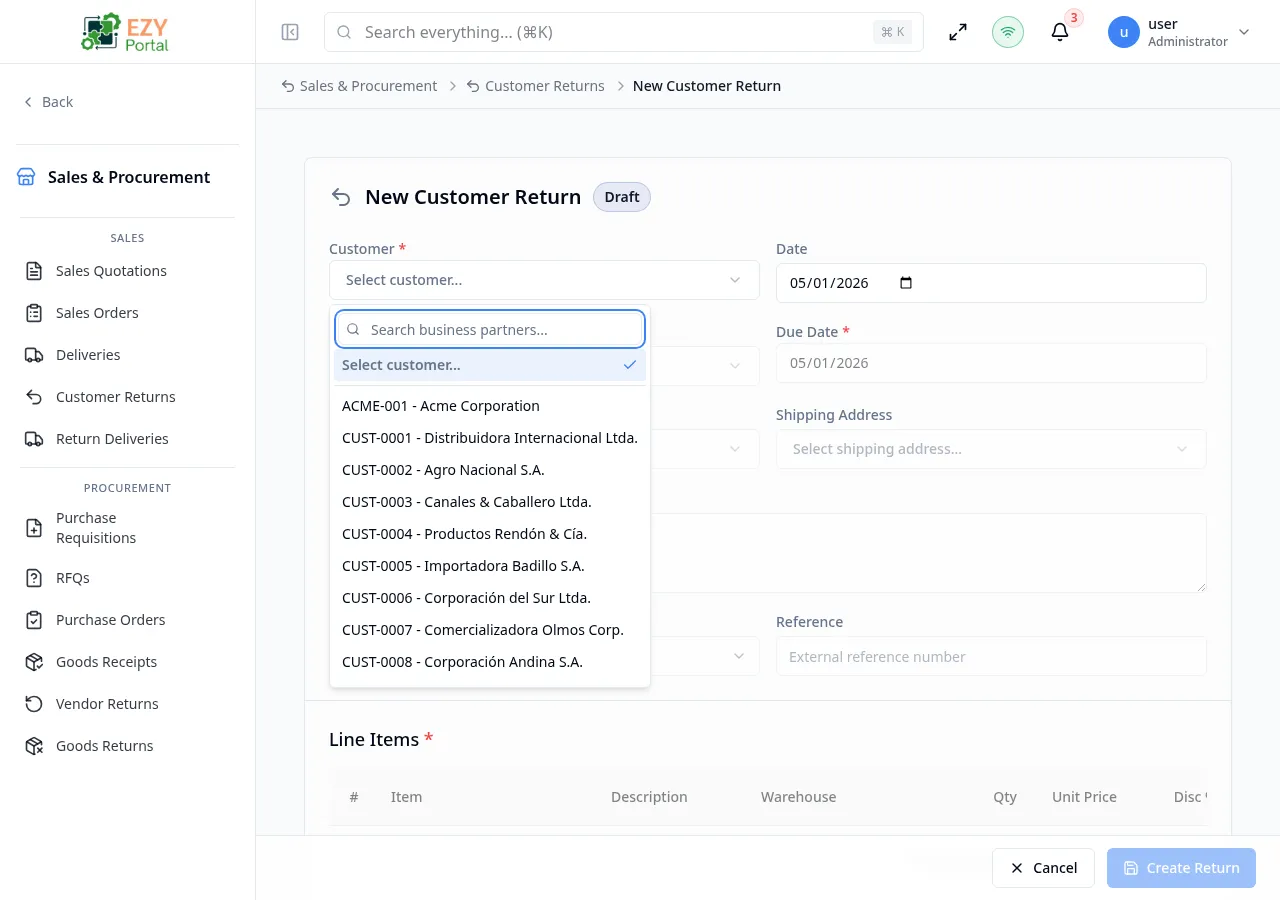
Create a new customer return to record goods being sent back by a customer. Returns can be created manually or generated from a confirmed delivery using the New from Delivery action, which copies returnable lines. All returns start in Draft status.
Accessing the Page
Section titled “Accessing the Page”From the Customer Returns list, click New Return, or navigate directly to /commerce/sales/customer-returns/new.
To create a return from a confirmed delivery, open the delivery’s detail page and click Create Return in the action bar.
Form Overview
Section titled “Form Overview”| Section | Description |
|---|---|
| Document Header | Customer, dates, return reason, addresses, and reference fields |
| Line Items | Editable table of items being returned |
A footer bar contains the Create Return and Cancel buttons.
Document Header Fields
Section titled “Document Header Fields”| Field | Required | Type | Description | Default | Validation |
|---|---|---|---|---|---|
| Customer | Yes | Entity select | Business partner returning goods | — | Must select a customer; partner on hold blocks submission |
| Date | Yes | Date | Document date | Today | — |
| Currency | Yes | Select | Document currency | Company default | — |
| Payment Terms | Yes | Entity select | Payment terms | Customer default | — |
| Price List | Yes | Entity select | Price list applied to the document | Customer default | — |
| Contact | No | Entity select | Customer contact person | Customer primary contact | — |
| Billing Address | No | Entity select | Billing address | Customer default | — |
| Shipping Address | No | Entity select | Shipping address | Customer default | — |
| Sales Person | No | User select | Sales person | — | — |
| Return Reason | No | Textarea | Explanation of why goods are being returned | — | — |
| Reference | No | Text | External reference number | — | — |
| Remarks | No | Textarea | Additional remarks | — | — |
| Disc % | No | Number | Document-level discount percentage | 0 | 0–100 |
Line Items
Section titled “Line Items”| Column | Required | Description | Validation |
|---|---|---|---|
| Item | Yes | Item code | Must select an item |
| Description | No | Line description | — |
| Warehouse | Yes | Destination warehouse for returned goods | Must select a warehouse |
| Qty | Yes | Quantity being returned | Must be greater than 0 |
| Unit Price | Yes | Price per unit (credit value) | — |
| Disc % | No | Line discount percentage | 0–100 |
| Tax Category | Yes | Tax category | Must select a tax category |
| Tax Amount | — | Computed tax | Read-only |
| Price After Disc. | — | Unit price after discount | Read-only |
| Line Total | — | Computed total | Read-only |
When creating from a delivery, quantities are pre-populated from the delivery lines and capped at the originally delivered quantity.
Validation Rules
Section titled “Validation Rules”| Rule | Behavior |
|---|---|
| Customer required | Submission blocked until a customer is selected |
| Payment Terms required | Submission blocked until payment terms are selected |
| Price List required | Submission blocked until a price list is selected |
| At least one line | Submission blocked if no line items exist |
| Quantity positive | Each line must have a quantity greater than 0 |
| Warehouse required per line | Each line must have a warehouse selected |
| Tax category required per line | Each line must have a tax category selected |
| Partner on hold | Submission blocked if the selected customer is on hold |
Post-save Behavior
Section titled “Post-save Behavior”After the return is created:
- The return is saved with status Draft.
- You are redirected to the Customer Return Detail page.
- A success notification confirms creation.
Common tasks
Section titled “Common tasks”- Click New Return from the Customer Returns list.
- Select the Customer and add a Return Reason.
- Add line items.
- Click Create Return to save the draft.
Permissions & system behavior
Section titled “Permissions & system behavior”- Creating returns requires Write permission on the Customer Returns module.
- When creating from a delivery, only lines that have not been fully returned are shown.
Related Pages
Section titled “Related Pages”- Customer Returns — List all customer returns
- Customer Return Detail — View and confirm a return
- Edit Customer Return — Edit a draft return
- Deliveries — Source deliveries for returns