Create Item
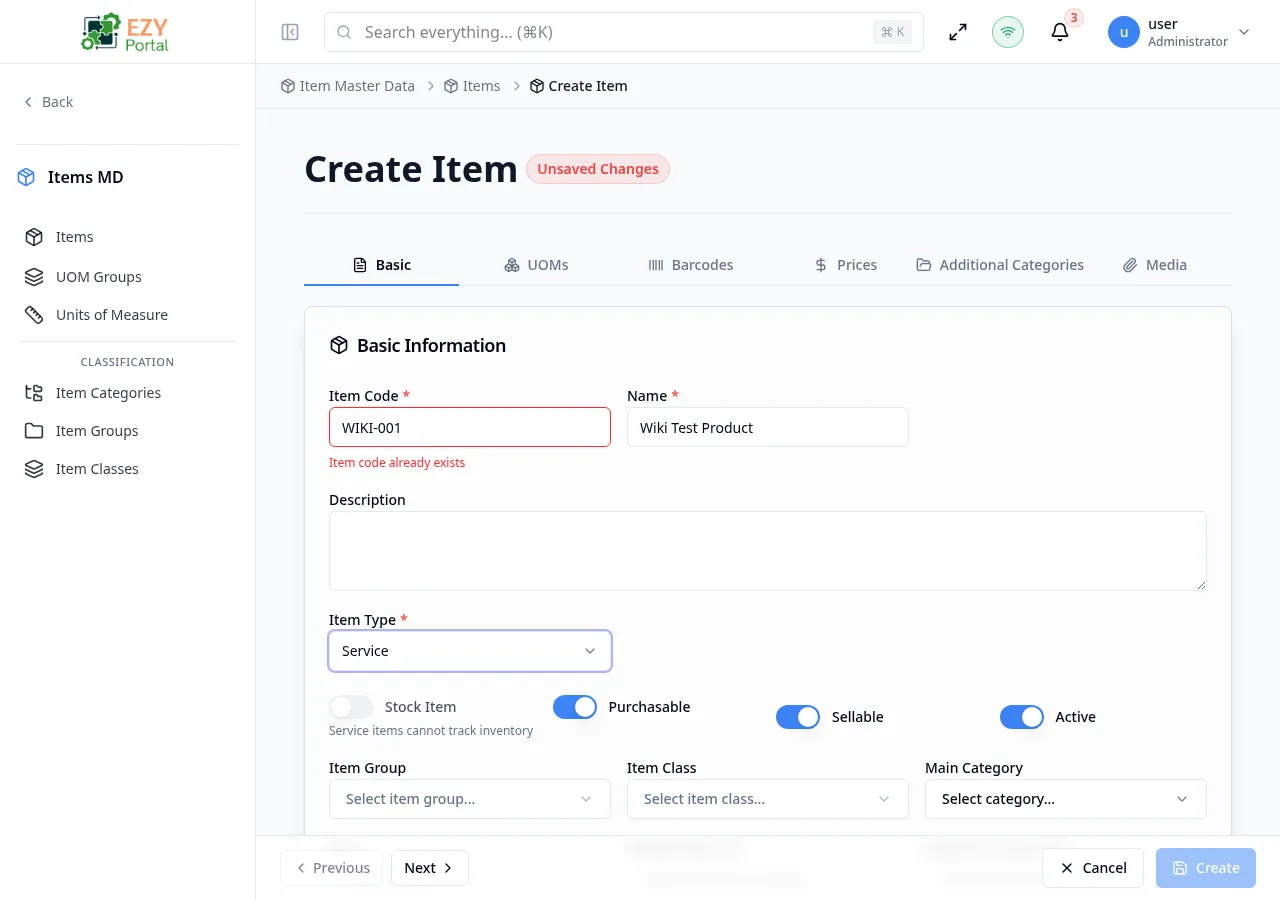
The Create Item page provides a tabbed form interface for adding new items to your catalog. After entering basic information, you can optionally configure UOMs, barcodes, prices, categories, and media on subsequent tabs.
Accessing the Page
Section titled “Accessing the Page”-
Route:
/items/create -
Menu Path: Item Master Data → Items → Create Item button
-
Style prefill route:
/items/create?itemType=style -
Permission: Create Item
Form Overview
Section titled “Form Overview”The form uses a tabbed layout with forward/back navigation:
When opened from the Styles page or the backend menu add route /items/create?itemType=style, the Item Type field is preselected as Style.
| Tab | Description | Required Before Save |
|---|---|---|
| Basic | Core item fields and classification | Yes |
| UOMs | Additional units of measure | No |
| Barcodes | Barcode assignments | No |
| Prices | Price matrix entries by price list and UOM | No |
| Categories | Additional category mappings | No |
| Media | Images and attachments | No |
Tab — Basic
Section titled “Tab — Basic”Core Fields
Section titled “Core Fields”| Field | Required | Type | Description | Default | Validation |
|---|---|---|---|---|---|
| Item Code | Yes | Text | Unique identifier for the item | — | Alphanumeric + spaces, underscores, hyphens. Real-time uniqueness check with debounce |
| Name | Yes | Text | Display name | — | Required |
| Description | No | Textarea | Detailed description | — | — |
| Item Type | Yes | Select | Stock, Non-Stock, Service, Bundle, Virtual | Stock | Determines which fields are locked |
| Base UOM | Conditional | Entity Select | Base unit of measure (auto-populated from tenant default) | Tenant default UOM | Required for Stock items |
| Item Group | No | Entity Select | Item group classification | — | — |
| Item Class | No | Entity Select | Item class classification | — | — |
| Main Category | No | Entity Select | Primary category | — | — |
| SKU | No | Text | Stock Keeping Unit | — | Real-time uniqueness check with debounce |
Toggle Fields
Section titled “Toggle Fields”| Field | Type | Description | Default |
|---|---|---|---|
| Stock Item | Switch | Track inventory for this item | true for Stock type, locked for others |
| Purchasable | Switch | Can be purchased | true (locked off for Bundle) |
| Sellable | Switch | Can be sold | true |
| Active | Switch | Item is active | true |
Tax Fields (Conditional)
Section titled “Tax Fields (Conditional)”| Field | Condition | Type | Description | Default |
|---|---|---|---|---|
| Default Sales Tax | Sellable = true | Tax Category Select | Default tax for sales | Auto-populated from tenant config |
| Default Purchase Tax | Purchasable = true | Tax Category Select | Default tax for purchases | Auto-populated from tenant config |
Type a tag and press Enter to add. Tags appear as removable badges.
Tab — UOMs
Section titled “Tab — UOMs”Add additional units of measure beyond the base UOM. Each UOM entry has:
| Field | Required | Type | Description |
|---|---|---|---|
| UOM Code | Yes | Entity Select | Select from available UOMs |
| Factor | Yes | Number | Conversion factor relative to base UOM |
| Default Sales | No | Checkbox | Use as default for sales |
| Default Purchase | No | Checkbox | Use as default for purchases |
A Factor Calculator helper is available to compute conversion factors.
Tab — Barcodes
Section titled “Tab — Barcodes”Assign barcodes to the item. Each barcode entry has:
| Field | Required | Type | Description |
|---|---|---|---|
| Barcode | Yes | Text | The barcode value |
| UOM | Yes | Select | Which UOM this barcode applies to |
| Primary | No | Checkbox | Mark as the primary barcode |
At least one UOM must be added before barcodes can be assigned.
Tab — Prices
Section titled “Tab — Prices”Set prices across price lists and UOMs. The current Prices tab uses a matrix layout:
| Matrix Area | Description |
|---|---|
| Rows | Price lists, shown as a tree when derived price lists inherit from a base list |
| Columns | Base UOM plus alternate UOMs configured on the UOMs tab |
| Cells | Price values for a price list and UOM combination |
| Search | Filters visible price-list rows |
| Columns menu | Hides or shows UOM columns |
| Add price list | Adds another price-list row to the matrix |
Cell states include manual prices, auto-derived prices, manual overrides, cross-UOM suggestions, and locked cells for price lists the user cannot view. Derived prices update when the base price changes. Override cells can be reset to the formula value. Zero prices are allowed but highlighted because they can cascade to derived prices.
Tab — Categories
Section titled “Tab — Categories”Select additional categories to map the item to. Category mappings can also be added after creation from the edit page.
Tab — Media
Section titled “Tab — Media”Upload images (up to 20) and attachments (up to 10). You can mark one image as the primary image.
Type Constraints
Section titled “Type Constraints”| Item Type | Stock Item | Base UOM | Purchasable |
|---|---|---|---|
| Stock | Locked ON | Required | Editable |
| Non-Stock | Locked OFF | Optional | Editable |
| Service | Locked OFF | Optional | Editable |
| Bundle | Locked OFF | Optional | Locked OFF |
| Virtual | Locked OFF | Optional | Editable |
Validation Rules
Section titled “Validation Rules”- Item Code: Required, unique across all items, format: letters, numbers, spaces,
_,- - Name: Required
- Item Type: Required
- Base UOM: Required for Stock items
- Service items cannot be stock items
- SKU: Must be unique if provided
- Barcodes: Must be unique across all items
- Prices: No duplicate entries for the same Price List + UOM combination. Derived-list overrides are saved as manual overrides.
Save and Processing Behavior
Section titled “Save and Processing Behavior”- Item, UOM, barcode, and category data are saved together so related setup remains consistent.
- Optional price entries may be processed after the main item save; if price processing has issues, you can still get partial success and retry prices.
- When price save returns partial success, the page opens the edit workflow on the Prices tab so failed price entries can be corrected and retried without recreating the item.
- Custom field values (when configured) are validated during save.
Messages
Section titled “Messages”| Event | Message |
|---|---|
| Create success | Item created successfully |
| Create error | Failed to create item |
| After creation | After creating the item, you can add UOMs and Barcodes on the edit page. |